Manage Multiple VPS for Devs: 4 Daily Tasks and a One Day Runbook

Manage Multiple VPS for Devs: 4 Daily Tasks and a One Day Runbook
There are three practical ways to manage multiple VPS: terminal-first SSH workflows, a centralized control panel, or automation and configuration management. Pick SSH if you run a handful of boxes solo, a control panel if your team needs a shared dashboard, and automation once you’re patching a fleet you can’t touch by hand anymore. The rest comes down to combining all three well.
TL;DR:
- Automated configuration management tools like Ansible are essential once managing more than fifteen servers to ensure efficient and reliable updates.
- Using dynamic inventory systems that pull data from cloud providers reduces manual editing and improves scalability when provisioning new servers.
- Outbound-only agent architectures minimize security risks by avoiding inbound management ports, making them preferable for extensive server fleets.
- Regularly testing backups through actual restores can prevent false confidence in recovery plans and avoid critical data loss during incidents.
- Speedy server provisioning and consistent baseline images support rapid deployment, scaling, and minimizing infrastructure delays for growing teams.
Table of Contents
- What’s the Best Way to Manage Multiple VPS?
- Terminal Workflows That Actually Speed You Up
- Automation and Configuration Management at Scale
- Monitoring, Backups, and Security Across a Fleet
- How AceRDP Fits Into a Multi-Server Workflow
- A Recommended One-Day Runbook
- Ready to Scale Without the Provisioning Delay?
- Sources
- FAQ
What’s the Best Way to Manage Multiple VPS?
Every serious approach to running several servers falls into one of three buckets: agentless SSH, an agent-based panel, or a hosted control plane. Each solves a different problem, and most experienced teams end up using two of the three at once rather than picking one and walking away.
Agentless SSH means exactly what it sounds like. You connect directly, run commands, and leave. No software sits on the server waiting to phone home. It’s the fastest option to set up and the hardest to lose control of, but it also doesn’t scale past a few dozen hosts before your terminal history becomes a liability.
Agent-based panels install a small process on each VPS that reports back to a central dashboard. The security trade-off matters here: instead of opening inbound ports on every server for a management tool to reach in, a well-built agent dials out over HTTPS and never accepts an inbound connection at all. MZPanel’s architecture is a good example of this outbound-only model, which shrinks your attack surface without sacrificing the “see everything in one place” convenience.
Hosted control planes go a step further, running the dashboard itself somewhere off your servers, so you’re not maintaining a management server on top of everything else. Cockpit sits in an interesting middle ground: it’s a lightweight, self-hosted web UI for services, logs, storage, and accounts that works well for small to mid-sized Linux fleets without needing a separate platform.
What should you expect from a modern panel? At minimum:
- A live dashboard showing CPU, memory, and disk across every connected host
- Batch command execution across selected servers or tags
- Centralized log viewing without SSHing into each box individually
- Container and app management for teams running Docker workloads
- Increasingly, AI-assisted diagnostics that flag anomalies before you notice them yourself
Some platforms, like 1Panel, bundle batch commands with app store style deployments and metrics in a single interface, which shows how far this category has moved past simple server monitoring. Choosing between open source and paid tiers usually comes down to how much support and white labeling matters to you. CloudPanel’s comparison of VPS management tools notes that agencies scaling infrastructure without proportional headcount growth lean toward managed platforms precisely because the support and billing integration save more time than the software cost.
Terminal Workflows That Actually Speed You Up
Before you touch a dashboard, get your SSH configuration right. A clean ~/.ssh/config turns “type the full command every time” into a one-word alias, and it’s the single highest-leverage five minutes you’ll spend this month.
- Set up host aliases. Add a block per server:
Host web1, thenHostName,User, andIdentityFilepointing to the right key. Typingssh web1beats memorizing IP addresses across 20 machines. - Turn on connection multiplexing. Add
ControlMaster auto,ControlPath ~/.ssh/sockets/%r@%h:%p, andControlPersist 600to reuse an existing connection instead of renegotiating SSH every time. Reconnecting to a server you just left drops from a couple of seconds to nearly instant. - Run long jobs inside tmux, not your local terminal. A dropped Wi-Fi connection shouldn’t kill a two-hour migration script. Attach, detach, reattach from a different machine, and the session survives.
- Handle parallel work carefully. Use
rsyncfor file sync across hosts and tools like GNU Parallel orpsshfor running the same read-only command across a group. For anything destructive, run it on one host first, watch the output, then roll out to the rest.
Terminal-first tooling still earns its place even after you adopt a dashboard. Tools like Vortex exist specifically because agentless SSH remains the fastest way to inspect running processes, tail Docker logs, or stream output during a live incident, no web server required.
Automation and Configuration Management at Scale
Manual changes stop working somewhere between five and fifteen servers, depending on how disciplined you are. That’s the point where configuration management tools like Ansible, Chef, or Puppet earn their keep, and Ansible in particular has become the default choice for teams that don’t want to run an agent on every node.
Start with your inventory. A static inventory file works fine for a stable set of five servers. Past that, a dynamic inventory that pulls host data from your cloud provider’s API and tags machines by role, region, and environment saves you from editing a text file every time you provision something new.
From there, Ansible playbook structure follows a familiar pattern:
- Roles group related tasks (web server setup, database tuning) so you’re not repeating YAML across playbooks
- Handlers restart services only when a configuration file actually changes, not on every run
- Rolling updates with
seriallimits deploy to a few servers at a time instead of taking your whole fleet down at once delegate_toruns a task on a central host, like registering a new node with a load balancer, from within a playbook targeting the fleet
Wire this into CI/CD by running a lint pass (ansible-lint) and a dry run (--check) on every pull request, then gating the real deploy behind a manual approval or a canary rollout to one server before hitting the rest.
Pro Tip: Don’t jump straight to containerizing everything just because Kubernetes is the trendy answer. If your workloads are stable VMs running one or two services each, traditional configuration management with immutable base images gets you most of the reliability benefit without the operational overhead of running a cluster.
One caution worth building into any automated pipeline: AI-assisted tools can now read logs and suggest fixes for common failures, but they should sit inside an approval loop rather than push changes unsupervised. The guide to AI agents in DevOps automation makes the same point. Faster triage is a real win. Autonomous remediation on production infrastructure is not something to hand off without a human checking the work first.

Monitoring, Backups, and Security Across a Fleet
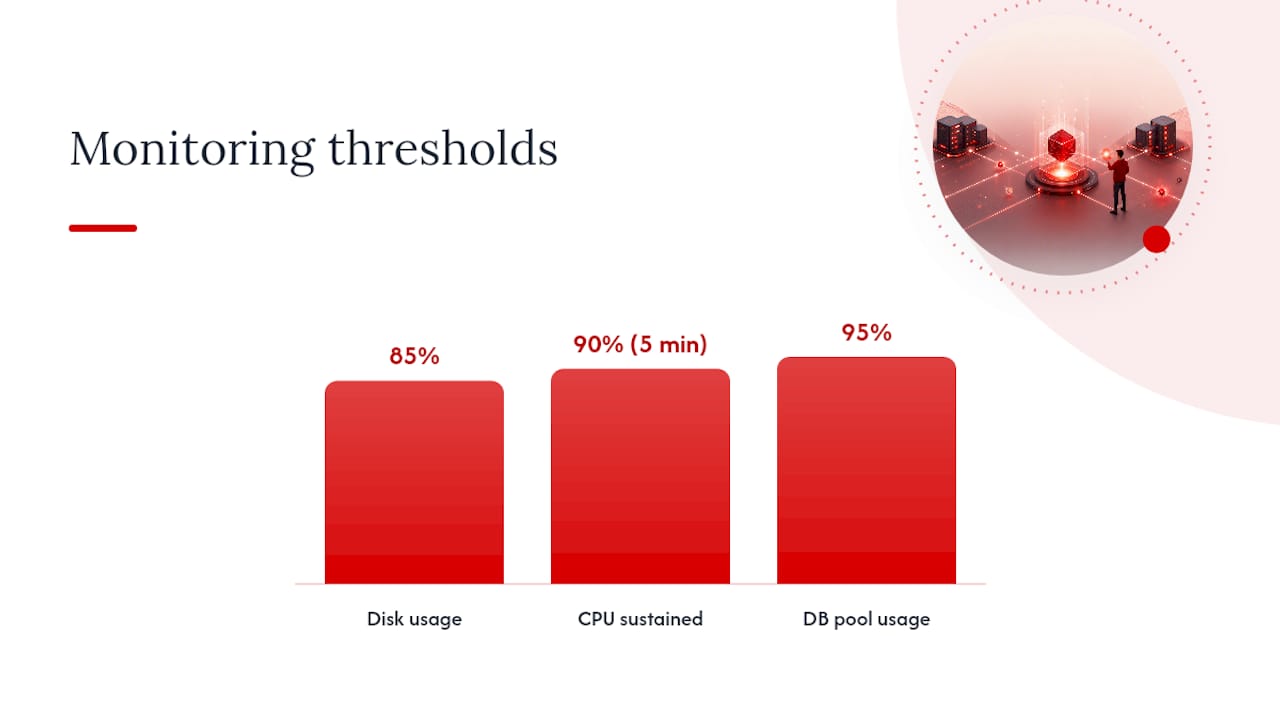
Alert fatigue kills more incident responses than missing metrics do. Keep your thresholds tight and specific: disk usage above 85%, any systemd service that’s failed and hasn’t restarted within two attempts, sustained CPU above 90% for more than five minutes, and database connection counts approaching your configured max (a Postgres pool sitting at 95% capacity is a warning, not a surprise, if you catch it early).
Backups only count if you’ve verified them. A nightly backup job that’s been silently failing for three weeks is worse than no backup at all, because you’ll assume you’re covered right up until you need the restore. Schedule a monthly test restore to a scratch VPS and actually check the data, not just the exit code of the backup script.
Security posture across many servers comes down to a short list that’s easy to state and easy to neglect:
- Rotate SSH keys on a schedule, not only after someone leaves the team
- Grant least-privilege access; not every developer needs root on every box
- Prefer outbound-only agent architectures over opening inbound management ports on each server, which cuts your exposed attack surface considerably
- Log every automated SSH session centrally, with auditing on anything that runs with elevated privilege
A basic incident runbook should already answer: who gets paged when disk fills up, what the rollback command is for a bad deploy, and where the last known good backup lives. Write these down before the incident, not during it.
How AceRDP Fits Into a Multi-Server Workflow
Everything above assumes you already have servers to manage. Getting from “I need three more VPS instances by Friday” to “they’re live, secured, and in inventory” is where hosting choice actually shows up in your workflow.
Instant provisioning means a new VPS lands in your inventory tool the same day you order it, not after a support ticket. An automated management portal gives you a consistent starting image across regions, which makes baseline configuration through Ansible or Cockpit far less error-prone than hand-building each server.
A practical onboarding sequence looks like this:
- Provision the VPS and note the IP and region
- Add SSH (or RDP, for Windows workloads) credentials to your inventory tool
- Run your baseline playbook to install monitoring agents and apply security hardening
- Confirm alerting is live before pointing any traffic at it
Hosted VPS trades some infrastructure control for speed and consistency. That’s the right call when you need to scale into a new region fast, need AMD Ryzen-class performance for a demanding workload, or simply don’t want to run your own bare metal to get there.
A Recommended One-Day Runbook
Mornings start with the inventory, not the inbox: check overnight alerts, scan for anything urgent in the ticket queue, and confirm every host still checks in. Midday is for the changes that can wait for daylight, patch windows coordinated in advance, deployments pushed through CI with a canary server taking the first hit before the rest of the fleet follows. End the day by confirming last night’s backups actually completed, handing off anything unresolved with a short, specific note, and closing tickets that are genuinely done. None of this requires a big team. It requires doing the same four things in the same order every day until they’re boring.
— AceRDP
Ready to Scale Without the Provisioning Delay?
Every workflow above assumes your servers show up fast and stay fast. This provider is built for exactly that gap: high-performance CPUs and NVMe storage give you the performance headroom that config management and monitoring tools depend on, and instant provisioning means a new node joins your inventory in minutes instead of a support ticket cycle.

Whether you’re spinning up a Windows RDP box for a remote desktop workload or adding another Linux VPS to an Ansible-managed fleet, an automated portal can get you a consistent baseline across multiple locations, often with DDoS protection and 24/7 support already in place. Teams managing dozens of servers care about two things above almost everything else: predictable performance and not waiting around for infrastructure. If patch windows, canary deploys, and fleet monitoring are already part of your routine, the next logical step is giving that routine servers worth managing. Check current plans and deploy a VPS on AceRDP and have it live before your coffee’s cold.
Sources
- MZPanel — one control panel for your entire server fleet
- Cockpit project
- AI agents for DevOps automation guide
FAQ
How do you manage a VPS server?
Manage a single VPS through SSH for direct control, or install a lightweight panel like Cockpit for a web-based view of services, logs, and storage. Most administrators combine both: a dashboard for routine checks and SSH for anything that needs a closer look.
How do I connect to multiple servers at once?
Use SSH connection multiplexing with ControlMaster and ControlPersist in your SSH config to reuse connections, and run tmux sessions to keep long jobs alive across disconnects. For running the same command across many hosts simultaneously, tools like GNU Parallel or pssh handle the batching.
Is VPS faster than shared hosting?
A VPS gives you dedicated CPU and RAM allocations instead of splitting resources with unknown neighbors on the same physical machine, which generally means more consistent performance under load. The actual speed difference depends heavily on the underlying hardware, and something like AceRDP’s AMD Ryzen infrastructure with NVMe storage pushes that gap further than a budget VPS would.
What’s the difference between managed and unmanaged VPS?
An unmanaged VPS gives you root access and full responsibility for setup, security, and maintenance, while a managed VPS includes provider support for those tasks. Most developers running multiple servers with their own automation and monitoring stack prefer unmanaged, since they already have tools like Ansible and Cockpit handling what a managed plan would otherwise charge for.


