MT5 VPS for Traders: Native Hosting vs Windows VPS for Sub 20ms Trading
MT5 VPS for Traders: Native Hosting vs Windows VPS for Sub 20ms Trading
Yes, MetaTrader 5 runs reliably on a VPS, and it’s the standard way to keep Expert Advisors executing around the clock without leaving your home PC on. The fastest path is MetaTrader’s own virtual hosting, which migrates your setup in one click. If you need more control, heavier resource limits, or want to run other software alongside MT5, a managed Windows VPS gives you that room.
TL;DR:
- A VPS with at least 4 vCPU and 8 GB of RAM is recommended for traders running multiple Expert Advisors or complex strategies to prevent trade delays and terminal freezes.
- Choosing a VPS in the same city as your broker’s trade server is crucial, as ping above 30 milliseconds can significantly degrade scalping performance.
- Regularly updating, securing, and backing up your VPS—especially changing default passwords, restricting RDP access, and creating snapshots—reduces the risk of security breaches and data loss.
- Running a Windows Server edition and scheduling weekly restarts help maintain VPS stability and avoid unwanted reboots that could interrupt trading activities.
- Verifying latency through ping tests and monitoring resource usage with tools like Task Manager ensures your VPS remains reliable for continuous automated trading.
Table of Contents
- What Is MT5 Virtual Hosting vs. a General-Purpose VPS?
- Native Hosting or Managed VPS: How Do You Decide?
- What VPS Specs and Location Actually Matter for MT5?
- How Do You Provision the VPS and Connect for the First Time?
- How Do You Secure the VPS Before Running Live EAs?
- How Do You Install MT5 and Migrate Your EAs Inside the VPS?
- How Do You Verify Latency and Set Up Monitoring?
- What Mistakes Cause Most MT5 VPS Failures?
- How Do You Back Up MT5 Data and VPS Snapshots?
- How Do You Keep the VPS Stable for Continuous EA Operation?
- Why Infrastructure Choices Shape Automated Trading Outcomes
- AceRDP: A Managed VPS Built for Serious MT5 Automation
- Sources
- FAQ
What Is MT5 Virtual Hosting vs. a General-Purpose VPS?
Virtual hosting and a standalone VPS solve the same problem, keeping your Expert Advisors running when your computer is off, but they get there differently.
MetaTrader’s built-in virtual hosting migrates your EAs, indicators, templates, and signal subscriptions to a MetaQuotes-managed server in one click, straight from inside the terminal. There’s no operating system to manage and often a short free trial to test it first.
A general-purpose VPS, by contrast, gives you:
- Full control over the Windows or Linux environment
- Room to install charting tools, custom scripts, or multiple trading platforms
- Higher CPU, RAM, and storage ceilings for demanding EA loads
- The ability to schedule your own backups and security policies
Native Hosting or Managed VPS: How Do You Decide?
The right choice comes down to five factors: how much setup effort you want, your latency sensitivity, how many terminals or EAs you run, whether you backtest and optimize on the same machine, and your budget.
- Count your EAs and terminals. One EA on one account fits comfortably inside native hosting. Three or more terminals, or EAs juggling dozens of charts, usually need a dedicated VPS.
- Weigh your latency tolerance. Scalping strategies are sensitive to ping; a VPS you control lets you pick the exact datacenter closest to your broker’s trade server.
- Factor in backtesting. Strategy optimization and multi-core stress testing run better on a VPS with headroom, since managed VPS providers give you the OS and resource control that native hosting doesn’t expose.
- Check your budget against your needs. If you just need one EA to survive power outages, native hosting’s simplicity often wins on cost and time.
Beginners running a single strategy should start with native MT5 virtual hosting. Anyone scaling past that, running custom scripts, or chasing sub 20 millisecond execution, should move to a managed VPS.
What VPS Specs and Location Actually Matter for MT5?
MT5 is heavier on resources than MT4, and running several EAs on underpowered hardware is the single most common cause of missed trades and terminal freezes.
A reasonable baseline: 1 vCPU and 2 GB of RAM handles one light EA on one chart. The practical sweet spot for most active traders is a moderate CPU and RAM configuration that is suitable for most active traders, which comfortably runs several EAs across multiple charts without stutter. Power users running eight or more EAs, tick data collection, or heavy custom indicators should move up to 4 vCPU and 8 GB or more.
- RAM headroom prevents MT5 from swapping to disk mid-trade, which can delay order execution by critical milliseconds.
- CPU allocation matters more than clock speed alone once you’re running parallel backtests or multiple terminal instances.
- Windows Server editions are worth choosing over consumer Windows builds because they avoid the forced reboot cycles that Windows 10 or 11 desktop schedules for updates.
- Datacenter location should sit as close as possible to your broker’s trade server. Persistent ping above 30 milliseconds can measurably degrade scalping performance, even if it barely matters for swing trading.
Pro Tip: Ask your broker directly which datacenter or exchange hosts their trade servers, then match your VPS location to it. A VPS in the wrong city can add 40 to 80 milliseconds of round-trip latency even with excellent hardware.
How Do You Provision the VPS and Connect for the First Time?
Getting from checkout to a working remote desktop takes about ten minutes if you follow the order correctly.
- Pick a plan and location. Choose a VPS sized to your EA count and select the datacenter nearest your broker’s server.
- Receive your credentials. Your provider sends an IP address, username, and password, usually within minutes of payment confirming.
- Open Remote Desktop Connection. On Windows, search for “Remote Desktop Connection,” enter the IP address, and log in with the supplied credentials.
- Change the administrator password immediately. Don’t run production trading on a server still using the provider’s default password.
- Run through Windows setup (OOBE) if it’s a fresh image, confirming time zone, region, and update settings.
- Confirm your resources. Open Task Manager to verify the RAM, CPU cores, and disk space match what you paid for.
- Check network stability by running a few pings to your broker’s server before installing anything.
That last step matters more than it sounds. A VPS that looks perfect on paper but drops packets intermittently will cost you more in missed trades than a slightly slower, stable one ever would.
How Do You Secure the VPS Before Running Live EAs?
A VPS running unattended for weeks is a target, and default settings leave it exposed. Harden it before your first EA goes live, not after.
- Change the Administrator password to something unique, then create a separate limited user account for daily use.
- Restrict RDP access to your own IP address where your provider allows it, or connect through a VPN for an extra layer.
- Consider changing the default RDP port (3389) to reduce automated scanning attempts against your server.
- Enable Windows Firewall rules that block unnecessary inbound ports while leaving MT5 and RDP traffic open.
- Turn on automatic backups or snapshots so a corrupted install doesn’t cost you your configuration.
- Control your Windows Update schedule manually rather than letting it reboot mid trading session.
Hardening RDP access and locking down firewall rules before going live is standard practice among experienced automated traders, not an optional extra step.
Pro Tip: Set MT5 to launch automatically when Windows starts, using the Startup folder or Task Scheduler. A reboot without autostart means your EAs sit idle until you manually notice and log back in.
How Do You Install MT5 and Migrate Your EAs Inside the VPS?
Once you’re logged into a secured VPS, installing MT5 and rebuilding your trading environment takes a handful of steps.
- Open a browser inside the VPS and download the MT5 installer directly from your broker’s website, not a third-party mirror.
- Run the installer and log in with your existing trading account credentials.
- Open Tools > Options > Expert Advisors and check “Allow automated trading” and “Allow DLL imports” if your EA requires it.
- Copy your EA files, custom indicators, and chart templates from your local PC’s MT5 data folder into the same folder structure on the VPS.
- Alternatively, if you’re already using MetaTrader’s Virtual Hosting panel, migrate your entire environment in a few clicks directly from the terminal, skipping manual file transfer entirely.
- Re-enter licenses for any paid EAs, since most vendors tie activation to the specific machine.
A few things trip up new users here. Paid EAs bought through the MQL5 Market often need reactivation on the new machine ID, so keep your purchase receipts handy. And if your EA relies on external DLLs for things like custom notifications, you’ll need to explicitly allow that in the Options menu or it will fail silently.
How Do You Verify Latency and Set Up Monitoring?
A VPS that connects doesn’t automatically mean it connects fast. Test before you trust it with real capital.
Open MT5 and check the latency figure in the bottom right status bar, which reports the round-trip time to your broker’s server in milliseconds. Cross-check that against a command-line ping test from the VPS itself to confirm the numbers agree. Ping consistently above 30 milliseconds is worth investigating further if you’re running any scalping strategy.
For ongoing monitoring, layer a few tools together:
- The MT5 mobile app, which lets you check terminal status and account activity from anywhere.
- Email alerts configured directly inside your EA or through MT5’s built-in notification system.
- A lightweight watchdog script that restarts MT5 if the process crashes.
- External uptime monitoring if you’re running capital you genuinely can’t afford to leave unattended for hours.
Testing a VPS trial by checking ping, RDP responsiveness, and running your EAs for several hours before committing longer term is the single most useful validation step most traders skip.
What Mistakes Cause Most MT5 VPS Failures?
Most VPS problems trace back to a handful of avoidable setup errors, not bad luck.
- Running a consumer Windows build instead of Server. Desktop Windows editions force periodic reboots for updates that can silently kill your EAs mid session.
- Forgetting to enable autostart. A server reboot without MT5 relaunching leaves your account exposed with no active management for hours.
- Skipping RDP hardening. Weak or default passwords are the most common entry point for unauthorized access on trading VPS instances.
- Ignoring EA error logs. The Experts tab in MT5’s terminal window shows connection drops and rejected orders before they become expensive problems.
When something does go wrong, work through it in order: restart MT5 first, check the Experts log for the specific error, verify your broker connection and current ping, and restore from a snapshot if the install itself looks corrupted.
Before trusting the setup with live funds, run through a short checklist: confirm autostart works after a manual reboot, verify RDP is locked to your IP, check that backups are scheduled, and let the EA run unattended for at least 24 hours while you monitor remotely.
How Do You Back Up MT5 Data and VPS Snapshots?
A corrupted MT5 install or a botched Windows Update can wipe out weeks of configuration work in seconds, so backups aren’t optional once you’re running live capital.
Start with MT5 itself. Your EA settings, custom indicators, templates, and the .set files for optimized parameters all live inside the terminal’s data folder, accessible from File > Open Data Folder. Copy this folder to a separate cloud storage location weekly, or automate it with a scheduled Windows task that zips the folder and uploads it to Dropbox, Google Drive, or an FTP server.
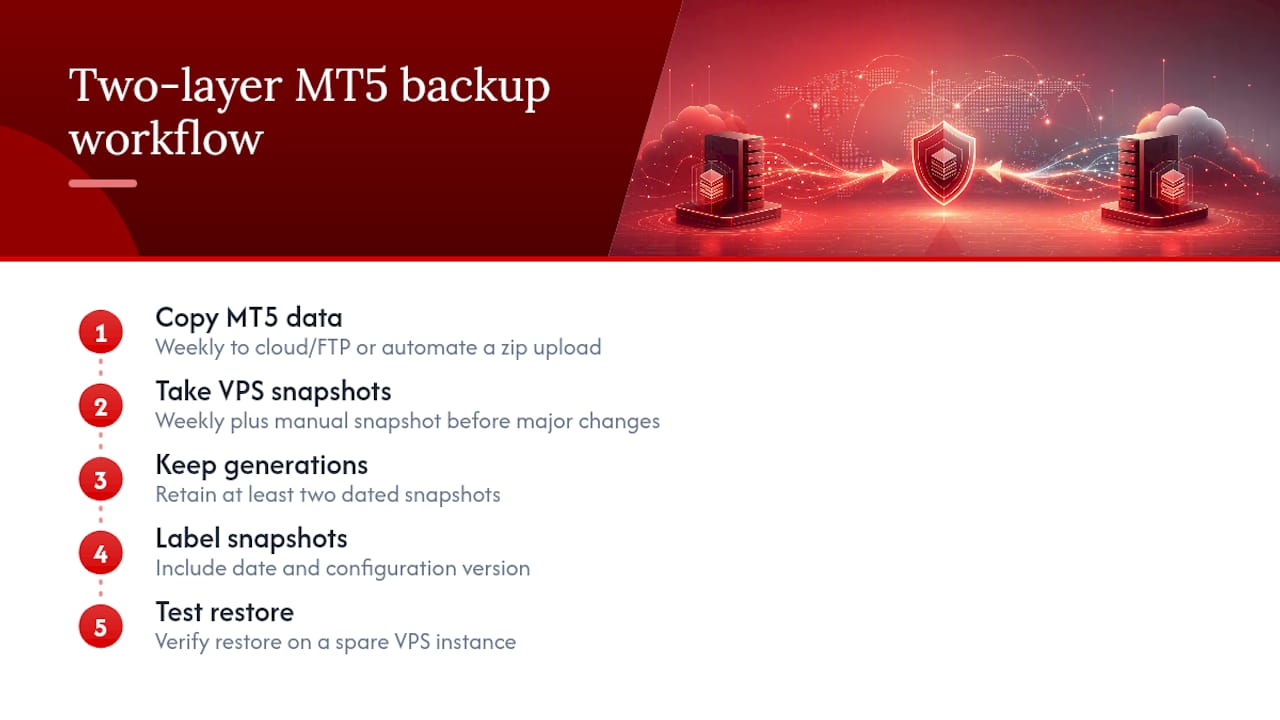
Beyond the MT5 folder itself, take full VPS snapshots at the infrastructure level. Most VPS providers offer built-in snapshot tools that capture the entire server state, operating system, installed software, and file system, in a single image. Schedule these weekly at minimum, and always take a manual snapshot immediately before any major change: a Windows Update, a new EA install, or a broker platform update.
Keep at least two backup generations rather than overwriting the same snapshot each time. If a corrupted backup gets taken right before you discover a problem, having last week’s version as a fallback saves you from starting over completely. For traders running multiple EAs across different accounts, label snapshots clearly by date and configuration version so restoring the right one under pressure doesn’t turn into guesswork.
Test your restore process at least once, ideally on a spare VPS instance, so you know it actually works before you need it in an emergency.
How Do You Keep the VPS Stable for Continuous EA Operation?
Long-term stability depends less on the initial setup and more on what you do with the VPS week after week.
Watch resource usage patterns, not just resource totals. Open Task Manager periodically and check whether RAM usage climbs steadily over days, which usually points to a memory leak in an EA or indicator rather than the VPS itself. CPU spikes that coincide with specific news events or session opens are normal; a CPU pegged at 100% constantly signals too many EAs for the current plan.
Close unnecessary chart windows. Each open chart with active indicators consumes memory and processing cycles even when you’re not watching it. If you’ve stopped trading a pair, remove the chart rather than letting it sit open indefinitely.
Disable visual effects and unnecessary Windows services on the VPS. Desktop wallpaper, animations, and background services that matter on a personal computer serve no purpose on a headless trading server and quietly eat into available resources.
Restart the VPS on a controlled schedule, weekly or biweekly, rather than letting it run for months uninterrupted. A clean restart clears memory fragmentation and gives you a chance to confirm autostart and connectivity still work as expected. Pair this with your snapshot schedule so a restart never happens without a recent backup behind it.
Finally, match your plan to your actual load rather than your starting load. Traders who begin with one EA and gradually add five more often keep running on the original entry-level plan, which is where sluggish execution and missed fills usually start.
Why Infrastructure Choices Shape Automated Trading Outcomes
Most traders treat VPS selection as an afterthought, then wonder why a strategy that backtested beautifully underperforms live. Some VPS providers use AMD Ryzen infrastructure with NVMe storage to support demanding EA execution which requires strong hardware performance. Availability of multiple data center locations allows matching server location to your broker to minimize latency. The plan details are below.
— AceRDP
AceRDP: A Managed VPS Built for Serious MT5 Automation
If you’ve decided native virtual hosting won’t cut it, whether you’re running multiple terminals, heavier EA loads, or just want full control over your environment, Some providers offer Windows RDP or KVM VPS built on AMD Ryzen CPUs and NVMe storage.
That combination matters for MT5 specifically: fast NVMe storage keeps the terminal responsive when multiple EAs write logs simultaneously, and the CPU headroom means backtesting and live execution don’t compete for the same cycles. Availability of locations in multiple countries may let you pick the datacenter closest to your broker’s trade server, helping to minimize latency. Instant provisioning enables quick deployment so you can start using the VPS and migrate your EAs promptly.
Pair your EA testing with a tool like TP Scanner to review trade performance once your setup is live, since a stable VPS only helps if the strategy running on it is sound.
Check current AceRDP plans and pricing to size a server against your EA count, then run the latency and stability checks from this guide before committing any live capital to it.
Sources
For deeper technical detail, MetaTrader’s own virtual hosting documentation covers the built-in migration workflow directly, while MQL5’s step-by-step VPS guide walks through the panel for first-time users. Broker pages like IG’s MT5 VPS overview add practical notes on trials and location selection.
- MetaTrader 5 Virtual Hosting
- Launching MetaTrader VPS: A step-by-step guide for first-time users
- Best VPS Setup for MT5 EA Trading: 2026 Guide
- MetaTrader 5 VPS - IG
FAQ
Can I Run MetaTrader 5 on a VPS?
Yes. MT5 runs on both MetaTrader’s native virtual hosting and general-purpose Windows VPS plans, and either lets Expert Advisors execute continuously without your personal computer staying on.
What Is the Best VPS for MT5?
It depends on your needs: native MT5 virtual hosting suits traders running one or two EAs who want minimal setup, while a managed Windows VPS with at least a moderate CPU and RAM configuration that is suitable for most active traders, like an AceRDP plan, fits traders running multiple terminals or heavier EA loads.
How Much Does MT5 VPS Cost?
Trader-focused VPS plans typically range from roughly $5 to $50 per month depending on resources and location, and some brokers offer free VPS access for accounts that meet minimum trading volume requirements.
What Is a VPS for MetaTrader Used For?
A VPS keeps MT5 and its Expert Advisors running 24/7 on a remote server instead of your local machine, so trades execute even during power outages, internet drops, or when your computer is off.
Do I Need Technical Skills to Set Up MT5 on a VPS?
Native MT5 virtual hosting requires almost no technical skill since it migrates your setup in one click from inside the terminal. A managed VPS needs basic comfort with Remote Desktop Connection and Windows settings, but no advanced server administration knowledge.


