Sysadmin Playbook: Optimize RDP Performance in One Maintenance Window

Sysadmin Playbook: Optimize RDP Performance in One Maintenance Window
Fix RDP lag in four moves: enable H.264/AVC hardware encoding on the host, put RDP traffic ahead of everything else on the network with QoS, cut display overhead with lower resolution and bitmap caching, and lock the changes in with a script so every session gets the same treatment. Do those four things in order and most laggy, blocky, unresponsive sessions turn into something usable within a single maintenance window.
TL;DR:
- Enabling H.264/AVC hardware encoding on the host can significantly improve responsiveness, especially when GPU-accelerated for LAN or WAN sessions.
- Prioritizing RDP traffic with QoS policies and ensuring the connection uses UDP instead of TCP reduces jitter and packet loss, improving session smoothness.
- Adjusting client display settings to lower resolution, color depth, and enabling bitmap caching enhances session speed without requiring server downtime.
- Automating registry and Group Policy tweaks with scripts ensures consistent performance optimization across all RDP sessions, preventing drift over time.
- Upgrading infrastructure with faster CPUs, NVMe storage, and closer data centers can be necessary if host and network tuning alone cannot eliminate lag.
Table of Contents
- Fast Wins to Optimize RDP Performance This Week
- Why Encoding and GPU Offload Change Everything
- Getting the Network Out of RDP’s Way
- Tuning the Host Without Breaking Anything Else
- Automating the Fix So It Sticks
- How to Prove the Changes Actually Worked
- What Rollout Order Actually Looks Like in Practice
- When In-House Tuning Isn’t Enough
- Where to Verify These Settings Yourself
- Sources
- FAQ
Fast Wins to Optimize RDP Performance This Week
You don’t need a rebuild to fix a bad RDP experience. Most of the pain comes from four settings nobody bothered to check after the server was provisioned. Work through this list during one change window and test as you go.
- Turn on H.264/AVC 444 and the hardware encoder. Set it in Group Policy or the host’s Remote Desktop video display driver settings so the GPU handles graphics instead of the CPU.
- Confirm the connection uses wired Ethernet, not Wi-Fi, and check that RDP is actually negotiating UDP rather than falling back to TCP. Open the ports UDP and TCP 3389 need on any firewall in the path.
- Adjust the client Experience settings. Pick a lower preset for WAN links, enable persistent bitmap caching, and drop color depth or resolution until the session feels snappy rather than glossy.
- Add antivirus exclusions for RDP’s temp and cache folders so real-time scanning stops interrupting frame delivery.
- Set the host power plan to High Performance. A “Balanced” plan throttling the CPU mid-session is a surprisingly common, surprisingly invisible cause of stutter.
None of this requires downtime beyond a quick logoff/logon cycle, and every step is reversible if a change causes a regression.
Why Encoding and GPU Offload Change Everything
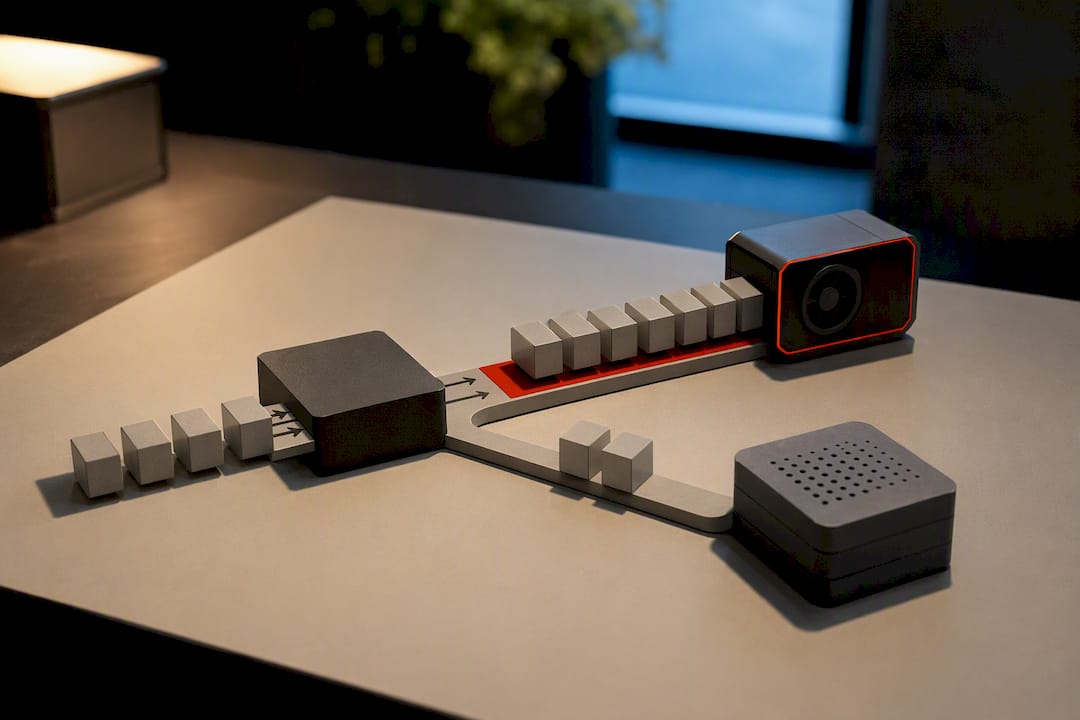
The biggest jump in perceived speed almost always comes from the codec, not the network. Legacy RDP encoding leans on the CPU to compress screen changes, which chokes under video, scrolling text, or anything with motion. H.264/AVC hands that job to the GPU instead, and Microsoft’s own engineering team has documented the resulting gains in responsiveness and text clarity.
The setting isn’t one-size-fits-all, though. LAN and WAN sessions want different flavors of it:
- On a LAN, enable AVC 444 for the sharpest text rendering. This is the mode to use for anyone doing detailed document work or reading dense terminal output all day.
- On a WAN link, drop to AVC 420 or accept higher compression. You trade a bit of color fidelity for a session that doesn’t stall every time bandwidth dips.
- If you’re chasing smoother motion, a registry tweak in the
fEnableSuperPanningand frame-rate cap keys can raise the ceiling toward 60 FPS, though you should document the original values before touching them so a rollback is a copy-paste job, not an archaeology project. - Assign the correct GPU as the default hardware graphics adapter on multi-GPU hosts. RDP sessions sometimes default to the wrong one and silently lose hardware acceleration.
Pro Tip: After any encoding change, don’t just eyeball it. Open a text-heavy app and a scrolling window, then record screen-capture frame rate and watch for dropped frames. A change that looks fine at a glance can still be stuttering under real load.
Getting the Network Out of RDP’s Way
A fast host behind a congested network still feels slow. Network tuning is where most of the “it’s laggy but I don’t know why” tickets actually get solved.
- Set DSCP/QoS policies on routers and firewalls to give RDP traffic priority over background sync jobs, backups, and streaming. Microsoft’s own QoS guidance for remote sessions shows this reduces jitter and keeps sessions stable even when the link is busy.
- Verify RDP is using UDP. UDP handles packet loss more gracefully for real-time graphics than TCP does; RDP falls back to TCP automatically if UDP is blocked, so check your firewall rules if sessions feel sluggish despite everything else looking right.
- Choose the closest data center or office link available. Distance adds round-trip time that no amount of local tuning fixes.
- Go wired whenever the workload is latency-sensitive. Wi-Fi introduces jitter and packet loss that QoS can soften but not erase. When wireless is the only option, use 5 GHz on enterprise-grade access points, never a consumer router with a dozen other devices fighting for airtime.
- Test with ping, traceroute, and a basic jitter check before and after each change. A round-trip time that swings from 20ms to 150ms under load tells you more than any subjective “it feels slow” report ever will.
Tuning the Host Without Breaking Anything Else
Session hosts accumulate cruft. Startup apps, notification services, and background scans all compete for the same CPU cycles your RDP sessions need for encoding and input response. Microsoft’s session host tuning guide calls out memory pressure, antivirus interference, and process startup as the three most common culprits behind slow multi-user hosts, and it lists concrete parameters worth checking, including pagefile sizing and compression settings.
- Strip nonessential startup apps and notification services out of your gold image before it ever gets cloned.
- Exclude RDP cache and temp directories from real-time antivirus scanning, and shift full scans to off-hours.
- Check for relocated DLLs with Process Explorer. A relocated DLL can’t be shared across sessions, which quietly inflates per-session memory use on busy hosts.
- Set the power plan to High Performance and confirm GPU drivers aren’t dropping into a power-saving state mid-session.
- Pick a compression mode deliberately. RDP offers multiple modes trading memory for bandwidth differently, and the right choice depends on whether your bottleneck is RAM or network bandwidth.
None of these changes are exotic. They’re the kind of thing that gets skipped during initial deployment and never revisited until users start complaining.
Automating the Fix So It Sticks
Manual tweaks drift. Someone rebuilds a host, forgets three registry keys, and the lag complaints come back within a month. That’s the argument for baking changes into automation instead of a checklist someone runs from memory.
- RDP-Tweaks, an open-source PowerShell script and GUI on GitHub, applies the registry and Group Policy changes covered above in one pass. Read the script before running it in production; it’s transparent about what it touches, but you should know exactly what’s changing on a host you’re responsible for.
- Bake settings into the base image rather than patching live sessions one at a time, and export your Group Policy settings with LGPO so every new host gets identical behavior.
- Stage before you deploy widely. Run the script on one test host, confirm behavior, then roll it into the image. Keep the pre-change registry export around so rollback is a five-minute task, not an incident.
How to Prove the Changes Actually Worked
Don’t take “it feels faster” as your success metric. Capture numbers before and after.
- Record a baseline: round-trip time, jitter, packet loss, frame rate, and CPU/GPU utilization on the host during a typical session.
- Use ping and traceroute for network numbers, PerfMon counters for host resource use, and Process Explorer to spot relocated DLLs or runaway processes.
- Verify frame rate with a screen capture tool during a scrolling or video test, since that’s where encoding problems show up first.
- Change one variable at a time, rerun the same test, and log the result next to the baseline.
- Set a rollback threshold in advance. If CPU usage jumps or FPS drops after a change, revert immediately rather than debugging live in production.
What Rollout Order Actually Looks Like in Practice
Start with the changes you can undo in thirty seconds: client Experience settings, network QoS rules, wired versus Wi-Fi. Only after those are validated should you touch the host image or push registry changes across a fleet. Run host-level changes through a canary group first, document what you changed and what the before/after numbers looked like, and keep that record for change control. Skipping the canary step is how a “quick fix” becomes an afternoon of rollback calls.
— AceRDP
When In-House Tuning Isn’t Enough
Sometimes the bottleneck isn’t a setting. It’s the box. If you’ve already enabled hardware encoding, tuned QoS, and cleaned up the host image and sessions still lag, the underlying infrastructure is probably the ceiling you’re hitting. Some providers run Windows RDP and KVM VPS hosting on AMD Ryzen infrastructure with NVMe storage, which matters directly for RDP: encoding workloads lean on CPU and GPU headroom, and NVMe keeps profile loading and application launches from bottlenecking a session that’s otherwise well-tuned.
Provisioning can be instant, so you can spin up a plan, apply tuning steps covered above, and compare real latency and responsiveness against your current setup instead of comparing spec sheets. If distance to the data center is part of your latency problem, multiple locations can provide a lever that no amount of local registry tweaking can replicate. Check current Windows RDP hosting plans and consider testing one against your existing host under the same workload.
Where to Verify These Settings Yourself
- Performance tuning Remote Desktop Session Hosts — Microsoft’s tuning parameters for memory, antivirus, and compression.
- VDI optimize configuration — base-image and LGPO guidance for non-persistent VDI.
Sources
- Remote Desktop Protocol (RDP) H.264/AVC improvements (Microsoft Tech Community)
- RDP quality of service (QoS) guidance (Microsoft Learn)
- Performance tuning Remote Desktop Session Hosts (Microsoft Docs)
- fstanis/RDP-Tweaks (GitHub)
FAQ
Is RDP Being Discontinued?
No. RDP remains Microsoft’s core remote access protocol for Windows and continues to get active development, including the H.264/AVC encoding improvements covered in this guide.
How Do I Increase FPS on RDP?
Enable H.264/AVC hardware encoding, raise the frame-rate cap through the registry keys automated by tools like RDP-Tweaks, and confirm the correct GPU is set as the default hardware adapter for the session.
Is RDP Fast Enough for Gaming?
RDP can handle light gaming on a low-latency LAN with hardware encoding enabled, but its frame-rate ceiling and compression trade-offs make it a poor substitute for a purpose-built game-streaming protocol over WAN links.
Should I Use UDP or TCP for RDP?
UDP is preferred for RDP because it tolerates packet loss better for real-time graphics; RDP automatically falls back to TCP if UDP is blocked on the network path.
Does Antivirus Software Slow Down RDP Sessions?
Yes, real-time scanning of RDP cache and temp folders can interrupt frame delivery, which is why Microsoft’s session host tuning guide recommends targeted antivirus exclusions for those directories.


