1.5–15 Mbps RDP Bandwidth Baselines: Measure and Size Links for IT Teams

1.5–15 Mbps RDP Bandwidth Baselines: Measure and Size Links for IT Teams
RDP typically needs bandwidth ranging from light office work levels up to those required for 4K or power-user workloads, matching Microsoft’s guidance, but that range is the easy part. What actually determines whether a session feels usable is available headroom above whatever number you land on, since RDP adapts its compression and frame rate dynamically to fit the pipe it’s given. Latency and packet loss, not raw throughput, are usually what make a session feel sluggish.
TL;DR:
- Bandwidth needs vary from a few Mbps for light tasks to over 15 Mbps for high-resolution video and power-user workflows, with headroom being crucial for usability.
- Actual bandwidth consumption depends on dynamic screen updates, with idle sessions using almost no data and video calls spiking usage to over 3 Mbps at 1024x768 resolution.
- Latency and packet loss significantly impact session responsiveness, with low latency under 50 ms being ideal and high latency or jitter causing noticeable lag.
- Accurate capacity planning requires monitoring real session data, focusing on 95th-percentile usage rather than averages, especially during peak activities.
- Fine-tuning client and server settings, such as disabling wallpapers, reducing color depth, and enabling compression, can reduce bandwidth without hardware upgrades.
Table of Contents
- What Are the Recommended RDP Bandwidth Requirements?
- How Do You Estimate Bandwidth by Workload and Resolution?
- Why Do Latency and Packet Loss Matter More Than Bandwidth?
- How Do You Measure Real RDP Bandwidth Usage?
- What Server and Client Settings Reduce RDP Bandwidth Use?
- How Do You Calculate Bandwidth for Multiple Concurrent Users?
- How Do You Set Up QoS and Throttle Limits for RDP?
- Managed Hosting vs. On-Prem Session Hosts
- Get Predictable RDP Performance With AceRDP
- Sources
- FAQ
What Are the Recommended RDP Bandwidth Requirements?
If you need a number to drop into a ticket or a capacity request right now, here’s the reference range. These figures come from Microsoft’s own network guidelines for Remote Desktop Services and align with what most field guides report.
- Light use (email, chat, basic browsing): about low Mbps per user.
- Medium use (office apps, occasional web meetings): about moderate Mbps per user.
- Heavy use (multiple monitors, frequent web video, image work): about higher Mbps per user.
- Power user / 4K workloads (CAD, video editing, high refresh rate multi-monitor setups): about very high Mbps per user.
- 1080p at 30 fps: bandwidth sufficient for smooth motion, per Microsoft’s guidance.
Treat these as the floor for available bandwidth, not the ceiling for what you provision. A link running at exactly 5 Mbps with five other apps competing for it will feel worse than a 10 Mbps link dedicated mostly to RDP, even though the RDP-specific numbers are identical.
How Do You Estimate Bandwidth by Workload and Resolution?
RDP doesn’t stream continuous video. It sends drawing commands and screen deltas, meaning only the pixels that actually change get transmitted. That’s why a session sitting idle on a spreadsheet uses next to nothing, while switching to a full-screen video call spikes usage almost instantly. Microsoft’s guidance on RDP bandwidth behavior confirms this: minimizing a client window halts graphical updates almost entirely, dropping traffic to near zero.
Real-world numbers back this up. Splashtop’s testing found that 30 fps sessions at 1024×768 typically run 200 to 400 KB/s, or roughly 1.6 to 3.2 Mbps, with standard office work uses significantly less bandwidth than continuous video at the same resolution. At 1080p, office work bandwidth is well below the maximum recommended for smooth full-motion video at that resolution.
To build a defensible estimate for a capacity request:
- Identify the dominant workload per user group (text editing, spreadsheets, web browsing, video, CAD).
- Match that workload to the closest Microsoft baseline (1.5, 3, 5, or 15 Mbps).
- Add 20 to 30% headroom for burst activity like file transfers or screen sharing.
- Document your assumptions, frame rate target, resolution, and monitor count, so the number can be revisited later.
Why Do Latency and Packet Loss Matter More Than Bandwidth?
Bandwidth measures how much data can move. Latency measures how long it takes to get there, and that delay is what your fingers actually feel. Every keystroke and mouse movement has to round trip to the host and back before the screen updates, so even a gigabit connection with 150 ms of latency will feel worse than a modest DSL line with 20 ms.
Jitter, the variation in that delay, and packet loss compound the problem by forcing retransmissions and stutter. SpeedtestHQ’s guidance puts it plainly: low ping matters more than high throughput for RDP comfort.
- Target low latency to the host for a responsive session.
- Expect noticeable lag when latency becomes high.
- Prefer wired connections or 5 GHz Wi-Fi over 2.4 GHz, which is more prone to interference in office environments, according to TruGrid’s field guidance.
- Avoid satellite links entirely for anything beyond casual admin tasks. Their round-trip delay alone can push past comfortable thresholds regardless of bandwidth.
How Do You Measure Real RDP Bandwidth Usage?
Guessing at bandwidth needs is how capacity requests get denied or, worse, approved and then proven wrong in production. Measure actual sessions before you size anything.
Windows Performance Monitor exposes counters under the “RemoteFX Network” and “Terminal Services Session” objects that log bytes sent and received per session. Pair those with standard network interface counters (bytes total/sec) on the session host itself to see aggregate load across concurrent users. Several third-party RDP monitoring tools can break usage down per connection, which matters when one user’s video call is skewing your averages.
A workable testing methodology: sample 10 to 15 representative users across a normal workday, log bytes in/out at one-minute intervals, and capture the latency distribution alongside it, not just the average. Convert the results to Mbps per user (bytes/sec × 8 ÷ 1,000,000) and look at the 95th percentile, not the mean, since that’s what determines whether your link chokes during the busiest ten minutes of the day.
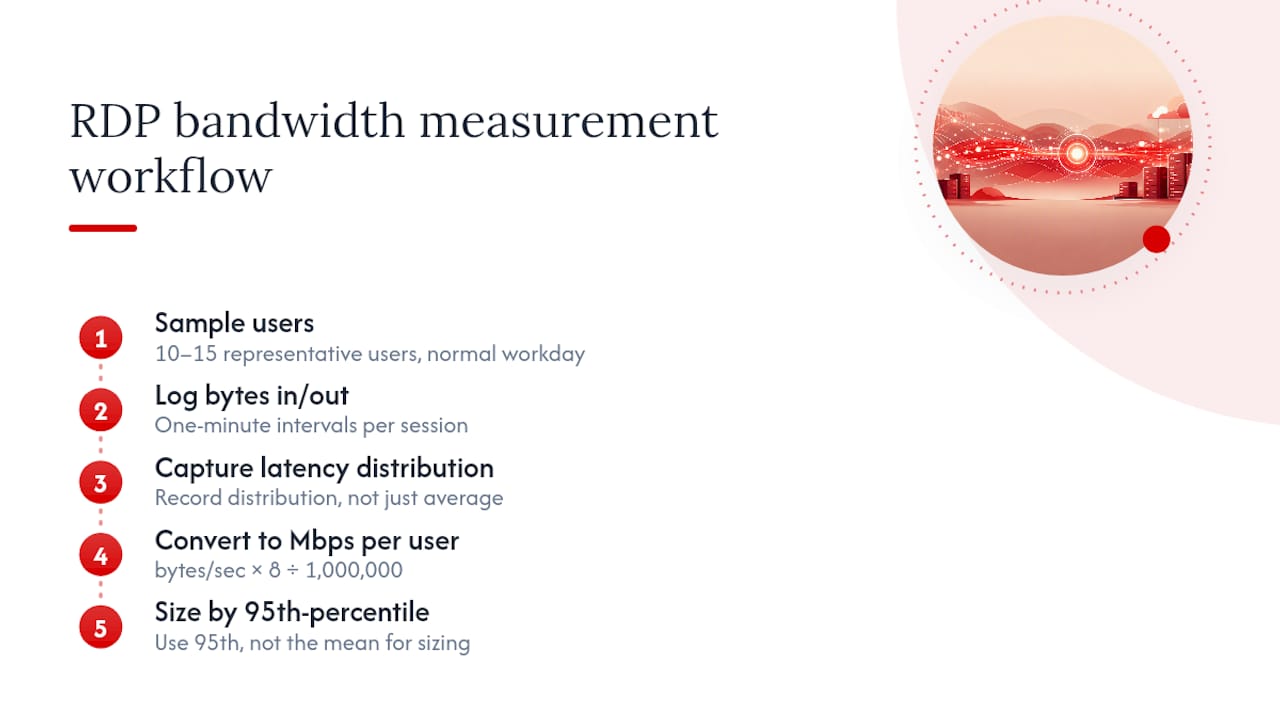
Pro Tip: Don’t size a WAN link off average usage. Two or three users hitting a webinar at the same time will spike your 95th-percentile number well above what a daily average suggests, and that spike is exactly what causes complaints.
What Server and Client Settings Reduce RDP Bandwidth Use?
Small configuration changes often cut RDP traffic more effectively than adding bandwidth ever will.
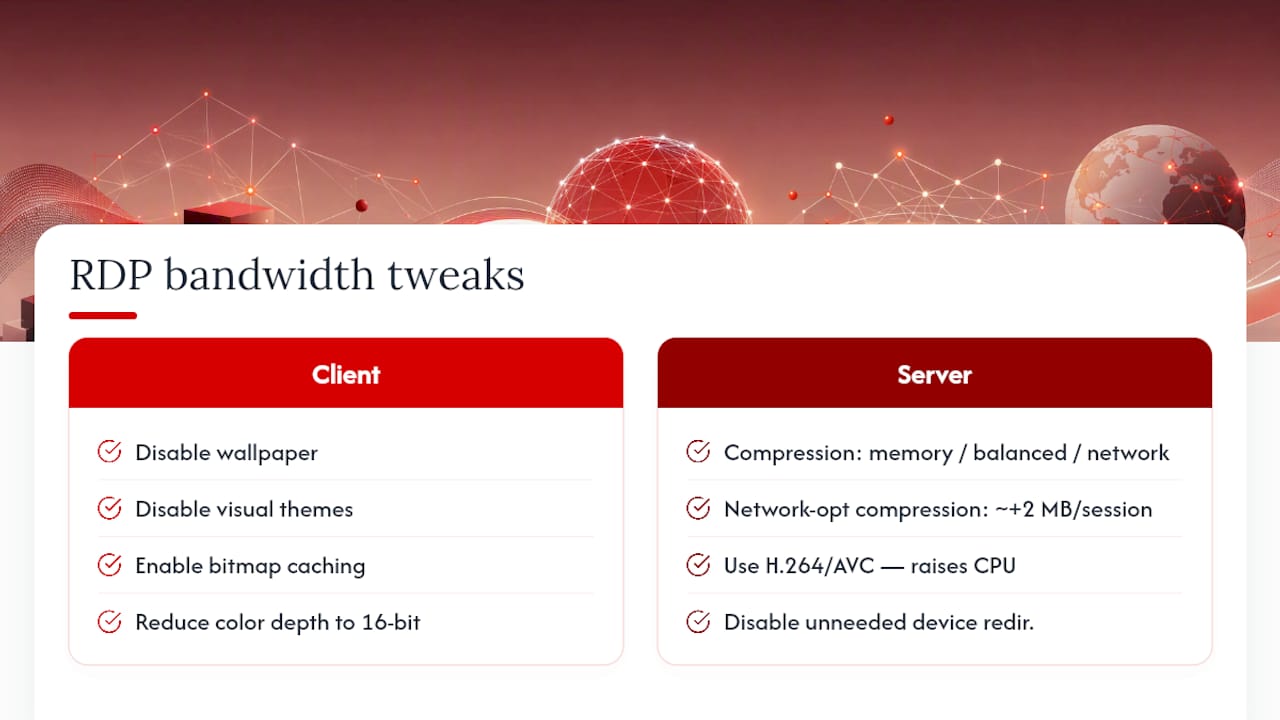
On the client side: disable desktop wallpaper and visual themes, enable bitmap caching so repeated screen elements don’t get retransmitted, reduce color depth from 32-bit to 16-bit where visual fidelity isn’t critical, and turn off full-window drag and menu animations. Frame rate caps also help, since a session locked to 30 fps rather than uncapped will use noticeably less data during video-heavy tasks.
On the server side, Group Policy exposes compression modes: one optimized for lower memory use, one balanced, and one optimized to reduce network bandwidth at the cost of roughly 2 MB of extra memory per session. On a high-density host with hundreds of concurrent sessions, that memory tradeoff adds up fast and needs load testing before rollout. Switching to H.264/AVC codec mode can also reduce bandwidth for graphics-heavy sessions, though it shifts load onto CPU. Device redirection (printers, USB, clipboard sync) adds overhead too, so disable redirections users don’t actually need.
Pro Tip: Test the network-optimized compression setting on a subset of session hosts first. If your hosts are already memory-constrained, that setting can trade one bottleneck for another.
How Do You Calculate Bandwidth for Multiple Concurrent Users?
The formula is straightforward: required bandwidth equals the sum of per-user bandwidth multiplied by a concurrency factor, plus headroom for bursts.
- 25-user office mix (mostly email, documents, occasional video calls): 25 users × 3 Mbps medium-use baseline = 75 Mbps, plus 25% headroom for simultaneous file transfers and print jobs = roughly 94 Mbps required.
- 100-user knowledge-worker mix (heavier multitasking, frequent web meetings): 100 users × 5 Mbps heavy-use baseline = 500 Mbps, plus 20% headroom = roughly 600 Mbps required.
- Adjust the concurrency factor down if not all users are active simultaneously. Many offices experience a moderate to high level of concurrent usage during peak hours.
Burst factors matter more than the base math suggests. A single large file transfer, a batch print job, or three people joining a video call within the same minute can spike usage well past the calculated baseline, which is exactly why the 95th-percentile testing from earlier matters more than the formula alone.
How Do You Set Up QoS and Throttle Limits for RDP?
Policy-based QoS, configured through Group Policy, controls how much bandwidth RDP traffic can consume on the client side. Network-level QoS (DSCP tagging on routers and switches) protects RDP traffic in transit across a shared WAN. Use policy-based QoS when you control the endpoints; use network QoS when RDP traffic shares a pipe with other business-critical applications.
- Open Group Policy Management and create a new GPO scoped to the relevant OU.
- Navigate to Computer Configuration > Policy-based QoS and create a new policy.
- Specify the RDP application (mstsc.exe or the RDP client executable) and set a throttle rate, a conservative starting point is 5 Mbps per session for medium workloads.
- Apply DSCP marking if the policy needs to travel across routers that respect QoS tags.
- Test with a small pilot group, monitor session quality, and adjust the throttle rate based on the 95th-percentile data gathered earlier.
Pro Tip: Start conservative and loosen the throttle rather than the reverse. Users tolerate a slightly capped session far better than one that starts fast and then degrades.
Managed Hosting vs. On-Prem Session Hosts
Hosted VPS environments make sense when your user base is geographically spread out or your WAN can’t guarantee consistent latency. Measure first. Bandwidth and latency data should drive the decision, not the other way around. Hosting is an operational lever, not a substitute for sizing work.
— AceRDP
Get Predictable RDP Performance With AceRDP
Everything above assumes your network and session host cooperate. When they don’t, because your WAN link is inconsistent or your session host is undersized for the concurrency you’re running, no amount of tuning fully closes the gap. Some providers run Windows RDP and KVM VPS hosting on AMD Ryzen CPUs with NVMe storage across multiple locations, which can give remote sessions more predictable CPU headroom for encoding and better network peering than a typical office WAN link often provides.
That predictability matters most for the workloads this guide flags as demanding: power users, 4K displays, video-heavy sessions. Instant provisioning means you can spin up a test instance, run the same measurement methodology covered above against it, and compare real numbers against your current setup instead of guessing. DDoS protection and built-in server management tools are often included in hosting plans. If your bandwidth math from the capacity planning section is pointing toward infrastructure limits rather than network limits, check available AceRDP plans and provision a trial instance to benchmark against your current session hosts.
Sources
- Network guidelines — Microsoft
- Internet speed requirements for remote desktop — SpeedtestHQ
- RDP bandwidth & latency guide — TruGrid Help
FAQ
Why Is RDP So Slow Sometimes?
Slowness is almost always a latency or packet loss problem rather than a bandwidth shortage. High round-trip delay, congested Wi-Fi, or an overloaded session host CPU will make RDP feel sluggish even on a fast connection.
Does Remote Desktop Use a Lot of Bandwidth?
Not usually. RDP sends only changed screen regions rather than continuous video, so typical office use runs between 1.5 and 5 Mbps per user, spiking higher only during video playback or full-screen graphics work.
Does RDP Need to Be on the Same Network?
No. RDP works fine across the public internet or a WAN as long as latency stays low and the connection is secured, though a shared LAN or VPN with consistent low latency gives the most reliable experience.
How Do I Determine My RDP Bandwidth Requirements?
Match each user group’s workload to Microsoft’s baseline ranges (1.5 to 15 Mbps), add 20 to 30% headroom, then confirm the estimate against real Performance Monitor data before finalizing capacity.
What’s a Reasonable Latency Target for RDP?
Aim for under 50 ms round-trip latency to the host. Sessions above 100 ms typically feel noticeably laggy, regardless of how much bandwidth is available.


