Under 50 ms p95: Fix Remote Desktop Latency for IT Teams
Under 50 ms p95: Fix Remote Desktop Latency for IT Teams
Anything under 50 milliseconds of round-trip time feels local; 50 to 100 ms is still workable for most office tasks; past 150 ms, cursor drag and typing start to feel broken. The single fastest fix is picking a server region closer to the user and putting the host on wired Ethernet instead of Wi-Fi. After that, hardware encoding and avoiding relay routes matter more than upgrading bandwidth. If those levers don’t fix it, the next step is measuring the connection to find which layer of the pipeline is actually slow.
TL;DR:
- Using a wired Ethernet connection on the host and selecting the closest server region can significantly reduce latency and improve responsiveness.
- Hardware encoding and disabling background processes on the host can lower encode time and prevent bottlenecks during resource-intensive tasks.
- Measuring session-level latency with percentiles and monitoring for jitter or dropped frames helps identify whether network, host, or client layers are causing lag.
- Latency remains high if the connection involves VPN backhaul, Wi-Fi jitter, or relay servers, even with high bandwidth, which does not reduce round-trip time.
- Achieving consistently sub-50 ms latency is crucial for precise input tasks, and infrastructure choices like regional deployment and hardware acceleration matter most for low-latency remote desktops.
Table of Contents
- What Is Remote Desktop Latency, and Why Does It Feel Different From Slow Wi-Fi?
- How Do You Measure Remote Desktop Latency Accurately?
- Where Does Remote Desktop Lag Actually Come From?
- Which Fixes Actually Reduce Remote Desktop Latency?
- How Do You Tune a Server or VDI Environment for Lower Latency?
- What Should You Monitor to Catch Latency Regressions Early?
- Trade-Offs That Matter More Than Chasing Milliseconds
- Get Low Host-Side Latency Without Building the Infrastructure Yourself
- Sources
- FAQ
What Is Remote Desktop Latency, and Why Does It Feel Different From Slow Wi-Fi?
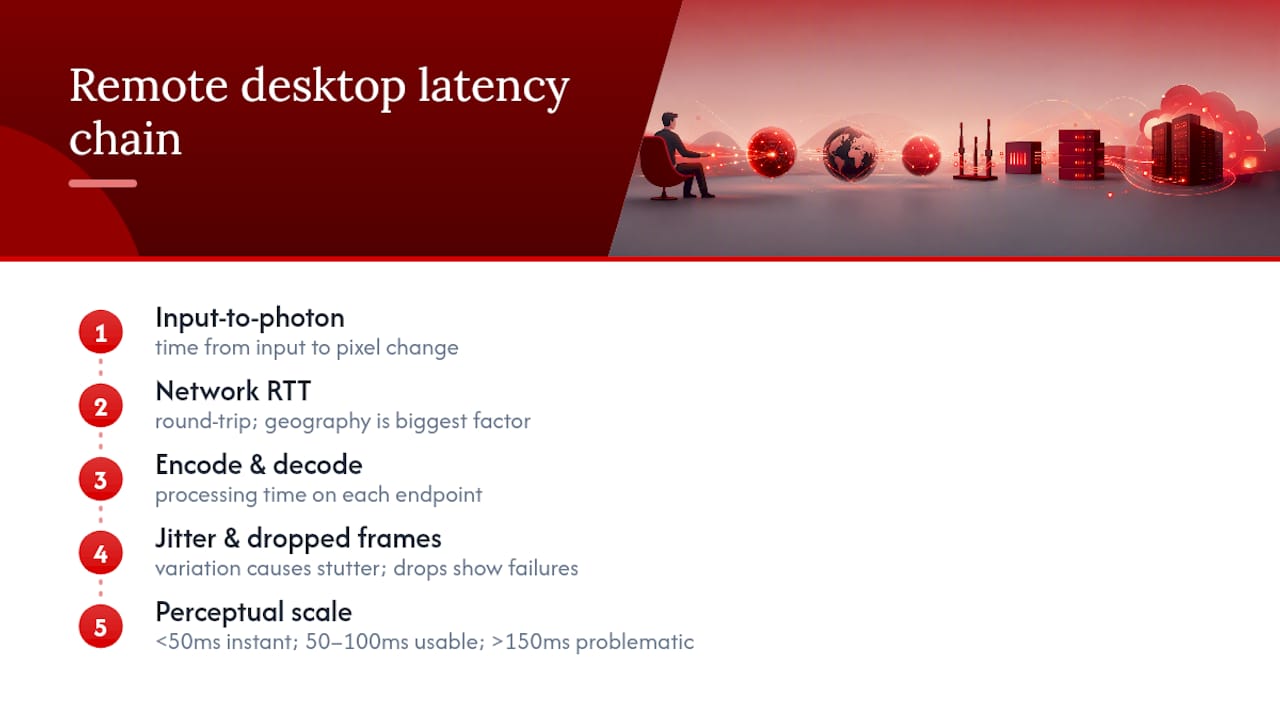
Remote desktop latency isn’t one number. It’s a chain: network round-trip time (RTT), encode and decode time on each end, and the render delay on your screen. The metric that actually matches what your eyes perceive is called input-to-photon latency, the total time from a mouse click or keypress to the corresponding pixel change on the display. SisiDesk’s explainer on latency components notes that geographic distance to the host is the single biggest factor a user directly controls.
Jitter, the variation in delay between packets, causes stutter even when average latency looks fine. Dropped-frame percentage tells you how often the session actually failed to keep up. As a working scale: under 50 ms feels near-instant, 50 to 100 ms is usable for coding and general admin work, and beyond 150 ms, anything requiring precise timing, like CAD work, trading terminals, or fast typing, starts to feel disconnected from your input.
Here’s the trap a lot of IT teams fall into: throwing bandwidth at a latency problem. A gigabit connection with 120 ms RTT is still going to feel sluggish, because bandwidth affects how much data moves, not how fast a single round trip completes.
How Do You Measure Remote Desktop Latency Accurately?
Start with ping and traceroute to the host’s IP address to get a baseline RTT and see whether any single hop is adding disproportionate delay. Asymmetric routing, where the path out differs wildly from the path back, often shows up here before it shows up as visible lag.
From there, dig into session-level data:
- Check the RDP or VDI client’s built-in connection info panel for session RTT and bandwidth usage.
- On Windows hosts, performance counters like
OutputTimeBetweenPDUsreveal how consistently frames are being sent, not just how fast on average. - Run frame-level tests that log timestamps and calculate percentiles: p50 (typical), p95 (bad but common), and p99 (worst-case tail). BlinkFast’s measurement work shows why sampling matters: a short test run hides tail spikes that a 20,000-frame sample exposes clearly.
- Disable desktop wallpaper and visual effects before testing, since they inflate render load unrelated to network performance.
- Reproduce the test on a different client device and a different network to isolate whether the problem travels with you or stays with the host.
Averages lie. A session that feels laggy usually has a fat p95 or p99 tail, even when the median RTT looks perfectly fine.
Where Does Remote Desktop Lag Actually Come From?
Latency gets added at three distinct points, and each one has different symptoms.
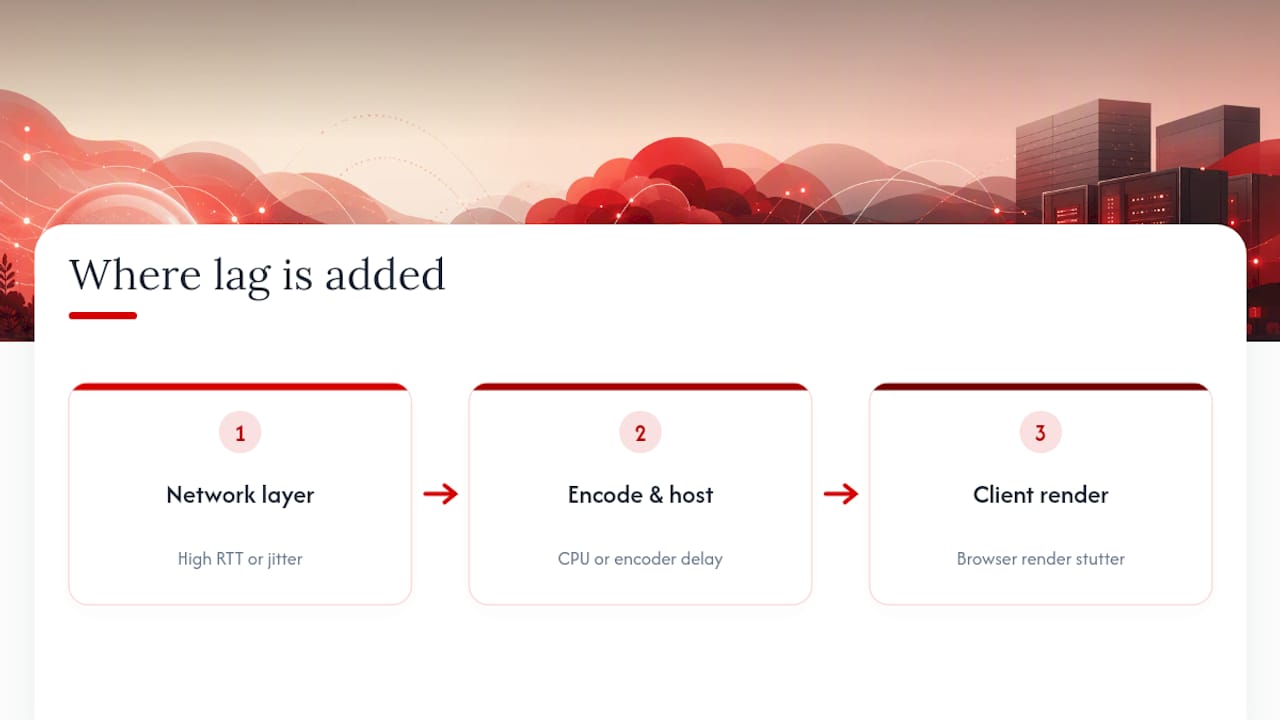
Network layer. Steady, consistent high RTT usually means geographic distance or a bad route, often from backhauling traffic through a central VPN gateway instead of connecting directly. Microsoft’s RDP optimization guidance calls this out directly: treating RDP like real-time media traffic and avoiding VPN backhaul is one of the biggest latency wins available. Spiky, inconsistent delay usually points to Wi-Fi jitter, packet loss on the last mile, or a relay server sitting between you and the host.
Encode and host layer. If the host CPU is maxed out or lacks a hardware encoder, encode time balloons. This shows up as delay that scales with screen complexity, video playback lags more than a static spreadsheet.
Client render layer. A browser-based client typically adds more render delay than a native app, and a mismatched display refresh rate can introduce buffering stutter that has nothing to do with the network at all.
If ping is low but the session still stutters, look at the host and client, not the wire.
Which Fixes Actually Reduce Remote Desktop Latency?
Work through these roughly in order. Each step below assumes the previous one didn’t fully solve it.
- Put the host on wired Ethernet. BetterRDP’s practitioner notes are blunt about this: a wired host connection fixes stutter issues that no amount of software tuning resolves, because Wi-Fi jitter and packet loss are baked into the medium itself.
- If wireless is unavoidable, use 5 GHz or Wi-Fi 6E, and get off the 2.4 GHz band entirely.
- Pause cloud sync and backup software during the session; background upload traffic competes for the same last-mile bandwidth and adds jitter.
- Use the native client, not a browser tab. Browser-based RDP clients add render overhead that native apps skip.
- Choose the nearest server region and prefer direct device-to-device connections over routes that hairpin through a corporate VPN or relay server.
- Enable hardware encoding. NVENC, AMD’s AMF, or Intel Quick Sync cut encode time to single-digit milliseconds versus software encoding, according to Remio’s engineering breakdown of RDP lag fixes, which quantifies the millisecond savings for each individual fix.
- Reduce resolution or color depth if the host GPU is a bottleneck, and enable bitmap caching so repeated screen regions aren’t re-transmitted.
- Enable RDP’s UDP transport in a current client version. UDP tolerates jitter and loss better than a strict TCP stream, similar in spirit to how Mosh handles lossy connections for remote terminals.
- On the server side, disable unnecessary background services, add antivirus exclusions for RDP processes, and check compression settings, since Microsoft’s guidance frames this as a memory-versus-bandwidth tradeoff rather than a free win.
- Escalate to network engineering if none of this closes the gap: QoS tagging, SD-WAN, or moving the workload to a point of presence physically closer to users.
Pro Tip: Test each fix in isolation and log the p95 latency before and after. Stacking five changes at once feels efficient, but it makes it impossible to know which one actually helped when something breaks later.
How Do You Tune a Server or VDI Environment for Lower Latency?
VDI environments need tuning that generic laptops don’t. Microsoft’s Remote Desktop Services VDI optimization guide lays out base image trimming, scheduled task cleanup, and compression policy paths, with scripts available to make the changes repeatable across a fleet rather than done by hand on each VM.
For persistent VMs, patch on a normal cadence since users expect state to survive reboots. Non-persistent pools can be rebuilt from a clean, aggressively trimmed golden image every cycle, which keeps latency-adding background bloat from creeping back in.
Compression settings trade memory for bandwidth. Turning compression up saves network capacity but costs CPU and RAM on both ends, worth testing rather than assuming. Device redirection, printers, drives, USB, adds its own overhead per session, so disable what a given user role doesn’t actually need.
On cloud VMs specifically: enable accelerated networking where the platform offers it, use proximity placement groups when host and clients cluster in one region, and prefer UDP transport over TCP for the same jitter tolerance reasons.
What Should You Monitor to Catch Latency Regressions Early?
Track p50, p95, and p99 for RTT or input-to-photon latency, plus jitter and dropped-frame percentage. The tail numbers matter more than the median, since a fine p50 with an ugly p99 means some users are having a genuinely bad time even when your dashboard average looks green.
Baseline it properly: sample a large enough frame count or a long enough session window that the tail actually shows up, a five-second test hides exactly the spikes you’re trying to catch. Report exceedance rate (the percentage of frames over your threshold) and the longest consecutive over-threshold streak, since that streak is what a user actually notices as a stall.
Set alerts on sudden jitter increases and tail exceedance, not just average RTT. RDPSoft’s tracking approach is a useful reference for building this kind of ongoing visibility into Windows Server environments. Re-run the baseline after every fix so you know which change actually moved the needle.
Trade-Offs That Matter More Than Chasing Milliseconds
Predictability beats speed. A session sitting at a stable 70 ms feels better than one bouncing between 20 ms and 200 ms, even though the second one has a lower average. That’s why architectural choices, local egress, avoiding backhaul, matter more than encoder tweaks once you’re past the basics.
For precision work, aim for sub-50 ms at the p95 mark, not just the median. For everything else, a consistent 50 to 80 ms band beats a jumpy connection that occasionally hits 30 ms. Host infrastructure and regional placement set the floor for what’s even achievable before you touch a single client setting.
— AceRDP
Get Low Host-Side Latency Without Building the Infrastructure Yourself
Most of the fixes above deal with the network and client side of the equation, but the host itself sets a hard floor on how fast a session can ever be. That’s where infrastructure choice does the heavy lifting.

Certain VPS hosting providers run Windows RDP and KVM VPS hosting on AMD Ryzen CPUs with NVMe storage and DDR5 RAM, providing headroom that keeps encode time low even under a busy session, plus multiple regional locations so you can pick a server physically close to where your session actually originates instead of routing through a distant data center. If you’ve worked through wired connections, hardware encoding, and direct routing and the host is still the weak link, that’s usually a hardware or placement problem, not a settings problem. Building and maintaining that kind of low-latency setup yourself means sourcing hardware, managing regional deployments, and keeping security protections current on top of it. Check available regions and plans on the AceRDP VPS hosting page to see whether a nearer, better-provisioned host closes the gap your current setup can’t.
FAQ
How Do I Reduce Latency on Remote Desktop?
Put the host on wired Ethernet, choose the nearest server region, enable hardware encoding, and avoid VPN backhaul or relay routes. These four changes fix most latency problems before any server tuning is needed.
Is RDP Fast Enough for Gaming?
RDP can handle light or turn-based games on a low-latency wired connection with p95 RTT under 50 ms, but fast-paced titles need input-to-photon delay tighter than most RDP setups deliver consistently. A provider with regional placement and hardware encoding, like AceRDP, narrows that gap but won’t fully match a local GPU for competitive play.
Why Are Remote Desktops So Laggy?
The most common causes are Wi-Fi jitter on the last mile, VPN backhaul adding unnecessary hops, and software encoding maxing out the host CPU. Distance to the server and a lack of hardware encoding compound both issues.
How Do I Fix Virtual Desktop Latency?
Apply Microsoft’s VDI optimization steps for the base image and compression settings, confirm the connection isn’t backhauling through a central VPN, and check whether the host has a hardware encoder available. If those don’t resolve it, measure p95 and p99 latency to find which pipeline layer is actually the bottleneck.
What Latency Is Acceptable for Remote Desktop Work?
Under 50 ms feels close to local use; 50 to 100 ms works fine for general office tasks; anything past 150 ms starts to disrupt precise input like fast typing or design work.


