NVMe vs SATA SSD: Which One Should You Actually Buy?
NVMe vs SATA SSD: Which One Should You Actually Buy?
NVMe is the right call for almost any primary drive in a new build. It runs on PCIe, it’s built specifically for flash memory, and depending on generation it moves data anywhere from 6 to 20 times faster than a SATA SSD. SATA still earns its spot in a system, though: cheap bulk storage, older motherboards without M.2 slots, or drives where you need eight cheap terabytes more than you need speed.
The gap comes down to the interface and protocol, not the memory chips inside. Both drive types often use the same NAND flash. NVMe talks to your CPU over PCIe lanes with a protocol designed from scratch for solid-state storage. SATA still runs the AHCI protocol, a leftover from the spinning-disk era, capped at roughly 600 megabytes per second no matter how good the flash behind it is.
Here’s the quick version for anyone who wants to skip ahead and buy:
- Pick NVMe for your OS drive, your game library, video editing scratch disks, or any workload with large or sustained file transfers.
- Pick SATA for a second drive dedicated to bulk storage, for older systems with no free M.2 slot, or when 4TB to 8TB of capacity matters more than speed.
- Check compatibility first. An NVMe drive does nothing for you if your motherboard or laptop can’t run it at full speed.
Key Takeaways
NVMe outperforms SATA primarily because of its PCIe-based protocol and massive queue depth, not because of different flash memory inside the drives.
| Point | Details |
|---|---|
| Protocol drives the gap | NVMe runs over PCIe with up to 65,535 queues; SATA’s AHCI protocol is capped at one queue with 32 commands. |
| Speed scales with PCIe generation | SATA tops out near 600 MB/s while PCIe 4.0 NVMe reaches roughly 7,000 MB/s. |
| Real-world gains vary by task | NVMe shortens load times and large-file transfers but rarely changes gaming frame rates. |
| Heat and endurance need planning | Fast NVMe drives can throttle under sustained writes, so check TBW ratings and add cooling for heavy workloads. |
| SATA still wins at high capacity | Above 4TB, SATA usually offers better price per gigabyte than NVMe. |
| Hosted NVMe extends the advantage | AceRDP’s VPS plans use local NVMe storage on Ryzen infrastructure for workloads that don’t need on-desk hardware. |
Table of Contents
- NVMe vs SATA SSD: A Side-by-Side Snapshot
- What Makes NVMe and SATA Fundamentally Different?
- Will Your Motherboard or Laptop Actually Support NVMe?
- Where Do You Actually Feel the Speed Difference?
- Do Faster NVMe Drives Run Hotter, and Does It Matter?
- When Does SATA Still Make Financial Sense?
- What’s the Fastest Way to Decide Which Drive to Buy?
- How Do You Actually Install a New SSD?
- Why Does NVMe Matter So Much for Servers and VPS Hosting?
- What Should You Actually Take Away From This?
- Need NVMe Speed Without Building a Server Yourself?
- Frequently Asked Questions
- Sources
NVMe vs SATA SSD: A Side-by-Side Snapshot
The numbers below tell the real story faster than any marketing page will.
| Dimension | SATA SSD | NVMe SSD |
|---|---|---|
| Sequential throughput | ~550 to 600 MB/s | 3,500 MB/s (PCIe 3.0) to 7,000 MB/s (PCIe 4.0) |
| Random IOPS / latency | Tens of thousands IOPS, higher latency | Hundreds of thousands to millions of IOPS, low latency |
| Form factor / connector | SATA, or M.2 B+M key | M.2 M key, U.2, or PCIe add-in card |
| Compatibility | Nearly universal, any SATA port | Requires M.2 NVMe slot or PCIe slot with adapter |
| Price per GB | Lower at high capacities | Competitive at 500GB to 1TB, pricier past 4TB |
| Power & thermals | Low heat, no throttling concerns | Higher heat under load, may need a heatsink |
| Endurance / TBW | Moderate, varies by model | Often higher on mainstream drives, wide range |
| Best use case | Bulk storage, budget builds, older systems | OS drive, gaming, editing, servers |
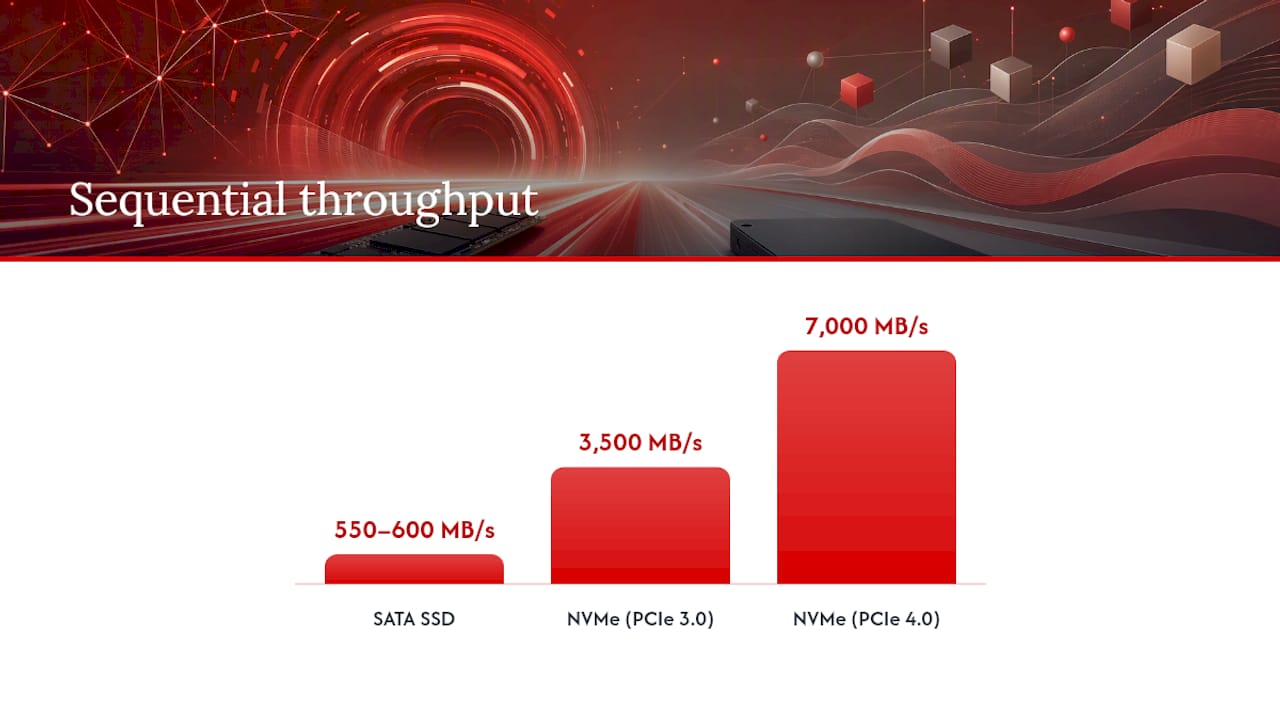
A PCIe 3.0 NVMe drive tops out around 3,500 MB/s. Move to PCIe 4.0 and that ceiling roughly doubles to 7,000 MB/s. PCIe 5.0 pushes theoretical limits well above current PCIe 4.0 speeds, though few consumer workloads actually saturate that.
Queue depth is the number most buyers never check, and it’s the one that matters most for a busy system. SATA’s AHCI protocol runs a single command queue with a maximum depth of 32. NVMe supports up to 65,535 queues, each holding up to 65,535 commands. That’s not a rounding difference. It’s why an NVMe drive stays responsive when you’re compiling code, streaming a game install, and running a backup at the same time, while a SATA drive starts to choke.
What Makes NVMe and SATA Fundamentally Different?
NVMe is a protocol built specifically for flash memory over the PCIe bus. SATA runs on AHCI, a command set designed in the mid-2000s for spinning hard drives, and it was never rebuilt from the ground up for solid-state storage. That single fact explains almost every performance gap between the two.
AHCI expects a mechanical drive with a spinning platter and a moving read head, so it was optimized around minimizing seek delays, not around exploiting flash’s ability to handle thousands of operations in parallel. NVMe throws that legacy model out. It was designed alongside the assumption that storage has no moving parts and can process an enormous number of requests simultaneously.
A few structural differences drive the real-world gap:
- Queue model: SATA/AHCI runs one command queue at a depth of 32. NVMe runs up to 65,535 queues at up to 65,535 commands each, which is why NVMe handles multitasking and multi-threaded workloads far better.
- Command set: NVMe’s instruction set is leaner and was designed for flash from day one, cutting the translation overhead SATA drives absorb when talking through AHCI.
- CPU overhead: NVMe communicates more directly with the CPU, reducing the software layers a request has to pass through before it reaches the drive.
- PCIe lane mapping: Throughput scales with both PCIe generation and lane count. A drive using four PCIe 4.0 lanes has roughly double the bandwidth ceiling of the same drive on PCIe 3.0 lanes.
The generation-and-lane math explains most of the confusing marketing you’ll see on SSD boxes. SATA III has a practical ceiling around 550 to 600 MB/s no matter what drive you buy. A PCIe 3.0 x4 NVMe drive can hit roughly 3,500 MB/s. PCIe 4.0 x4 doubles that to around 7,000 MB/s. PCIe 5.0 x4 pushes theoretical numbers even higher, though platform bottlenecks and real-world workloads rarely let you see the full number.
That platform detail matters more than most buyers realize: install a PCIe 4.0 drive in a PCIe 3.0 slot, and it runs at PCIe 3.0 speeds. The drive doesn’t know it’s being held back. It just performs at whatever ceiling the motherboard allows.
Pro Tip: M.2 is a form factor, not a speed guarantee. An M.2 slot can carry either a SATA drive or an NVMe drive depending on the keying and the drive itself, so “M.2” on a spec sheet tells you the shape, not the protocol. Always confirm NVMe support specifically, not just M.2 compatibility.
Will Your Motherboard or Laptop Actually Support NVMe?
Compatibility decides more purchases than preference does. You can want the fastest NVMe drive on the market, but if your system only has SATA M.2 slots or no M.2 slots at all, that drive becomes an expensive paperweight.
Checking support takes about five minutes if you know where to look:
- Pull up your motherboard manual and look for the M.2 slot specifications, which will list supported keys (B, M, or B+M) and PCIe lane counts.
- Check your BIOS/UEFI storage configuration page, which usually lists connected NVMe or SATA devices by name.
- For laptops, find the manufacturer’s service manual or spec sheet, since many thin laptops solder storage or only expose a single M.2 slot with limited options.
- Search your exact model number plus “SSD upgrade” to find community documentation on what slot type and generation the machine actually supports.
The connector keying is where confusion usually starts. An M-key M.2 slot supports NVMe drives using up to four PCIe lanes. A B+M key slot, more common on older or budget boards, is typically wired for SATA-based M.2 drives and caps out at SATA speeds even though the drive physically looks identical to an NVMe stick. Beyond M.2, you’ll occasionally run into legacy mSATA slots on older laptops, U.2 connectors on some workstation and server boards, and PCIe add-in cards that let you run an NVMe drive in a standard PCIe slot when no M.2 header is available.
Pro Tip: On a laptop, check Windows Device Manager under Disk Drives, or search the exact model number on the manufacturer’s support page, before ordering a replacement drive. In BIOS, look for a storage mode setting labeled NVMe, AHCI, or RAID; some boards default to AHCI and need a manual switch before an NVMe drive shows up properly.
Where Do You Actually Feel the Speed Difference?
NVMe wins decisively for large sequential transfers, multi-stream content work, and sustained workstation loads. For everyday things like opening a browser, launching Word, or booting Windows, the gap between a good SATA SSD and a good NVMe drive shrinks to something most people won’t notice.

Copy a 50GB video file and the difference is dramatic and obvious. A SATA drive moving that file at roughly 500 MB/s takes about 100 seconds. A PCIe 4.0 NVMe drive at 7,000 MB/s finishes in under 10. Now copy a handful of small text files, and both drives finish before you’d even notice a difference, because the bottleneck stops being throughput and starts being overhead per file.
Gaming is the use case that surprises the most people. Tom’s Hardware tested SSD speed across 11 titles, comparing SATA all the way to PCIe 5.0 NVMe, and found load times improved with faster drives but frame rates stayed essentially flat. NVMe shortens the time staring at a loading screen and smooths out texture streaming in open-world games. It does nothing for your FPS counter, because that number lives and dies with your GPU and CPU, not your storage.
| Workload | Recommended interface | Why |
|---|---|---|
| OS boot and app launches | Either works well | Boot time gap is usually a few seconds, driven more by startup apps than raw speed |
| Gaming | NVMe preferred | Shorter load screens and smoother asset streaming, not higher FPS |
| Video editing (compressed) | Either works well | Modern codecs don’t demand extreme sustained throughput |
| Video editing (uncompressed/RAW) | NVMe required | Sustained multi-gigabyte-per-second streams overwhelm SATA |
| Multi-cam editing | NVMe strongly preferred | Multiple simultaneous streams need the parallelism NVMe provides |
| Backups and archiving | SATA acceptable | Sequential write speed matters less than capacity and cost |
| VM hosting / server workloads | NVMe preferred | High IOPS and low latency directly improve responsiveness |
For everyday tasks like browsing, office work, or streaming video, a solid SATA SSD and an NVMe drive feel roughly comparable. The NVMe advantage becomes obvious once you’re moving large files consistently or running workloads that hammer the drive with parallel requests.
Pro Tip: If your daily use is mostly single-app launches or lightweight browsing, you’ll get diminishing returns from a top-tier NVMe drive. Your bottleneck in those cases is almost always the CPU or a slow-loading web page, not sequential throughput.
Do Faster NVMe Drives Run Hotter, and Does It Matter?
Yes. High-speed NVMe drives generate noticeably more heat than SATA SSDs, and sustained transfers can trigger thermal throttling that quietly cuts your real-world speed well below the number on the box.
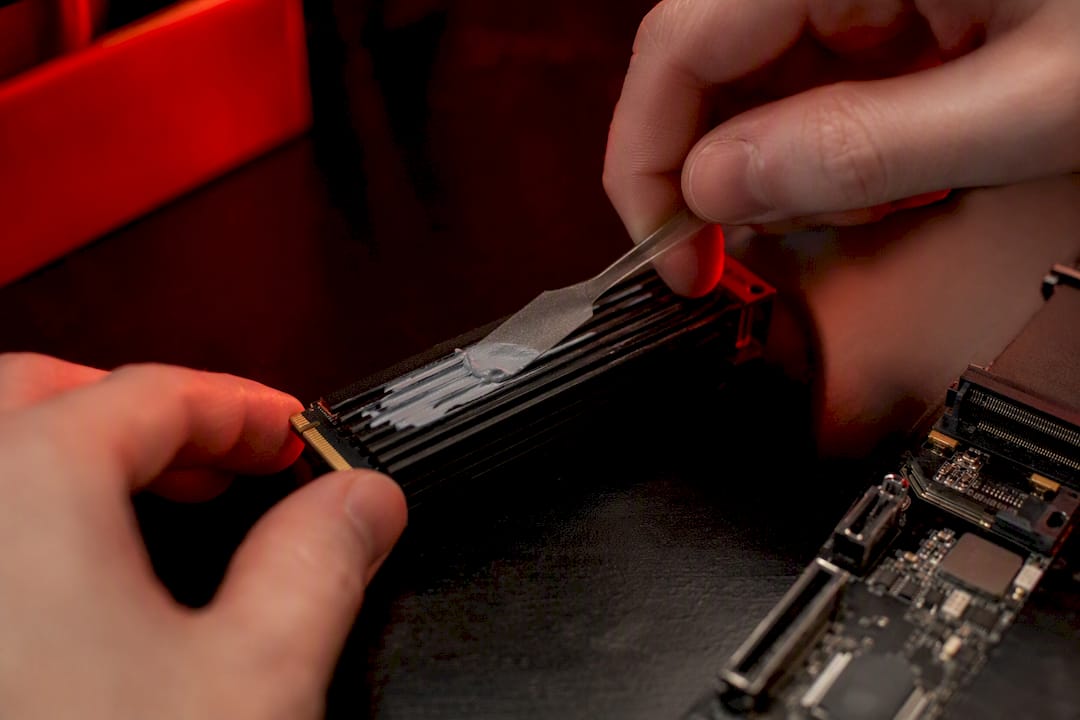
A SATA drive rarely needs cooling consideration; its lower throughput ceiling means it just doesn’t generate much heat. A PCIe 4.0 or 5.0 NVMe drive under a sustained multi-gigabyte write, though, can climb past safe operating temperatures within seconds, and the controller will throttle itself to protect the hardware. You’ll see this as a sudden speed drop midway through a large file transfer, not a gradual slowdown.
A few fixes handle this reliably:
- Add an M.2 heatsink, either a standalone unit or one included on the drive itself.
- Improve case airflow near the M.2 slots, since many motherboard NVMe slots sit close to the GPU where airflow is already crowded.
- Use a PCIe add-in card with active cooling for workstation builds doing frequent sustained writes.
Endurance ratings matter just as much as thermals if you write heavily to the drive. TBW, or terabytes written, tells you the total data volume a drive is warrantied to handle before failure risk climbs. Consumer NVMe drives commonly land in the 300 to 600 TBW range for a 1TB model, while workstation and enterprise-grade drives can rate several times higher, reflecting sturdier NAND and better wear-leveling firmware. Warranty length typically runs three to five years, but check whether it’s capped by TBW, time, or whichever comes first, since a heavy-write workload can burn through the TBW allowance well before the years run out.
Pro Tip: Before buying a drive for a heavy write workload like video capture or a database server, check the manufacturer’s published sustained-write benchmarks, not just the burst sequential number on the marketing page. Burst numbers look great for the first few seconds and say nothing about hour three of continuous writes.
When Does SATA Still Make Financial Sense?
At common consumer capacities, roughly 500GB to 1TB, the price gap between SATA and NVMe has narrowed enough that platform compatibility usually decides the purchase before cost does. Push into 4TB and 8TB territory, though, and SATA still holds a meaningful price-per-gigabyte edge.
That pricing pattern flips as capacity climbs because NVMe controllers and high-density NAND packaging cost more to manufacture at scale, while SATA SSDs at high capacities benefit from a mature, cost-optimized manufacturing pipeline. A budget build stacking a 500GB NVMe boot drive next to a 4TB SATA SSD for bulk media storage is a genuinely smart split, not a compromise.
A few practical notes on capacity pricing:
- At 500GB to 1TB, expect NVMe and SATA prices to sit close enough that compatibility, not cost, should drive the decision.
- At 2TB, NVMe carries a modest premium but remains reasonable for most budgets.
- At 4TB and up, SATA typically wins on price per gigabyte by a noticeable margin.
- Prices shift with new NAND generations and seasonal sales, so check current listings rather than assuming last year’s pricing pattern still holds.
Pro Tip: Don’t toss an old SATA drive when you upgrade to NVMe. Drop it into a $10 USB 3.x enclosure and it becomes cheap, reliable external storage for backups, game archives, or a portable drive you don’t mind losing.
What’s the Fastest Way to Decide Which Drive to Buy?
If your platform supports NVMe, buy NVMe for your primary drive and use SATA only where capacity or cost outweighs speed. That single rule covers most builds, but the checklist below covers the exceptions.
- Platform support: Confirm your motherboard or laptop has a free M-key M.2 slot before shopping for NVMe.
- Workload type: Heavy sequential transfers or multi-stream editing justify NVMe; light browsing and office work don’t require it.
- Capacity needed: Above 4TB, compare SATA pricing directly, since it often wins outright at that size.
- Thermals: Cramped cases or laptops may need a heatsink-equipped NVMe drive or a cooler slot location.
- Budget: If money is tight, prioritize NVMe for your OS drive and fill in with SATA for secondary storage.
Three quick examples show how that plays out:
Budget office build: A single 500GB NVMe drive for the OS and apps, no secondary drive needed. Platform support is the only real hurdle here, and most budget boards from the last five years include at least one M.2 slot.
Gaming or midrange desktop: A 1TB or 2TB NVMe drive for the OS and game library, paired with a large SATA SSD or hard drive for archived games and media. This setup gets shorter load screens without overspending on capacity you don’t need at NVMe prices.
Pro workstation or video editing rig: A fast PCIe 4.0 or 5.0 NVMe drive as a scratch disk for active projects, with a high-capacity SATA array handling finished project archives and backups. The speed goes where it earns its keep.
How Do You Actually Install a New SSD?
Check compatibility and back up your data before you touch a screwdriver. Those two steps prevent nearly every disaster that happens during a storage upgrade.
- Back up everything on your current drive, ideally to a separate physical drive or cloud storage, not just a folder on the same machine.
- Confirm the M.2 key type and slot generation your motherboard supports, matching it against the drive you’re buying.
- Gather tools: a Phillips screwdriver, the M.2 mounting screw (often included with the motherboard, not the drive), and a heatsink if your drive doesn’t include one.
- Apply the thermal pad or heatsink if your motherboard includes one over the M.2 slot, making sure the protective film is removed first.
- Seat the drive at the correct angle, then lower it flat and secure the mounting screw. Snug is enough; overtightening can crack the drive’s PCB.
- Boot into BIOS/UEFI and confirm the new drive appears in the storage list before proceeding.
- Decide between cloning your existing drive or a clean OS install. Cloning is faster; a clean install avoids carrying over years of software clutter.
Pro Tip: In cramped mini-ITX builds, the M.2 slot often sits directly under the GPU, leaving almost no clearance for a heatsink. Check that fit before buying a drive with a tall aftermarket cooler, or you may not be able to seat your graphics card at all.
Why Does NVMe Matter So Much for Servers and VPS Hosting?
NVMe has become the practical standard for high-performance servers and VPS environments, and the reason is the same parallelism advantage that shows up in desktop builds, just amplified by dozens of simultaneous users hitting the same storage. Enterprise workloads favor NVMe over SATA and SAS specifically because it delivers higher throughput and IOPS while cutting CPU overhead, which matters enormously when a single physical drive is serving many virtual machines at once.
That advantage shows up in a few concrete places on the server side:
- Multi-tenant VPS environments benefit directly from NVMe’s deep queue support, since dozens of virtual machines can issue requests in parallel without one tenant’s heavy I/O starving another.
- Database workloads lean heavily on random IOPS and low latency, exactly where NVMe separates itself furthest from SATA.
- VM density increases because NVMe’s low latency lets a host pack more virtual machines onto the same physical storage without a noticeable slowdown.
- AI and machine learning data pipelines move large training datasets repeatedly, and NVMe’s sequential throughput cuts the time spent waiting on I/O between compute steps.
Pro Tip: When evaluating a VPS provider, ask directly whether storage is local NVMe attached to your instance or a networked NVMe pool shared across the data center, since performance guarantees differ significantly between the two. Also ask about throughput caps, backup and snapshot frequency, and whether snapshots impact live performance.
What Should You Actually Take Away From This?
Choose NVMe by default when your platform supports it, and reserve SATA for where its economics genuinely fit: high-capacity bulk storage, older systems, or a secondary drive where speed simply isn’t the point. The technical case for NVMe is overwhelming once you’re moving real data volume, but I’d push back on one thing builders get wrong constantly: assuming faster is always better regardless of use case.
A budget NVMe drive without a DRAM cache can actually underperform a solid mid-range SATA SSD on certain random-write workloads, so the interface alone doesn’t guarantee the outcome you’re expecting. The model matters as much as the protocol. If I had to boil this whole comparison into one rule, it’s this: match the drive to the workload, not the workload to whatever drive looks fastest on the spec sheet.
Need NVMe Speed Without Building a Server Yourself?
Local NVMe wins for single-desktop tasks where you feel every millisecond of latency directly, like a video editing scratch disk sitting three inches from your CPU. But for remote builds, continuous integration pipelines, rendering farms, or always-on services, hosted NVMe storage through a VPS often gets you the same throughput advantage without owning and cooling the hardware yourself.

Before picking any NVMe VPS provider, ask a few direct questions: is the storage local NVMe or a networked NVMe pool shared across tenants? What throughput and IOPS guarantees actually back the plan? How often are backups and snapshots taken, and do they slow down live performance while running? What’s the physical distance between your users and the data center region?
AceRDP runs Windows RDP and KVM VPS plans on AMD Ryzen infrastructure with local NVMe storage, DDR5 memory, and instant provisioning across multiple data center locations. If your workload is development, automation, remote desktop access, or a business application that needs consistent low-latency storage without you managing physical hardware, check the available VPS plans and match a configuration to what your workload actually needs.
Frequently Asked Questions
Is NVMe always faster than SATA in every task? No. NVMe wins decisively on large sequential transfers and heavy parallel workloads, but for basic tasks like web browsing or opening a document, a good SATA SSD often feels just as responsive.
Is NVMe worth it for gaming specifically? It’s worth it for shorter load screens and smoother texture streaming in open-world titles, but don’t expect a frame rate boost. Testing across 11 games found FPS stayed flat regardless of drive speed.
Can I put a SATA drive in an NVMe M.2 slot, or vice versa? It depends on the slot’s key type. An M-key slot generally supports NVMe drives only, while a B+M key slot often supports SATA-based M.2 drives. Physical fit doesn’t guarantee protocol compatibility, so check your motherboard’s documentation.
Does NVMe use more power than SATA? Yes, particularly under sustained load, and that extra power draw is exactly why NVMe drives run hotter and sometimes need a heatsink that a SATA drive never requires.
Should I buy NVMe or SATA for a budget build? If your motherboard has a free M.2 NVMe slot, put your OS on NVMe even in a budget build, since prices at 500GB to 1TB have narrowed significantly. Add SATA storage separately only if you need more capacity than your budget allows in NVMe.
Sources
For readers who want to dig into the raw benchmarks and vendor specifications behind these comparisons:
- NVMe vs SATA SSDs Explained: Speed, Performance & … | SanDisk
- NVMe vs SATA: What is the difference? - Kingston Technology
- NVMe vs SATA: What’s the difference? | IBM
- We tested the impact of SSD speed on gaming performance in 11 titles | Tom’s Hardware