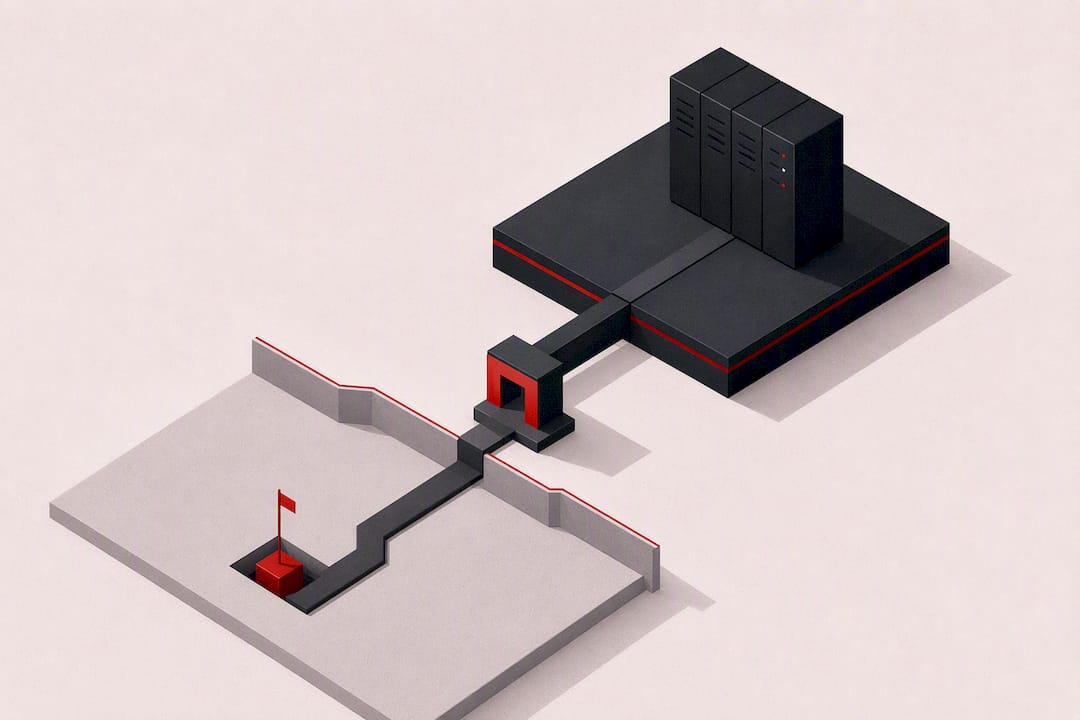
Never Expose RDP Port 3389: Secure Setup for IT Admins

Never Expose RDP Port 3389: Secure Setup for IT Admins
RDP, or Remote Desktop Protocol, lets you use a remote computer’s desktop as if you were sitting in front of it, moving your mouse, typing and viewing the screen over a network connection. The single most important rule when using it: never expose RDP directly to the internet. Secure it instead with a VPN, a Zero Trust gateway, or a hosted provider, and always pair it with Network Level Authentication and multi-factor authentication.
TL;DR:
- Never expose RDP directly to the internet; always use a VPN, Zero Trust gateway, or hosted service with multi-factor authentication.
- Ensure network profile is set to private, firewall ports are restricted to trusted networks, and Network Level Authentication is enabled for secure connections.
- Troubleshoot connection issues systematically by checking port reachability, service status, port conflicts, and recent Windows updates.
- Use hosted RDP solutions for workloads requiring high performance, continuous availability, or when managing multiple or high-risk servers.
- For remote access from macOS, Linux, or mobile, use official or open-source RDP clients that rely on the standard protocol, regardless of platform.
Table of Contents
- What RDP is and when to use it
- How to enable and connect to RDP
- Common connection problems and a stepwise troubleshooting checklist
- Security best practices for RDP
- Differences between RDP editions and versions
- How RDP compares to VNC, TeamViewer and AnyDesk
- Alternative RDP clients across macOS, Linux and mobile
- Performance optimization tips for smoother sessions
- RDP over the internet versus on a local network
- When a hosted RDP or VPS is the right choice
- AceRDP: a secure, high-performance hosted RDP option
- FAQ
- Sources
What RDP is and when to use it
RDP transmits display output and input events between a remote computer and your device over TCP/IP, while also redirecting local resources like your clipboard, printers and audio so the remote session feels native. The protocol specification known as MS-RDPBCGR describes how this remoting works, including the virtual channel model that carries graphics, input and device redirection separately over the same connection. By default, RDP listens on port 3389 over TCP, with UDP used in some configurations for improved responsiveness.
The typical setup is simple: a client machine running Remote Desktop Connection or a compatible app connects to a host machine running the RDP service. This fits several common scenarios:
- Remote employees connecting to an office workstation or a dedicated remote server.
- IT support staff accessing an end user’s machine to diagnose or fix a problem.
- Developers or traders running CPU-intensive software on a remote server instead of a local laptop.
When you need always-on access, more processing power than your local device offers, or a server that lives outside your home network, a cloud-hosted virtual machine is often a better foundation than running RDP from a personal PC.
How to enable and connect to RDP
Getting RDP running takes only a few minutes on a Windows machine, but the details matter if you want the connection to work reliably and securely.
- Open Settings, go to System, then Remote Desktop, and toggle it on, adding the specific user accounts you want to allow.
- If the toggle keeps reverting to off, check the
fDenyTSConnectionsregistry value and any Group Policy settings that might be overriding your choice, as Microsoft’s enablement guide explains. - Set your network profile to Private rather than Public, since Windows Firewall only applies RDP-friendly rules automatically on private networks.
- Open the firewall port for RDP only on trusted networks, never on a connection exposed to the open internet.
- On the client side, launch
mstscor the Microsoft Remote Desktop app, enter the host’s address and credentials, and confirm Network Level Authentication is enabled so authentication happens before the full session loads. - For access over the internet, skip opening port 3389 altogether and instead connect through a VPN, an RD Gateway, or a managed hosted RDP service.
Pro Tip: Test your RDP connection from inside your own network first; if it fails there, the problem is almost never your internet-facing firewall, which narrows troubleshooting considerably.
Common connection problems and a stepwise troubleshooting checklist
Most RDP failures trace back to one of a handful of causes, and checking them in order saves time. Microsoft’s troubleshooting guidance lays out a sequence worth following before assuming anything is broken at a deeper level.
- Confirm basic reachability by testing port 3389 with a tool like psping, then check whether a listener is active using
qwinsta. - Verify that the TermService and UmRdpService services are running, since either one stopping will block new sessions.
- Look for port conflicts with
netstatandtasklist, particularly if another application has grabbed port 3389. - Check for Group Policy or registry blockers such as
fDenyTSConnections, which silently disables RDP even when the Settings toggle looks correct. - Review recent Windows updates, since changes to NTLM or NLA authentication behavior have broken RDP logins for some users, as documented in Microsoft’s community troubleshooting thread on post-update connection issues.
- Inspect the RDP listener’s certificate if you see certificate warnings or authentication failures tied to encryption negotiation.
Microsoft’s documented troubleshooting order moves from basic network checks to services, firewall and network profile, authentication compatibility, certificates, and finally trace collection if the issue persists, according to Microsoft’s connectivity guidance. Following that sequence usually identifies the cause well before you need deeper diagnostics.
When none of these checks resolve the problem, Microsoft’s guidance recommends collecting TSS traces and escalating to support with that data in hand, since it captures service states, listener configuration and authentication negotiation details that are hard to diagnose manually.
Security best practices for RDP
RDP exposure is one of the most common entry points attackers use to gain initial access to a network, which is why CISA’s countermeasure guidance treats restricting it as a priority mitigation rather than an optional hardening step. The controls below are ordered roughly by impact.
- Never expose port 3389 directly to the internet; route access through a VPN, a Zero Trust gateway, an RD Gateway, or clientless browser-based access instead.
- Enable Network Level Authentication and require multi-factor authentication at the access gateway, since NLA forces authentication before a session is even established, as Microsoft recommends.
- Restrict RDP access to specific role-based groups and avoid letting administrator accounts connect directly from external networks.
- Rotate passwords on a reasonable schedule and enforce account lockout policies without locking out legitimate users during normal typos.
- Patch RDP hosts promptly, monitor connection logs, and keep hosts behind a firewall rather than relying on the host’s own exposure as a safeguard.
- Use dedicated administrative workstations for privileged RDP sessions rather than connecting from everyday machines, an approach BeyondTrust frames as treating RDP as an application to be governed, not just a toggle to flip on.
Pro Tip: If you manage more than a handful of RDP hosts, a Zero Trust gateway is usually easier to maintain than a traditional VPN, since it can enforce per-application access rules instead of granting broad network access.
For teams building out these controls, practical guidance on securing remote access deployments covers configuration details that complement the steps above, and background on endpoint protection for business is worth reviewing since a compromised endpoint can undermine even a well-configured RDP gateway.
Differences between RDP editions and versions
Not every version of Windows handles RDP the same way, and the differences affect what you can actually do with it. Windows Home editions cannot act as an RDP host at all, meaning you cannot connect into a Home machine remotely, though you can use Home to connect out to other machines as a client. Windows Pro and Enterprise editions include the Remote Desktop host feature, allowing a single inbound connection at a time, which covers the typical case of one person remotely accessing their own work or home PC.
Windows Server editions go further, supporting Remote Desktop Services with multiple simultaneous sessions, which is the foundation for scenarios like shared terminal servers or published applications used by many people at once. Server editions also support RD Gateway and RD Web Access roles, which matter if you are building out a secure, internet-facing access point rather than connecting from a single trusted network.
If you are choosing between a Pro-based remote workstation and a Server-based multi-user setup, the deciding factor is usually how many people need concurrent access and whether you need the gateway and session broker features that come with Server editions.
How RDP compares to VNC, TeamViewer and AnyDesk
RDP is a native Windows protocol built into the operating system, which means no separate software installation is required on the host side, though you still need a compatible client. VNC takes a different technical approach, capturing and transmitting the screen as images rather than using RDP’s virtual channel model, which can make it more universal across operating systems but sometimes less responsive on complex graphics.

Consumer remote access tools in the same general category focus on ease of setup, typically using a relay service so you can connect without configuring firewall rules or static IP addresses yourself. That convenience comes with a tradeoff: you are relying on a third party’s infrastructure and security practices rather than a protocol you control directly. RDP, by contrast, gives you more control over the connection path and authentication method, but that control means the security responsibility sits with you, which is exactly why gateway-based access and NLA matter so much.
For most IT environments managing company-owned Windows machines, RDP paired with a proper gateway remains the more controllable option, while consumer-friendly relay tools tend to fit ad hoc, one-off support sessions better than ongoing infrastructure access.
Alternative RDP clients across macOS, Linux and mobile
RDP is not limited to Windows-to-Windows connections. The Microsoft Remote Desktop app is available for macOS, giving Mac users a native way to connect to Windows hosts without extra configuration. On Linux, open-source clients like Remmina support RDP alongside other protocols, making it practical to manage mixed-platform environments from a single tool.
Mobile access is covered as well. Microsoft’s Remote Desktop apps for iOS and Android let you connect to a Windows host from a phone or tablet, which is useful for quick checks or emergency access when you are away from a full computer, though typing and precise mouse control are naturally more limited on a touchscreen.
Whichever client you choose, the connection still depends on the same underlying protocol behavior described in the RDP specification, so authentication requirements, encryption and virtual channel behavior stay consistent regardless of which operating system you are connecting from.
Performance optimization tips for smoother sessions
A sluggish RDP session is usually a configuration problem, not a hardware limitation. The Experience tab in Remote Desktop Connection lets you manually select your connection speed, and choosing a lower bandwidth profile disables visual extras like desktop background, font smoothing and visual animations that add overhead without adding function.
Display settings matter just as much. Lowering the color depth and resolution of the remote session reduces the amount of data that needs to travel across the connection, which is particularly noticeable on slower networks. If you are working with large documents or images rather than motion-heavy content, turning off desktop composition (the Aero-style visual theme) often improves responsiveness with no real downside.
RDP compresses graphical data automatically, but you can help it along by closing unnecessary background applications on the host that compete for CPU and bandwidth. For connections over genuinely limited bandwidth, such as a hotel internet connection or a mobile hotspot, dropping to a lower color depth and disabling clipboard or printer redirection you are not actively using frees up additional headroom for the parts of the session you actually need.
RDP over the internet versus on a local network
Running RDP purely within a local network is a fundamentally different risk profile than exposing it over the internet. On a LAN, your RDP traffic never leaves a network you control, firewall rules are simpler, and the attack surface is limited to devices already inside your perimeter. This is why home users connecting between two machines on the same network can often get away with a more relaxed setup than a business ever should.
The moment RDP needs to work over the internet, the calculation changes entirely. CISA’s guidance is explicit that RDP should not be directly reachable from the internet, because open RDP ports are routinely scanned and targeted as an initial access point for ransomware and other intrusions. The safe pattern for internet-facing access is to route the connection through a VPN, an RD Gateway, or a Zero Trust access layer, so the RDP port itself is never the thing facing the public internet.

If your use case genuinely requires remote access from varied locations, a hosted virtual server with a properly configured gateway often ends up simpler to secure correctly than trying to retrofit safe internet access onto a home or office network RDP setup.
When a hosted RDP or VPS is the right choice
Hosted RDP makes the most sense when you need always-on availability, heavier CPU or storage performance than a personal machine offers, or low-latency access from multiple locations. Managed plans shift patching, DDoS protection and provisioning off your plate, trading a recurring cost for meaningfully less operational risk. Before choosing between self-hosting and a hosted option, it is worth weighing your actual workload demands, latency tolerance and security posture honestly.
— AceRDP
AceRDP: a secure, high-performance hosted RDP option
If the security checklist above feels like a lot to maintain on your own hardware, hosted RDP can help close that gap by providing managed hosting with strong CPU performance and low latency without having to manage patching schedules or gateway configuration yourself. Servers provision through an automated platform, and DDoS protection and responsive support are offered.
This setup tends to fit users running CPU-intensive workloads, automation tasks or trading software that need a reliable remote desktop. Plans are available at various price points, supporting both Windows and Linux servers across multiple locations. If you want to see the full plan lineup and pick the tier that matches your workload, visit the AceRDP landing page to compare options or reach out to our support team with questions.
FAQ
What is RDP used for?
RDP is used to access and control a remote computer’s desktop over a network, letting you run applications, manage files and work as if you were physically at that machine. Common uses include remote work, IT support sessions and accessing dedicated servers or virtual machines for development, automation or trading workloads.
What does RDP stand for?
RDP stands for Remote Desktop Protocol, a Microsoft-developed protocol built into Windows that transmits display output and input between a host and a client. The protocol specification describes how it handles graphics, input and device redirection over a single connection.
Is RDP the same as a VPN?
No, RDP and a VPN solve different problems: RDP gives you control of a remote desktop’s interface, while a VPN creates a secure network tunnel between your device and a private network. Security guidance from CISA recommends using a VPN or Zero Trust gateway specifically to protect RDP access, since the two work best together rather than as substitutes for each other.
What is an RDP person?
The phrase typically refers to someone who connects to or manages systems using Remote Desktop Protocol, such as an IT administrator remotely supporting a user’s machine or a developer working on a remote server. It is not a formal technical term, just informal shorthand for someone actively using RDP for remote access.
Does AceRDP support Windows and Linux servers?
Yes, our hosted plans support both Windows and Linux virtual servers, running on AMD Ryzen hardware with NVMe storage and instant provisioning through our automated platform. Plan pricing starts at 15 EUR per month with the Bronze tier, scaling up through higher-performance options for heavier workloads.
Sources
Microsoft Learn, CISA, the RDP protocol specification and Cloudflare’s RDP explainer cover these topics in technical depth.
- Restricting the Remote Desktop Protocol (CISA countermeasure)
- MS-RDPBCGR: Remote Desktop Protocol: Basic Connectivity and Graphics Remoting | Microsoft Learn