5 Step RDP Encryption Setup for Sysadmins: GPO, Registry, PowerShell

5 Step RDP Encryption Setup for Sysadmins: GPO, Registry, PowerShell
Use Enhanced RDP Security (TLS/CredSSP) with a CA-issued server certificate, enable Network Level Authentication, and never expose port 3389 directly to the internet. Route remote access through RD Gateway or a VPN, apply Group Policy to enforce the encryption level, and layer on MFA wherever your environment supports it. That combination follows Microsoft’s own protocol guidance and closes the gaps that Standard RDP Security leaves open.
TL;DR:
- Enforce the use of TLS with a CA-issued certificate and ensure the private key permissions are correct to prevent binding issues.
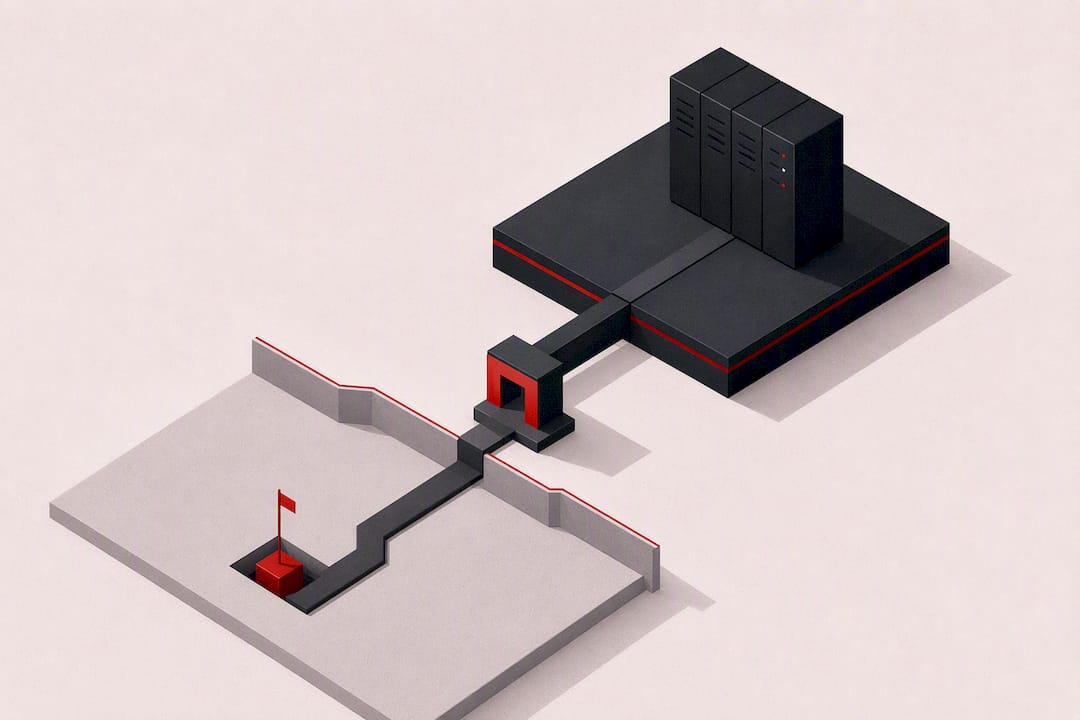
- Block port 3389 at the firewall and route external access through RD Gateway or VPN rather than exposing RDP directly.
- Set Group Policy to require SSL (TLS) security layer and never fall back to RDP encryption alone for maximum protection.
- Use Enhanced RDP Security by enabling NLA, binding a proper certificate, and layering CredSSP for server authentication and message integrity.
- Regularly patch, monitor logs, and restrict access to maintain a secure environment, considering managed solutions for easier compliance and oversight.
Table of Contents
- RDP Encryption Setup Checklist for Sysadmins
- Standard vs. Enhanced RDP: Which Encryption Mode Should You Use?
- How Do You Bind a Certificate and Enable TLS on RDP?
- Which Group Policy Settings Enforce RDP Encryption?
- What Else Should You Do to Harden an RDP Connection?
- Why Does RDP Show TLS 1.0 When It’s Actually Using TLS 1.2?
- AceRDP’s Perspective on Managed vs. Self-Managed Encryption
- Want RDP Encryption Handled for You? Here’s a Faster Route
- Primary Sources and Further Reading
- Sources
- FAQ
RDP Encryption Setup Checklist for Sysadmins
Before touching a single registry key, run through this list. It covers the settings that matter most for a secure RDP encryption setup, in the order you should tackle them.
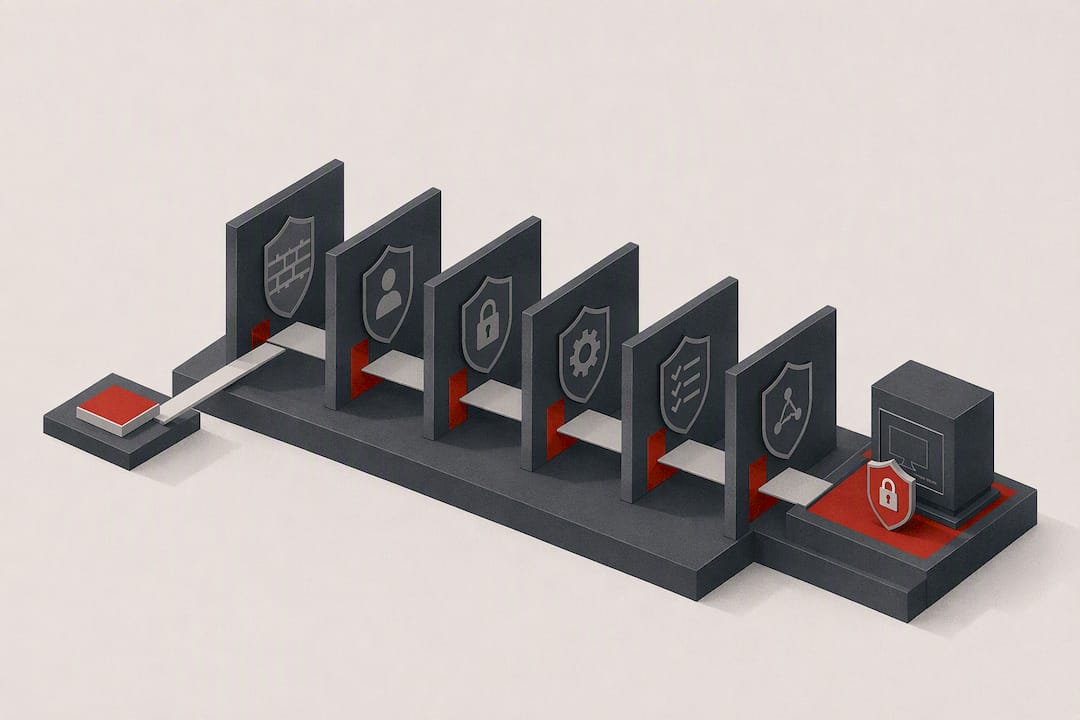
- Enable Network Level Authentication (NLA) so credentials are checked before a full session spins up.
- Force Enhanced RDP Security and bind a valid certificate to the RDP listener.
- Block inbound TCP/3389 at the firewall; require RD Gateway or VPN for all external access.
- Apply Group Policy to enforce the encryption level and security layer domain-wide.
- Confirm the bound certificate has the right Enhanced Key Usage, subject, and SAN entries before you roll it out.
Pro Tip: Test every policy change against one non-production RDS host first. A misconfigured security layer setting can silently lock out clients running older Remote Desktop Connection versions, and you won’t find out until someone’s help desk ticket lands on your desk.
Standard vs. Enhanced RDP: Which Encryption Mode Should You Use?
Enhanced RDP Security should be your default, full stop. Standard RDP Security relies on native encryption levels, Low, Client Compatible, High, and FIPS, that only protect the data channel and don’t verify the server’s identity the way TLS does. High mode gives you 128-bit encryption, Low drops to 56-bit, and Client Compatible just negotiates whatever the connecting client supports, which is not a setting you want deciding your security posture.
Enhanced RDP Security switches the transport to TLS via Schannel and layers CredSSP on top for authentication. That combination gives you server authentication, message integrity, and the pre-session credential check that NLA depends on, all of which MS-RDPBCGR defines as part of the protocol’s Basic Connectivity and Graphics Remoting spec.
During the handshake, client and server negotiate this through requestedProtocols flags: PROTOCOL_RDP, PROTOCOL_SSL, PROTOCOL_HYBRID, PROTOCOL_RDSTLS, and PROTOCOL_HYBRID_EX. PROTOCOL_HYBRID signals CredSSP support and should generally travel alongside PROTOCOL_SSL so the fallback path is still TLS rather than raw RDP encryption.
- Legacy clients that can’t negotiate CredSSP will fail to connect once you enforce Enhanced RDP everywhere.
- If you must support them temporarily, isolate those hosts on a separate network segment and set a hard deadline to retire them.
- Never drop back to Standard RDP Security as a permanent fix for compatibility problems.
How Do You Bind a Certificate and Enable TLS on RDP?
Getting a certificate properly bound is the step most admins get wrong, usually because they skip the private key permissions or use a certificate missing the right EKU. Here’s the sequence that actually works.
- Confirm certificate requirements first. The certificate needs the Server Authentication EKU (1.3.6.1.5.5.7.3.1), an exportable private key, and a subject or SAN entry matching the server’s public FQDN, per Microsoft’s RDS certificate guidance.
- Use Server Manager for RDS deployments. Open the deployment properties, go to the Certificates tab, and import the .pfx file. Server Manager will prompt to trust the root if needed and propagates the binding across every role service in the deployment, including the RD Connection Broker.
- Use PowerShell for scripted or single-host setups. The
Set-RDCertificatecmdlet is the authoritative method outside the GUI. You’ll pass the role (RDPublishing, RDWebAccess, RDRedirector, RDGateway) along with the certificate thumbprint or a .pfx path and password, and Windows will prompt for confirmation before replacing the existing binding. - Fall back to the registry on non-RDS or older hosts. Set the
SSLCertificateSHA1Hashvalue atHKEY_LOCAL_MACHINE\SYSTEM\CurrentControlSet\Control\Terminal Server\WinStations\RDP-Tcpto the certificate’s thumbprint, then grant NETWORK SERVICE read access to the private key. Skipping that ACL step is the single most common cause of a failed bind. - Verify with more than the GUI. Check the bound thumbprint with
Get-ChildItem Cert:\LocalMachine\My, review Schannel event logs, and if possible capture a session with a network analyzer to confirm the actual TLS version in use.
Pro Tip: Don’t trust what the Remote Desktop Connection window tells you about the security layer. A known display bug shows “SSL (TLS 1.0)” even when the session negotiated TLS 1.2, and taking that label at face value has sent more than one admin chasing a nonexistent problem.
Which Group Policy Settings Enforce RDP Encryption?
Two Group Policy settings do most of the work here, both found under Computer Configuration > Administrative Templates > Windows Components > Remote Desktop Services > Remote Desktop Session Host > Security, mapped from TerminalServer.admx.
- “Set client connection encryption level” controls the native encryption strength: High (128-bit), Client Compatible (negotiated), Low (56-bit), or FIPS Compliant. Set this to High or FIPS Compliant, never Low.
- “Require use of specific security layer for remote (RDP) connections” should be set to SSL (TLS) rather than Negotiate or RDP. Negotiate lets a client fall back to the legacy layer if TLS fails, which defeats the purpose of enforcing it.
- MDM equivalents live under the RemoteDesktopServices configuration service provider, with
ClientConnectionEncryptionLevelandfEncryptRPCTraffichandling the same controls for domain-joined and Entra-managed devices. - Neither policy is enforced by default. Test in a pilot group before wide rollout, since enforcing SSL as the security layer will immediately cut off any client that can’t negotiate TLS.
What Else Should You Do to Harden an RDP Connection?
Encryption and certificates only cover the transport layer. A genuinely secure RDP connection needs authentication and network controls stacked on top.
- Enable NLA. It forces CredSSP authentication before a full desktop session is created, cutting off a huge chunk of automated attack traffic that never gets past the login prompt.
- Keep the basics current. Patch RDS roles promptly, log connection attempts, restrict which accounts can log in remotely, and tighten firewall ACLs to known source ranges.
Pro Tip: If your team is evaluating outside help for identity or credential protection, a service like NEXTmsp’s managed cybersecurity offering can fill gaps for teams that don’t have dedicated security staff watching RDP exposure full time.
Why Does RDP Show TLS 1.0 When It’s Actually Using TLS 1.2?
That mismatch is a documented GUI display bug, not a real fallback. The Remote Desktop Connection client can label a session “SSL (TLS 1.0)” even when the underlying handshake used TLS 1.2, so confirm the real version with a network capture or Schannel event log rather than the connection info panel.
- Self-signed certificate warnings on older clients. Install your CA’s root certificate on the client, set
SSLCertificateSHA1Hashto your custom certificate’s thumbprint, and grant NETWORK SERVICE read access on the private key so the autogenerated self-signed certificate stops being used. - RD Connection Broker failures after disabling old TLS versions. On Server 2016 and earlier, the Connection Broker’s dependency on Windows Internal Database can require TLS 1.0 internally. Disabling it on a single-server deployment can break role installation entirely, so migrate to Server 2019 or later or move to a dedicated SQL back end before hardening TLS further.
- Quick verification commands. Run
Get-RDCertificateto list currently bound thumbprints per role, and check the Microsoft-Windows-TerminalServices-RemoteConnectionManager log in Event Viewer for binding failures or certificate mismatches.
AceRDP’s Perspective on Managed vs. Self-Managed Encryption
Getting every one of these settings right, and keeping them right after every Windows update, takes real ongoing attention. AceRDP builds its Windows RDP instances with certificates, NLA, and network protections like DDoS mitigation and access controls already in place. Whether you self-manage or hand it to a provider, the right question is which trade-off fits your team’s bandwidth better.
— AceRDP
Want RDP Encryption Handled for You? Here’s a Faster Route
Configuring TLS, binding certificates, and enforcing Group Policy correctly takes real sysadmin hours, and getting one setting wrong reopens the exact holes this guide just walked you through closing. AceRDP gives you Windows RDP and KVM VPS instances built on AMD Ryzen infrastructure with certificate handling, NLA, and DDoS protection already configured, so your encryption baseline is solid the moment the server provisions.

Plans run across multiple tiers suitable for different CPU and storage needs, ranging from options for lighter workloads to those for heavier remote desktop and automation loads. Instant provisioning means you’re not waiting on a ticket queue to get a hardened instance online. Check the full lineup and specs on the AceRDP plans page, and reach out to support if you want guidance on which tier fits a security-focused deployment.
Primary Sources and Further Reading

For the protocol-level detail behind this guide, start with the MS-RDPBCGR Open Specification covering RDP’s connectivity and security negotiation. Microsoft Learn’s RDS certificate documentation and its TLS troubleshooting article cover certificate binding and display bugs in depth. For the case against exposing 3389 directly, UC Berkeley Security’s RDP hardening guidance lays out the reasoning clearly.
FAQ
Does RDP Provide Encryption by Default?
Yes, RDP encrypts traffic by default, but the strength and authentication guarantees depend entirely on which security layer is active. Standard RDP Security’s native encryption lacks the server authentication that Enhanced RDP Security (TLS) provides, so the default isn’t automatically the secure option.
Is RDP 3389 Encrypted?
Traffic on port 3389 is encrypted at the protocol level, but that doesn’t make exposing the port to the open internet safe. Security guidance consistently recommends against direct 3389 exposure and instead routes access through RD Gateway or a VPN, which adds authentication and MFA options that raw port exposure doesn’t have.
How Do I Make RDP More Secure?
Enable Enhanced RDP Security with a properly bound certificate, turn on NLA, and enforce both through Group Policy so the settings can’t drift. Pair that with RD Gateway or VPN access instead of open 3389, and add MFA at the gateway layer. Managed hosts like those from AceRDP ship with several of these protections preconfigured.
Is RDP Being Discontinued?
No, RDP is not being discontinued. Microsoft continues to update the protocol and its security layers, including ongoing work on TLS and CredSSP negotiation documented in the MS-RDPBCGR specification, and Remote Desktop Services remains a core, actively maintained Windows Server role.
What’s the Difference Between NLA and TLS in an RDP Setup?
TLS secures the transport channel and verifies the server’s certificate before data flows. NLA is an authentication requirement that uses CredSSP to check user credentials before a full desktop session even starts. They work together in Enhanced RDP Security, but they solve different problems: one protects the data, the other blocks unauthenticated session attempts.