Stop Exposing Port 3389: Remote Work Server Setup for IT Teams
Stop Exposing Port 3389: Remote Work Server Setup for IT Teams
Skip raw RDP exposed to the internet. For multi-user Windows environments, put RD Gateway in front of Remote Desktop Services so traffic tunnels over HTTPS instead of port 3389. For smaller teams or dev setups, a mesh VPN like WireGuard or Tailscale gets you there with almost no public attack surface at all. Either way, sort out your TLS certificate and RDS licensing before you touch a production login, and if you’d rather skip the operational load entirely, a managed provider like AceRDP hosts the server for you.
TL;DR:
- Using RD Gateway or mesh VPNs effectively prevents exposing port 3389 directly to the internet, reducing attack surface.
- Setting up a secure remote access system requires choosing the architecture first, obtaining a proper TLS certificate, enabling NLA, and verifying the full connection chain from outside networks.
- Proper role placement in a full RDS deployment ensures stability and compliance, especially separating RD Gateway from session hosts and correctly managing certificates.
- Automated certificate renewal, MFA, and monitoring login failures are critical controls to prevent common RDP breaches.
- Managed providers like AceRDP offer quick, high-performance remote desktops with built-in security, removing operational overhead for small teams.
Table of Contents
- Which Remote Work Server Architecture Should You Choose?
- How Do You Set Up a Secure Remote Access Baseline?
- What Are the Core RDS Deployment Essentials?
- How Do You Harden Remote Access Against Common Attacks?
- How Should You Test and Roll Out a New Remote Server?
- When Does a Managed RDP/VPS Beat Self-Hosted RDS?
- A Managed Alternative When You’d Rather Not Run the Infrastructure Yourself
- Sources
- FAQ
Which Remote Work Server Architecture Should You Choose?
Three patterns cover almost every real-world scenario, and picking the wrong one is the most common reason remote access projects stall out or get breached.
- Full RDS with RD Gateway. This is the standard for organizations running more than a handful of concurrent users on Windows apps. A complete deployment separates the RD Connection Broker, RD Web Access, RD Session Host, RD Gateway, and RD Licensing roles, which gives you central management and CAL compliance but also means you own patching, certificate renewal, and capacity planning.
- Mesh VPN or ZTNA. WireGuard-based tools such as Tailscale create a private network overlay, so a remote worker’s device joins the same virtual network as the office server without any port ever facing the public internet. This suits smaller teams, developers, and anyone who wants application-level access rather than a full network tunnel.
- Managed RDP or VPS. A provider like AceRDP hands you a ready Windows or Linux server with the security layer already built in, so you’re provisioning a workspace, not standing up infrastructure.
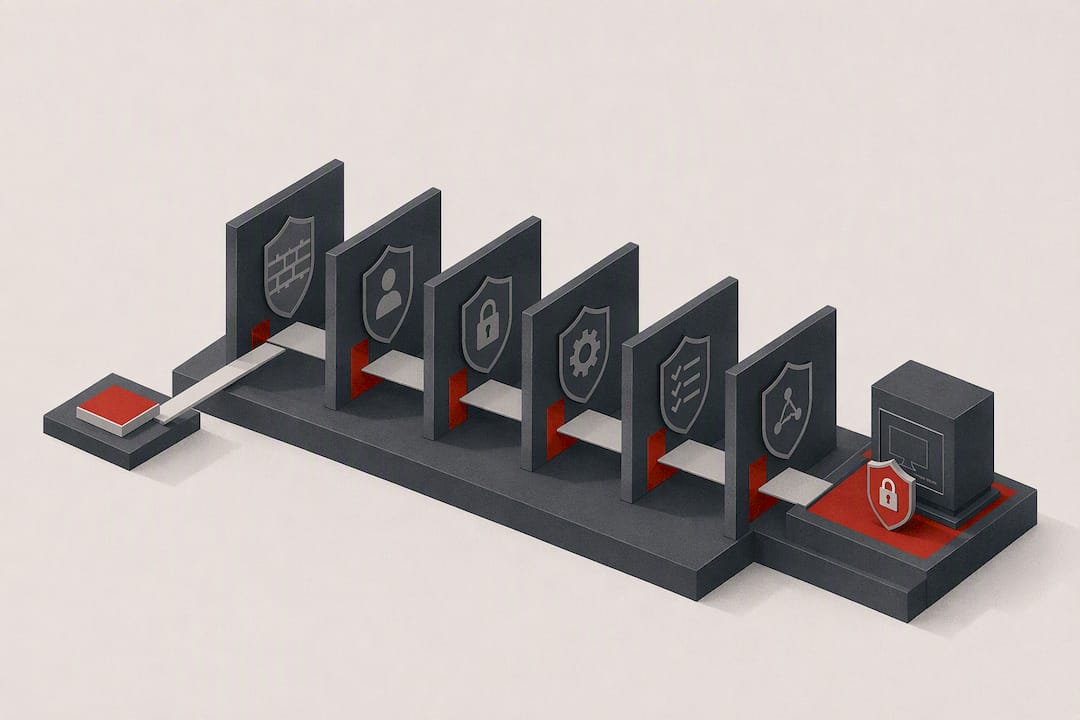
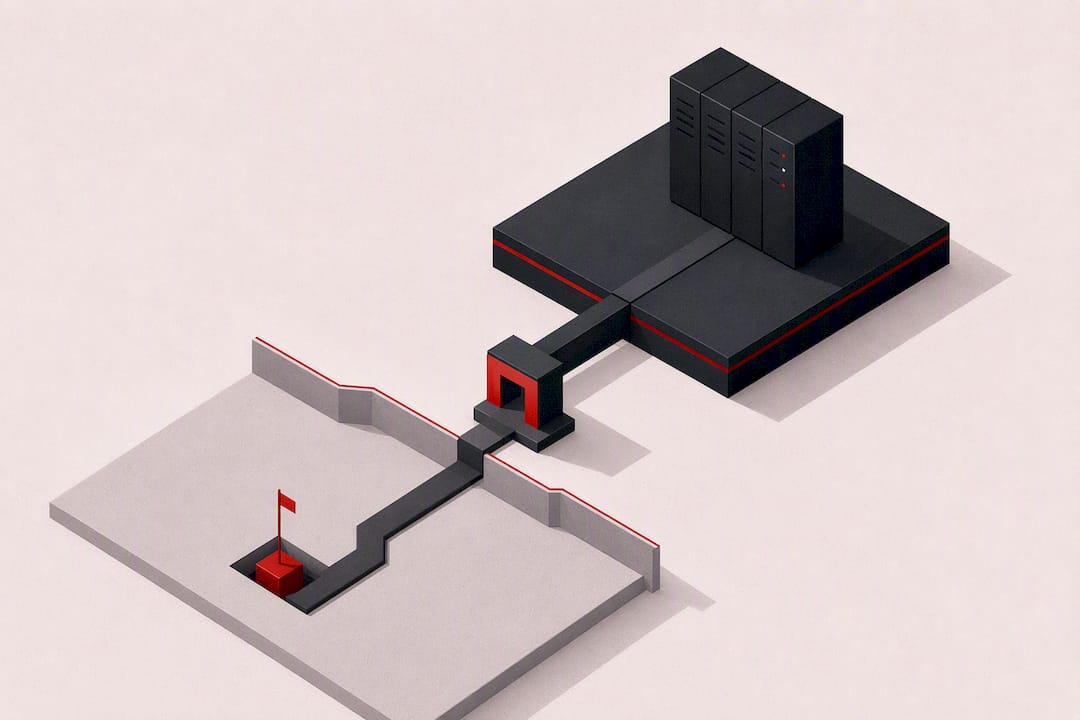
The real dividing line is exposure. RD Gateway and mesh VPNs both keep RDP itself off the public internet, just through different mechanisms. Raw port 3389 sitting open is the pattern to avoid entirely.
How Do You Set Up a Secure Remote Access Baseline?
Getting from zero to a working, defensible remote work server setup follows a fairly fixed order. Skip a step and you’ll either lock users out or leave a door open.
- Pick your architecture and DNS name. Decide on RD Gateway or mesh VPN first, then register the FQDN your certificate will bind to (something like
rdgateway.yourcompany.com). - Get a TLS certificate. Use a public CA certificate for anything users connect to externally, not a self-signed one.
- Lock down the network layer. Enable Network Level Authentication, write firewall rules that only allow the gateway’s HTTPS port through, and confirm port 3389 is closed to the internet.
- Turn on RD Licensing. Activate the licensing role and issue test CALs before real users log in, since production compliance requires it beyond the initial grace window.
- Test the full chain. Connect from an outside network, confirm the certificate resolves cleanly with no browser warnings, and check that logon completes in a normal timeframe.
Pro Tip: Test your certificate chain from a device that’s never touched your network before, like a phone on cellular data. A machine that already trusts your internal CA will mask problems a real remote worker would hit on day one.
What Are the Core RDS Deployment Essentials?
Once you’ve settled on full RDS, the details of role placement and certificates decide whether the deployment survives contact with real users.
A standard RDS deployment breaks into five roles, and how you place them matters more than most guides admit:
- RD Connection Broker routes incoming sessions and tracks reconnections, and it should sit on its own server in anything beyond a lab.
- RD Web Access gives users a browser-based portal, useful for RemoteApp publishing without a full desktop.
- RD Session Host actually runs the applications and desktops, and this is where your CPU and RAM budget goes.
- RD Gateway is the internet-facing edge role. Dell’s deployment guidance is blunt about this: never co-locate it on the same box as your session hosts, since it needs to be hardened and monitored as a separate perimeter.
- RD Licensing manages your CALs, and running it on the connection broker is fine for most shops.
Certificate mapping trips up a lot of first-time deployments. Your RD Gateway needs a certificate matching the external FQDN users type into their client, while internal role communication can use an internal CA. Mixing those up produces the classic “certificate name mismatch” error users report as a broken connection.
On licensing, you’ll choose between Per User and Per Device CAL modes. Per User works better for a workforce that roams across machines; Per Device suits fixed desktop stations. Either way, activate the RD Licensing server and issue a handful of test CALs before you migrate a single real employee, since production RDS depends on active licensing, not the temporary grace period.
How Do You Harden Remote Access Against Common Attacks?
Nearly every mass RDP compromise traces back to one decision: someone exposed port 3389 directly to the internet. Security guidance is consistent here: tunnel RDP through RD Gateway over HTTPS or route it through a mesh VPN, and never let the raw protocol face public IP space.
Beyond that first decision, a handful of controls do most of the remaining work:
- Enforce NLA everywhere. Network Level Authentication forces credential verification before a full session even starts, cutting off a huge class of automated attacks before they get anywhere.
- Push MFA to the gateway or identity layer. A stolen password alone shouldn’t be enough to reach a session host.
- Automate certificate renewal monitoring. An expired cert doesn’t just break connections, it trains users to click through warnings, which is exactly the habit an attacker wants.
- Log and alert on gateway auth failures. A spike in failed logons at the edge is often the first visible sign of a credential-stuffing attempt.
- Restrict management interfaces separately. Your RD Gateway’s admin console shouldn’t share firewall rules with the user-facing HTTPS endpoint.
A useful reference point: independent guidance on VPN protocol design consistently favors WireGuard-based tools over legacy VPN protocols for remote access, citing simpler configuration and stronger default cryptography. If you’re choosing between a mesh VPN and a traditional site-to-site VPN for smaller deployments, that’s a meaningful data point in the mesh VPN’s favor.
How Should You Test and Roll Out a New Remote Server?
A pilot group catches the problems a spec sheet never will. Before opening access company-wide, run a small cohort through real workflows for at least a few days.
- Connectivity checks: confirm external users can reach the gateway from outside your network, not just from a VPN-connected laptop still on the office subnet.
- Logon time tracking: Dell’s operational checklist flags logon duration and gateway auth failures as the two metrics that surface problems fastest.
- Resource monitoring: watch CPU, memory, and disk latency on session hosts under real concurrent load, not synthetic benchmarks.
- RemoteApp behavior: if you’re publishing individual apps rather than full desktops, verify printing, clipboard, and file redirection work as expected.
- Backup and rollback plan: snapshot your session host configuration before wider rollout, and keep a documented path back to the previous access method if the new setup misbehaves.
When Does a Managed RDP/VPS Beat Self-Hosted RDS?
Running your own RDS stack makes sense when you have the staff to own patching, certificate renewal, and licensing compliance indefinitely. Most small IT teams don’t have that staff, and that’s the honest starting point for this decision.
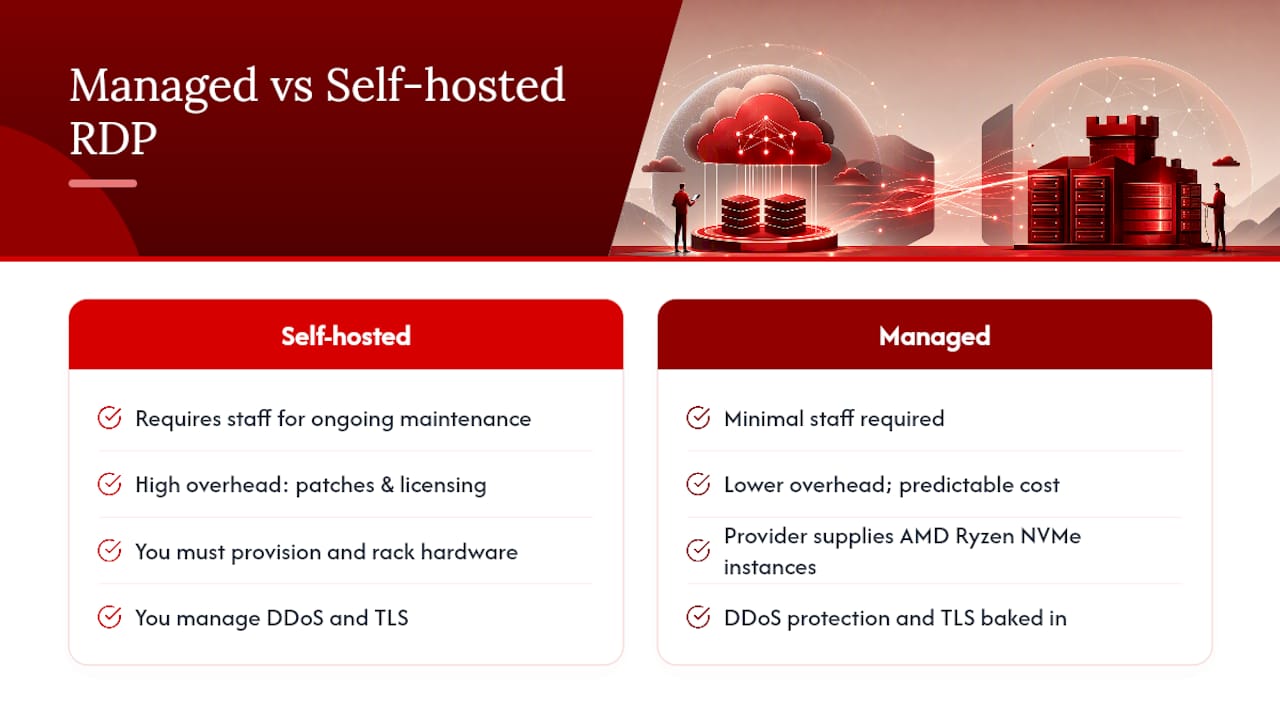
A single-server RDP setup can work fine for a small team or a dev lab, but the operational overhead compounds fast: licensing renewals, security patches, and availability planning all land on whoever set the server up in the first place. That’s manageable for a five-person shop. It’s a liability for a growing one.
Where a managed provider earns its cost is predictability. A managed provider can provision Windows RDP and KVM VPS instances on AMD Ryzen infrastructure with NVMe storage, so you’re getting hardware performance without racking anything yourself. DDoS protection and TLS handling come baked into the platform rather than being a separate project you have to scope. For a five-person accounting firm that needs three remote desktops running comfortably, that tradeoff usually beats standing up a full RDS deployment from scratch.
— AceRDP
A Managed Alternative When You’d Rather Not Run the Infrastructure Yourself
Self-hosted RDS gives you full control, but control comes with a maintenance bill: patching, certificate renewal, licensing audits, and capacity planning, all recurring forever.
AceRDP is the alternative to standing up your own RDS stack: you get a high-performance Windows RDP or KVM VPS instance provisioned in minutes, running on AMD Ryzen hardware with NVMe storage and low-latency connections, without owning the underlying hardware or the security perimeter yourself. DDoS protection and infrastructure hardening come with the plan instead of being a separate project. Locations in the Netherlands and the US cover teams on either side of the Atlantic, and you can pay by credit card or crypto depending on how your business handles procurement. If your team needs remote desktops running today rather than after a multi-week RDS rollout, check available Windows RDP and VPS plans and get a server provisioned before your next standup.
Sources
For deeper implementation detail, Microsoft’s RDS deployment infrastructure guide and licensing overview cover role configuration and CAL compliance in full. For application-level access control instead of full network exposure, review offerings like ISP proxy solutions for connectivity patterns worth comparing against a full VPN.
- Tailscale – Secure remote desktop protocol guidance
- Microsoft – Remote Desktop Services deployment guidance
- Dell – Standard RDS deployment advice and operational checks
FAQ
How do I set up a remote server?
Choose your architecture first (RD Gateway for multi-user Windows RDS, or a mesh VPN for smaller teams), then secure a TLS certificate, close port 3389 to the internet, enable NLA, and activate RD Licensing before onboarding real users.
What is the best setup for remote work?
For most small to mid-sized teams, a mesh VPN like WireGuard or Tailscale offers the smallest attack surface with the least ongoing maintenance; larger Windows-centric organizations typically need full RDS with RD Gateway for centralized management.
How can I connect to my work server from home?
Connect through RD Gateway over HTTPS if your company runs RDS, or join your company’s mesh VPN if that’s the architecture in place; either method avoids exposing raw RDP directly to your home network.
Can I run my own server from home?
Yes, but a home-hosted server brings uptime, security patching, and bandwidth responsibilities that a business connection or managed provider like AceRDP handles automatically, which is why most businesses beyond a one-person operation choose hosted infrastructure instead.
Do I need RD Licensing for a small RDS deployment?
Yes. Any multi-user RDS deployment needs an activated RD Licensing server with valid CALs to remain compliant once the temporary grace period ends, regardless of team size.