How to Change the RDP Port for a More Secure Connection
How to Change the RDP Port for a More Secure Connection
Yes: you change RDP’s listening port by editing the PortNumber value in the registry, or by running the equivalent PowerShell command, then rebooting or restarting the Remote Desktop service. Once that’s done, add matching inbound Windows Firewall rules for both TCP and UDP on the new port, and connect using the IP:port syntax to confirm it works.
- Default RDP port: the standard port assigned for RDP (TCP and UDP).
- Registry path:
HKEY_LOCAL_MACHINE\SYSTEM\CurrentControlSet\Control\Terminal Server\WinStations\RDP-Tcp. - After the edit, restart
TermServiceor reboot, then open the new port in Windows Firewall.
Reality check: Microsoft’s own guidance confirms this fix requires matching firewall rules to work, and security researchers at UC Berkeley are blunt that a custom port only cuts down automated scanning noise. It won’t stop a targeted attacker, and it’s no substitute for a VPN or MFA.
Key Takeaways
Changing the RDP port requires editing the registry or using PowerShell, adding matching TCP and UDP firewall rules, and testing with IP:port before relying on it, and it should never stand in for a VPN or MFA.
| Point | Details |
|---|---|
| Registry path | Edit PortNumber under HKEY_LOCAL_MACHINE\SYSTEM\CurrentControlSet\Control\Terminal Server\WinStations\RDP-Tcp, set to Decimal. |
| Firewall rules come second | Add inbound TCP and UDP rules for the new port before restarting the service, not after. |
| Test both directions | Verify with Get-NetTCPConnection, Get-NetUDPEndpoint, and a live client connection using IP:port. |
| Port change is not a security fix | Pair it with a VPN, MFA, and NLA since obscurity alone won’t stop a targeted attacker. |
| Keep a rollback path | Export the .reg file and retain out-of-band access before applying any change remotely. |
Essential Best Practices for Changing Your RDP Port
- Prerequisites Before You Change the RDP Port
- How Do You Change the RDP Port in the Registry?
- Setting Up Firewall Rules and Router Port Forwarding
- How Do You Test That the New RDP Port Works?
- What Do You Do If the RDP Port Change Breaks Access?
- Does Changing the RDP Port Actually Improve Security?
- An Operations View on Changing the RDP Port
- Skip the Exposure Entirely
- Sources
- FAQ
Prerequisites Before You Change the RDP Port
Before touching the registry, confirm you have local console or out-of-band access (iLO, IPMI, or your hosting provider’s KVM console) in case the change goes sideways. A locked-out RDP session with no fallback is how a five-minute task becomes a support ticket.
- Confirm you’re logged in with local administrator rights on the target machine.
- Export the current registry key to a
.regfile and write down the existingPortNumbervalue. - Pick a replacement port in the non-privileged port range and confirm nothing else on the host is already using it.
- Map out the firewall and router changes you’ll need, and schedule a maintenance window if this is a production or remote server.
Pro Tip: Never make this change over RDP itself without a backup access path. If the firewall rule fails to apply before the reboot, you’ll be staring at a closed door with no way to knock.
How Do You Change the RDP Port in the Registry?
You have two paths to the same result: the Registry Editor for a manual, visual change, or PowerShell if you’d rather script it (handy across multiple servers). Both edit the same underlying value, so pick whichever fits your workflow.
Registry Editor method:
- Open
regeditand navigate toHKEY_LOCAL_MACHINE\SYSTEM\CurrentControlSet\Control\Terminal Server\WinStations\RDP-Tcp. - Find
PortNumber, double-click it, switch the base to Decimal, and enter your new port number. - Close the editor and restart the Remote Desktop service (or reboot).
PowerShell alternative, which is faster if you’re managing several hosts:
Get-ItemProperty -Path "HKLM:\SYSTEM\CurrentControlSet\Control\Terminal Server\WinStations\RDP-Tcp" -Name PortNumber
Set-ItemProperty -Path "HKLM:\SYSTEM\CurrentControlSet\Control\Terminal Server\WinStations\RDP-Tcp" -Name PortNumber -Value <PortNumber>
Swap <PortNumber> for your chosen value, then restart the service:
net stop termservice
net start termservice
A full reboot works too, and is the safer bet if other services depend on Terminal Services.
The registry change affects both the TCP and UDP endpoints tied to RDP simultaneously. 4sysops notes that verifying both protocols after the change, not just TCP, catches problems that a quick TCP-only test would miss.
Skip the firewall step and this whole exercise is pointless. Microsoft explicitly warns that the registry change alone does nothing to open access. That’s the next step.
Setting Up Firewall Rules and Router Port Forwarding
Windows Defender Firewall doesn’t know about your new port until you tell it. Create inbound rules for both protocols:
New-NetFirewallRule -DisplayName "RDP Custom TCP" -Direction Inbound -Protocol TCP -LocalPort <PortNumber> -Action Allow
New-NetFirewallRule -DisplayName "RDP Custom UDP" -Direction Inbound -Protocol UDP -LocalPort <PortNumber> -Action Allow
- Delete or disable the old rules bound to port 3389 once you confirm the new port works.
- If the server sits behind a home or office router, forward the external port to the internal
IP:port, and consider Dynamic DNS if your public IP isn’t static, a technique Portforward’s guide covers in detail. - Restrict the rule’s allowed source IP range instead of leaving it open to any address, if your access pattern permits it.
- If your ISP uses CGNAT, you may not have a forwardable public IP at all. Router-level forwarding simply won’t reach your device, and a VPN tunnel or a hosted VPS becomes the practical workaround.
Pro Tip: Don’t open your custom RDP port to 0.0.0.0/0. Even an unusual port number gets found by mass scanners within days; scoping the firewall rule to known source IPs closes that gap fast.
How Do You Test That the New RDP Port Works?
Confirm the service is actually listening before you assume the firewall or router is the problem.
- On the host, run
Get-NetTCPConnection -LocalPort <PortNumber>andGet-NetUDPEndpoint -LocalPort <PortNumber>(ornetstat -anas a quick cross-check) to verify RDP is bound to the new port. - From another machine, run
Test-NetConnection -ComputerName <host> -Port <PortNumber>to check reachability across the network. - Launch the Remote Desktop client and connect using
IP:portsyntax, for example203.0.113.5:50102, sincemstscwon’t append the port automatically. - If the connection fails, work backward: firewall rule, router mapping, service status, then check whether another process is already bound to that port.
Only once step 3 succeeds from a client outside the local network should you consider the change complete.
What Do You Do If the RDP Port Change Breaks Access?
Lockouts happen, usually because the firewall rule went in after the registry change instead of before. Recovery depends on whether you still have any path into the box.
- If you have local console or out-of-band access, restore the exported
.regfile to putPortNumberback, or manually reset it to 3389. - Run
netstat -an,Get-NetTCPConnection, andGet-NetUDPEndpointto see exactly what’s listening and where the mismatch is. - To roll back cleanly, set
PortNumberback to its original value, restartTermService, and remove the custom firewall rules you added. - For a less disruptive option,
netsh interface portproxylets you keep 3389 listening publicly while quietly forwarding traffic to a different internal port, a trick detailed by Expta that avoids touching the RDP service configuration at all.
Pro Tip: Keep the exported .reg file and a written note of the original port in your server documentation, not just on the machine itself. If the host is unreachable, that backup needs to live somewhere else.
Does Changing the RDP Port Actually Improve Security?
Moving RDP off 3389 is security through obscurity, plain and simple. It thins out the flood of automated bots scanning the internet for the default port, but it does nothing against an attacker who’s already found your IP and runs a quick port sweep.
- A custom port reduces noise in your logs from mass scanners, which is a real, if modest, win.
- It does not replace a VPN or jump host, which Berkeley’s security team recommends as the stronger control for anyone exposing remote desktop access.
- Enforce Network Level Authentication (NLA) and multi factor authentication on every account with remote login rights, and apply least privilege so only the accounts that need RDP access have it.
- Turn on logging and review failed login attempts regularly. If you ever suspect a port or credential has been compromised, rotate both immediately.
Treat the port change as one small layer in a stack, not the wall itself.
An Operations View on Changing the RDP Port
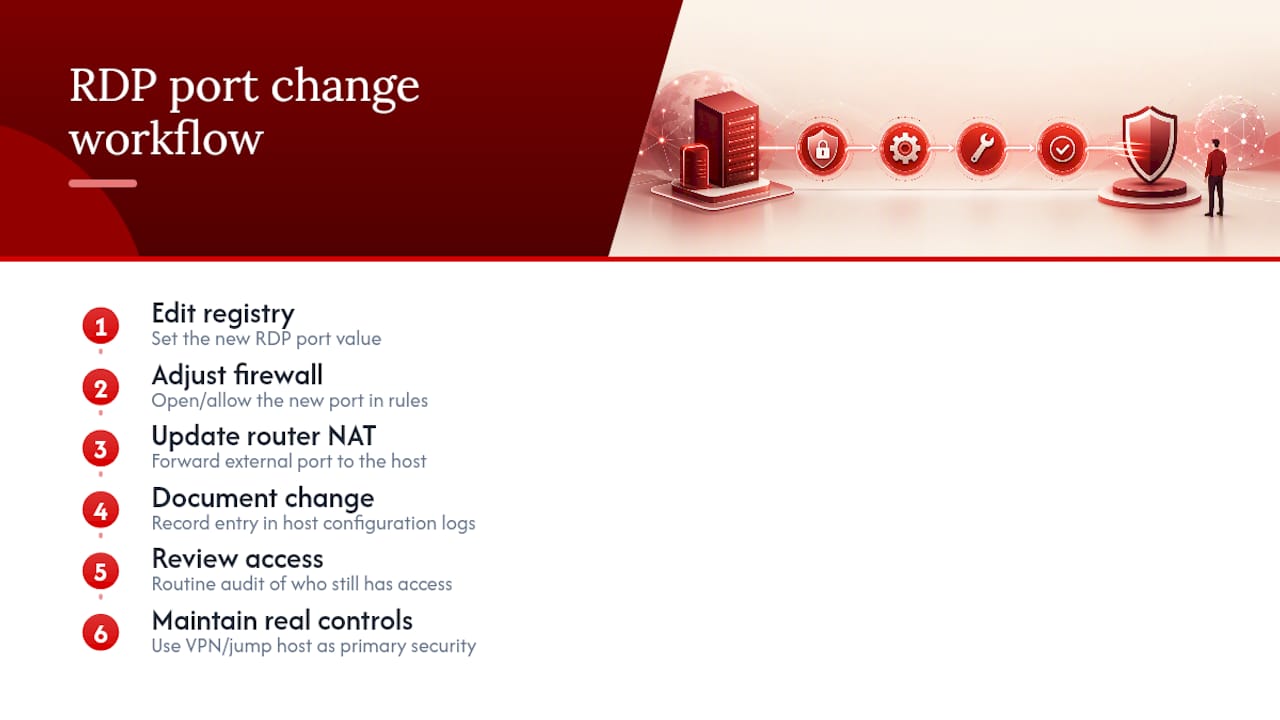
We use port changes for lab environments and quick NAT workarounds, not as a substitute for real access control on production systems. A VPN or jump host handles the actual security work; the custom port is bookkeeping.
Document every port change in your host configuration records, and pair it with routine reviews of who still has access.
— AceRDP
Skip the Exposure Entirely
If your ISP hands out CGNAT addresses, or you’d rather not manage firewall rules and router mappings on hardware sitting in your own office, a hosted VPS sidesteps the whole problem. AceRDP runs Windows RDP on AMD Ryzen infrastructure with NVMe storage and DDoS protection built in, so you get a dedicated public IP, full control over ports and firewall rules, and none of the CGNAT guesswork that blocks router forwarding at home. Server provisioning is instant, and support is available around the clock if a configuration question comes up mid-change.
Sources
- Change the Remote Desktop listening port on your computer
- Securing remote desktop (RDP) — system administrators
- How to Enable Port Forwarding on Your Router for Remote Desktop
FAQ
Is Port 3389 Used for RDP?
Yes, port 3389 (TCP and UDP) is the default listening port for Remote Desktop Protocol on Windows, and it’s the port most automated scanners target first.
Is RDP Port 22?
No. Port 22 is the standard port for SSH, a different remote access protocol used mainly on Linux and networking devices. RDP uses port 3389 by default.
Does RDP Use Port 445?
No, port 445 is used for SMB file sharing, not RDP. RDP traffic runs over its own dedicated port, 3389 by default, separate from file-sharing protocols.
How Do I Change the RDP Port on Windows 11?
The process is identical to other Windows versions: edit the PortNumber value in the same registry path, restart the Remote Desktop service, add matching firewall rules, then connect using IP:port such as 192.168.1.100:1337, a format HowToGeek confirms works the same way on Windows 11.


