6 Steps to Harden RDP for Sysadmins
6 Steps to Harden RDP for Sysadmins
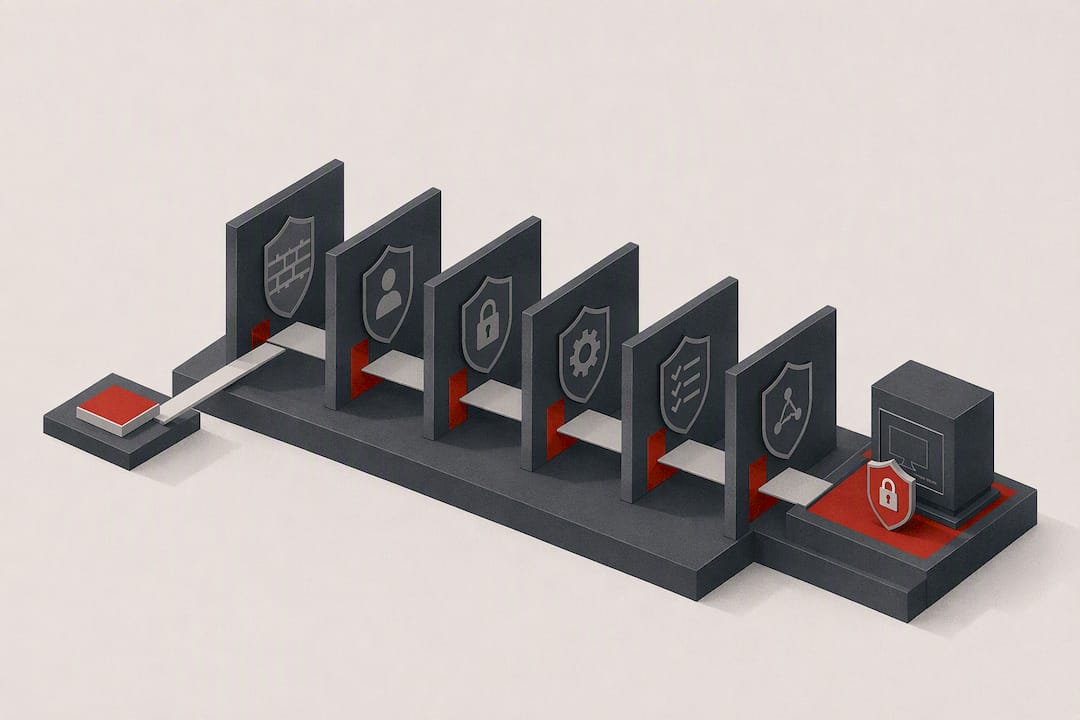
You harden RDP by enabling Network Level Authentication and TLS, then refusing to expose port 3389 to the raw Internet, gating access instead through a VPN, RD Gateway, or Zero Trust proxy with MFA enforced. Layer on account lockout policies, disable clipboard and drive redirection where you can, and centralize your logs to a SIEM. Skip any one of these and you have a gap worth exploiting.
TL;DR:
- Enabling Network Level Authentication and enforcing TLS are critical first steps, closing the pre-authentication attack surface without requiring new infrastructure.
- Restrict RDP access by VPN, RD Gateway, or IP whitelisting before enabling further controls to prevent exposing ports directly to the Internet.
- Set account lockout policies after five failed attempts and disable resource redirection, such as clipboard and drive sharing, to reduce exfiltration risks.
- Deploy MFA via RDP gateways or proxies and use Remote Credential Guard or Restricted Admin mode to prevent credential theft during sessions.
- Log and monitor RDP events consistently, with a focus on failed logon attempts and account lockouts, and maintain patching cadence to address emerging vulnerabilities swiftly.
Table of Contents
- Which RDP Hardening Steps Should You Deploy First?
- Why NLA and TLS Are Non-Negotiable Host Controls
- Should You Put RDP Behind a VPN, RD Gateway, or a Browser-Based Proxy?
- How Do You Stop Credential Theft During RDP Sessions?
- What Host and Group Policy Settings Actually Reduce RDP Risk?
- How Should You Roll Out RDP Hardening Without Breaking Access?
- When Managed RDP Hosting Reduces Your Operational Load
- Sources
- FAQ
Which RDP Hardening Steps Should You Deploy First?
Not every control carries equal weight, and treating a firewall port change as equivalent to MFA is how teams end up breached despite having a “hardening checklist” on file. Work through these in order.
- Enable NLA and enforce TLS. These two settings alone close the pre-authentication attack surface that made BlueKeep possible, and neither requires new infrastructure.
- Restrict RDP to a VPN, subnet, or RD Gateway. No inbound rule should allow 3389 from “Any” source. Scope it now, before you do anything else network-facing.
- Set account lockout thresholds. A locked account after five failed attempts stops credential-stuffing dead; leaving this default-off is the single most common finding in RDP breach post-mortems.
- Enforce MFA and disable resource redirection. Clipboard and drive redirection are convenience features that double as data exfiltration paths once an attacker is inside a session.
- Deploy Remote Credential Guard where your environment supports it. It stops credentials from ever touching a compromised host.
- Block unsigned RDP files and centralize logging. These are lower-urgency but close gaps that brute-force protection alone won’t cover, and they give you the evidence trail you need if something does go wrong.
Patch on a fixed cadence rather than “whenever,” since RDP-adjacent CVEs tend to get weaponized within days of disclosure.
Why NLA and TLS Are Non-Negotiable Host Controls
Network Level Authentication forces a user to authenticate before Windows spins up a full remote session, which is exactly the step that prevented pre-authentication remote code execution flaws like BlueKeep (CVE-2019-0708) from being exploitable on patched, NLA-enabled hosts. Without NLA, an unauthenticated attacker can reach deep into the RDP stack before Windows ever checks who they are. With it, that door simply doesn’t open.
You enable NLA through System Properties (Remote tab, “Allow connections only from computers running Remote Desktop with Network Level Authentication”) or, at scale, via Group Policy under Computer Configuration > Administrative Templates > Windows Components > Remote Desktop Services > Remote Desktop Session Host > Security, setting “Require user authentication for remote connections by using Network Level Authentication.”
TLS is the second half of this equation, and it’s the one teams skip more often. Native RDP encryption levels (Low, Client Compatible, High) are legacy settings that predate modern transport security, and security guidance from UC Berkeley is explicit that SSL/TLS is the standard you should be enforcing, not the older RDP-native encryption modes. Set “Require use of specific security layer for remote (RDP) connections” to SSL under the same GPO path, and pair it with “Set client connection encryption level” set to High.
- Provision a machine certificate for each RDS host, either from an internal CA or a trusted public one.
- Bind the certificate to the RDP listener through the RD Session Host Configuration console or via GPO for fleet-wide deployment.
- Verify enforcement by attempting a connection with an outdated client that doesn’t support TLS; it should fail cleanly rather than downgrade.
Pro Tip: Check your certificate expiration dates on a recurring calendar reminder. An expired cert on an RD Gateway doesn’t just throw a warning, it can silently push clients toward a downgraded connection path if misconfigured.
Should You Put RDP Behind a VPN, RD Gateway, or a Browser-Based Proxy?
Exposing 3389 directly to the Internet turns your server into a target for every mass scanner on the planet, and NIST’s guidance on remote access is built around the idea that remote connections need a layered, gated entry point rather than a single exposed door. Firewall allowlisting by source IP cuts down automated scanning noise substantially, but it’s a coarse filter, not a security boundary on its own.
Three front-door models handle this differently:
- VPN. Puts RDP traffic inside an encrypted tunnel and lets you enforce MFA and device posture checks at the VPN layer before anyone reaches the subnet. Good fit for teams that already run VPN infrastructure for other services.
- RD Gateway. Fronts RDP with HTTPS on port 443, which plays nicer with restrictive outbound firewalls than a VPN client does. Integrating RD Gateway with Network Policy Server (NPS) and RADIUS gives you centralized MFA enforcement and a single point for connection logging across every RDS host behind it.
- Browser-based or Zero Trust RDP proxies. These shift authentication and session control entirely off the host, enforcing SSO, MFA, and session auditing before RDP traffic ever reaches your internal network, an approach Cloudflare’s engineering team has described as eliminating direct RDP exposure altogether. Tools built around this model, including remote operations platforms like Opsphere’s web client, let teams manage sessions through a browser without ever opening an inbound RDP port.
Pick based on what your team already operates well. A gateway you understand beats a Zero Trust proxy you configure once and never touch again.
How Do You Stop Credential Theft During RDP Sessions?
Credential theft is the failure mode that turns one compromised laptop into a domain-wide incident, and two Microsoft-native controls address it from different angles.
Remote Credential Guard redirects Kerberos requests back to the client device instead of passing credentials to the remote host, which means a compromised RD host never actually holds the credentials it needs to move laterally according to Microsoft’s documentation. It requires delegation policies enabled through GPO or Intune and works best in domain-joined, single-sign-on scenarios.
Restricted Admin mode takes a different approach: it uses the remote host’s identity for the session rather than transmitting the user’s own credentials, which blocks the classic Pass-the-Hash pivot if that host is already compromised, per analysis from LevelBlue’s SpiderLabs team. The trade-off is that it can bypass certain MFA implementations tied to full credential delegation, so pair it carefully with your MFA architecture rather than assuming it’s a strict security upgrade in every scenario.
| Control | What it protects against | Requirement |
|---|---|---|
| Remote Credential Guard | Credential exposure to remote host | Domain join, Kerberos, delegation policy via GPO/Intune |
| Restricted Admin mode | Pass-the-Hash after host compromise | Local admin session; can interact with MFA enforcement |
| MFA via RD Gateway + RADIUS | Stolen or guessed passwords | NPS server, RADIUS-compatible MFA agent |
| Signed .rdp files | Phishing via malicious RDP file attachments | GPO restricting file publishers, SHA-2 thumbprints |
On that last row, Microsoft’s Group Policy guidance for RDP file security recommends migrating to SHA-2 thumbprints and blocking unsigned .rdp files outright. Attackers have used doctored .rdp attachments as a phishing vector for years, and most organizations have never touched this setting.
What Host and Group Policy Settings Actually Reduce RDP Risk?
Account lockout policy is the cheapest, highest-impact setting on this entire list. A threshold of five failed attempts, a 15-minute lockout duration, and a 15-minute counter reset gives you real brute-force protection without generating a flood of help desk tickets from users who fat-fingered their password twice. Monitor Event ID 4740 (account lockout) to catch spikes that indicate an active attack rather than a distracted employee.
Resource redirection is the setting most teams forget entirely:
- Disable clipboard redirection under Remote Desktop Session Host > Device and Resource Redirection > “Do not allow Clipboard redirection,” unless your workflow genuinely requires it.
- Disable drive redirection with “Do not allow drive redirection” to stop an attacker from staging exfiltrated files onto a mapped local drive.
- Disable printer redirection unless a specific business unit needs it, since it’s rarely used but frequently left open by default.
Changing the default RDP port away from 3389 cuts down noise from opportunistic scanners hammering the default port around the clock, a point operational hardening guidance from Decryption Digest makes clearly. Treat it as one small layer, not a security control on its own, and document the new port in your firewall rules and any monitoring dashboards so a 3 a.m. incident doesn’t turn into a scavenger hunt.
Document every change to redirection or port policy in a change log before rolling it out. Client compatibility issues (particularly with printer redirection) surface fast, and you want a rollback path ready, not improvised.

How Should You Roll Out RDP Hardening Without Breaking Access?
Rolling every control out simultaneously is how you lock out your own help desk at 5 p.m. on a Friday. A phased sequence tested on a pilot host first keeps disruption manageable.
- Pilot NLA and TLS on one non-critical host and confirm every client type your organization uses can still connect.
- Restrict access to VPN or RD Gateway once the pilot is stable, communicating the change to the help desk before end users hit it.
- Deploy MFA and monitor authentication success rates for a week before treating it as fully enforced.
- Roll out account lockout and redirection policies, watching for a spike in false-positive lockouts before tightening thresholds further.
- Enable Remote Credential Guard or Restricted Admin last, once the access path itself is stable.
This sequence mirrors the staged approach Decryption Digest recommends for minimizing user disruption. If SIEM alerts spike or the help desk gets flooded, that’s your rollback trigger. Document the baseline metrics before you start so “normal” is something you can actually measure against.
When Managed RDP Hosting Reduces Your Operational Load
Every control above is something your team can run in-house, and plenty of teams do it well. But DDoS protection, automated patch management, and centralized provisioning are exactly the pieces that eat weekend on-call hours when handled internally. A managed VPS provider absorbs that operational weight while you keep control over the RDS configuration itself.
A managed VPS provider with DDoS protection and instant provisioning can shift the infrastructure-layer burden off your plate while the security controls covered here remain yours to configure and own.
Sources
Hardening without monitoring is half a strategy. Plenty of breaches involve an RDP endpoint that was reasonably locked down but never watched, an observation backed by NXLog’s operational research on remote desktop logging. Collect these sources and forward them to a SIEM rather than letting them sit in local Event Viewer logs where nobody checks them until after the fact.
- BlueKeep vulnerability — Heimdal Security
- Remote Credential Guard — Microsoft Docs
- NIST SP 800-46 Rev. 2 — Guide to Enterprise Telework, Remote Access, and BYOD Security
- Browser-based RDP — Cloudflare blog
Statistic Callout: Centralizing these specific log channels is flagged repeatedly as a gap in NXLog’s guidance on remote desktop monitoring as one of the most commonly missed detective controls in RDP environments, precisely because these events sit in separate channels that default log collection often skips.
Set alert rules for failed-logon thresholds crossing five or ten attempts in a short window, for lockout spikes across multiple accounts simultaneously (a sign of a distributed brute-force run), and for any successful logon originating from an external IP outside expected ranges or occurring off-hours. Retain these logs for at least 90 days, longer if your compliance framework requires it, and run a test logon failure periodically to confirm the pipeline is actually forwarding events rather than silently dropping them.
FAQ
What Is the Single Most Important RDP Hardening Step?
Enabling Network Level Authentication is the highest-impact single control, since it requires authentication before a session is established and closes off pre-authentication RCE flaws like BlueKeep.
Should I Change the Default RDP Port?
Changing port 3389 reduces noise from automated scanners, but it’s obfuscation, not a security boundary. Pair it with NLA, IP restriction, and MFA rather than relying on it alone.
Is a VPN or RD Gateway Better for Securing RDP?
RD Gateway works better through restrictive firewalls since it runs over HTTPS on port 443 and integrates with NPS/RADIUS for centralized MFA, while a VPN suits teams that already manage VPN infrastructure for other services.
How Does Remote Credential Guard Differ From Restricted Admin Mode?
Remote Credential Guard keeps credentials on the client device entirely via Kerberos redirection, while Restricted Admin mode uses the remote host’s own identity for the session instead of transmitting user credentials.
Which Windows Event IDs Should I Monitor for RDP Attacks?
Watch Event IDs 4624 and 4625 for logon success and failure, 4778 and 4779 for session reconnects, and 4740 for account lockouts, alongside the TerminalServices-LocalSessionManager and TerminalServices-RemoteConnectionManager log channels.