Stop 480 Minute Drops: 3 Fast Fixes for RDP Session Limits for Sysadmins
Stop 480 Minute Drops: 3 Fast Fixes for RDP Session Limits for Sysadmins
Session timeouts for Remote Desktop live in three places: the GPO path under Computer Configuration → Administrative Templates → Windows Components → Remote Desktop Services → Remote Desktop Session Host → Session Time Limits, the RD Session Collection properties in Server Manager (or Set-RDSessionCollectionConfiguration in PowerShell), and the registry keys those policies write to. If a limit seems ignored, it’s almost always because the change only affects new sessions, not connections already open. Force it with a logoff, a reconnect, or Invoke-RDUserLogoff. If sessions still drop around the common eight-hour mark, check upstream firewalls, VPN concentrators, or NAT gateways enforcing their own idle cutoff.
TL;DR:
- Policy precedence and the need for new session creation are the most common reasons a session timeout setting doesn’t apply immediately.
- Upstream firewalls, VPN concentrators, or NAT gateways often enforce their own idle or connection timeouts that override Windows configurations.
- PowerShell commands and collection settings provide effective ways to manage timeout policies across multiple hosts, whereas registry edits should only be temporary workarounds.
- Disconnected sessions continue to consume resources until forcibly logged off, making regular cleanup and timeout enforcement vital for server health.
- Default Windows Server behaviors include no automatic session timeout unless explicitly configured through GPO or collection policies.
Table of Contents
- How to Configure RDP Session Time Limits Properly
- Why Your Timeout Change Doesn’t Seem to Work
- Confirming the Fix Actually Took
- Setting Timeouts That Don’t Fight Your Users
- Default Session Behavior Across Windows Server Versions
- Disconnected Sessions Still Cost You Resources
- Session Limits Without the RDS Role
- Session Timeouts Are a Security Control, Not Just a Cleanup Tool
- AceRDP’s Take: When Self-Managing RDS Stops Making Sense
- A Hosted Alternative Worth Evaluating
- Sources
- FAQ
How to Configure RDP Session Time Limits Properly
Start with the Group Policy path, since it’s the setting most environments touch first: Computer Configuration\Policies\Administrative Templates\Windows Components\Remote Desktop Services\Remote Desktop Session Host\Session Time Limits. Inside, you’ll find four policies that do distinct jobs:
- Set time limit for disconnected sessions — how long a session stays alive on the server after the user disconnects (does not log off).
- Set time limit for active but idle sessions — the idle clock, triggered by no keyboard or mouse input.
- Set time limit for active sessions — a hard ceiling on total connection time regardless of activity.
- Set time limit for active but idle Remote Desktop Services sessions with a redirected user profile disk — a niche one, but worth knowing if you’re on profile disks.
There’s also a toggle for terminating the session outright versus just disconnecting it when the limit hits. Terminate ends the user’s processes; disconnect leaves them running and reconnectable, which matters if someone has an unsaved document open.
Here’s the part that trips up a lot of admins: Computer-level and RD Session Collection settings override per-user settings, and they only take effect on sessions established after the change). If you’re running a full RDS deployment with a Connection Broker, the Collection properties in Server Manager take precedence over local GPO on the host, so check there first.
For farms, PowerShell scales better than clicking through Server Manager on every host. Set-RDSessionCollectionConfiguration lets you push limits across an entire collection in one command:
Set-RDSessionCollectionConfiguration -CollectionName "MainPool" -ActiveSessionLimitMin 600 -DisconnectedSessionLimitMin 60 -IdleSessionLimitMin 120
On standalone hosts without a broker, the registry mirrors the GPO settings directly. The relevant DWORDs sit under HKLM\SOFTWARE\Policies\Microsoft\Windows NT\Terminal Services: MaxDisconnectionTime, MaxIdleTime, and MaxConnectionTime, all measured in milliseconds. A sample edit:
Set-ItemProperty -Path "HKLM:\SOFTWARE\Policies\Microsoft\Windows NT\Terminal Services" -Name "MaxIdleTime" -Value 7200000
That’s two hours in milliseconds. If you’re routing through an RD Gateway, remember its CAP and SAP timeout settings sit independently of the session host policies and can cut a connection before your session timeout ever fires.
Pro Tip: Set the registry value directly only as a stopgap on a single box. On anything with more than a couple of hosts, push the setting through GPO or the collection config so you’re not hunting down manual edits six months later.
Why Your Timeout Change Doesn’t Seem to Work
Ninety percent of “the policy isn’t applying” tickets come down to one of five things. Work through them in order before you assume something is broken.
- Check policy precedence first. Collection and Computer-level GPO settings beat User GPO settings, so a User-side timeout you set will get silently overridden if a Computer policy or collection setting exists.
- Confirm the session is actually new. Policy edits never touch sessions already connected. If someone logged in yesterday, today’s GPO change won’t apply to them until they reconnect or you log them off.
- Run gpupdate and verify with rsop.msc or gpresult /r to confirm the policy actually landed on the host, not just in the GPO editor.
- Read the Event Log disconnect reason. A message referencing a 480-minute (8-hour) timeout usually points to a default value that was never overridden, not a bug.
- Rule out network-level disconnects. VPN concentrators, stateful firewalls, and NAT gateways frequently enforce their own idle timeout, often defaulting to something in that same 4 to 8 hour range, completely independent of anything in Windows.
The 480-minute symptom deserves special mention because it shows up constantly in support forums. Admins report setting idle or disconnection timeouts correctly, only to watch sessions still drop right around the 8-hour mark because the real cutoff was happening upstream, at a router or VPN appliance, not on the RDS host at all.
If none of that explains it, check for registry remnants from an old local policy that predates your domain GPO. Local settings can linger and conflict even after a GPO is supposedly authoritative.
Confirming the Fix Actually Took
Trust the commands over the GUI. quser and query session give you an immediate snapshot of every session on a host, including the SessionState column, where Active means connected and working, and Disc means disconnected but still resident in memory, still holding RAM.
For a brokered farm, Get-RDUserSession pulls the same inventory across every host in a collection from one place, and pairing it with Invoke-RDUserLogoff lets you script cleanup or force a policy to take effect immediately instead of waiting for users to reconnect on their own.
- Check
Get-RDUserSession | Select UserName, SessionState, HostServerfor a farm-wide view. - Filter the Event Log under Applications and Services Logs → Microsoft → Windows → TerminalServices-LocalSessionManager for disconnect and timeout events.
- Cross-reference client-side RDP properties like autoreconnection settings if users report unexpected reconnect loops after a timeout.
- Track CPU-per-user and RAM pressure over time rather than a fixed session count, since workload variance means two RDS hosts running identical hardware can support wildly different real-world capacity.
A host with twenty disconnected sessions sitting idle isn’t a red flag by itself, but it is one if RAM utilization is climbing alongside it.
Setting Timeouts That Don’t Fight Your Users
Pick timeout values based on what the host actually does, not a single company-wide default. A jump box used for quick admin tasks can run a tight idle timeout, maybe 15 to 30 minutes, since nobody should be parked there long. A shared RDS pool running line-of-business apps needs more room, often 2 to 4 hours idle and a longer disconnected limit so people don’t lose work over a lunch break. A server running long automation or batch jobs over RDP needs an active session limit long enough to survive the job, with disconnection handled separately.
- Set the 2-minute warning notification so users see a countdown before disconnection, not a surprise logout mid-task.
- Disable the warning via WMI only in specific automation scenarios where a popup would interfere with a script.
- Schedule a recurring cleanup job, even something as simple as a weekly scheduled task running
Invoke-RDUserLogoffagainst sessions disconnected longer than 24 hours. - Test every GPO change in a staging OU before pushing it to a production collection.
Hard timeouts also solve a problem beyond tidiness. Session bloat from accumulated disconnected sessions can trigger domain account lockouts after a password change, since old cached credentials in a stale session keep retrying against the domain controller.
Pro Tip: Skip RDP Wrapper or similar unofficial tools that unlock extra concurrent sessions on desktop editions of Windows. They violate the licensing terms, break with cumulative updates, and have no support path when something goes wrong in production.
Default Session Behavior Across Windows Server Versions
Out of the box, Windows Server has shipped with the same core defaults for years: two concurrent administrative sessions permitted for remote management, with no explicit idle or disconnection timeout configured, meaning sessions sit open indefinitely until manually closed or the machine reboots. That behavior holds across Windows Server 2016, 2019, 2022, and 2025 for a standalone host running the base Remote Desktop for administration feature.
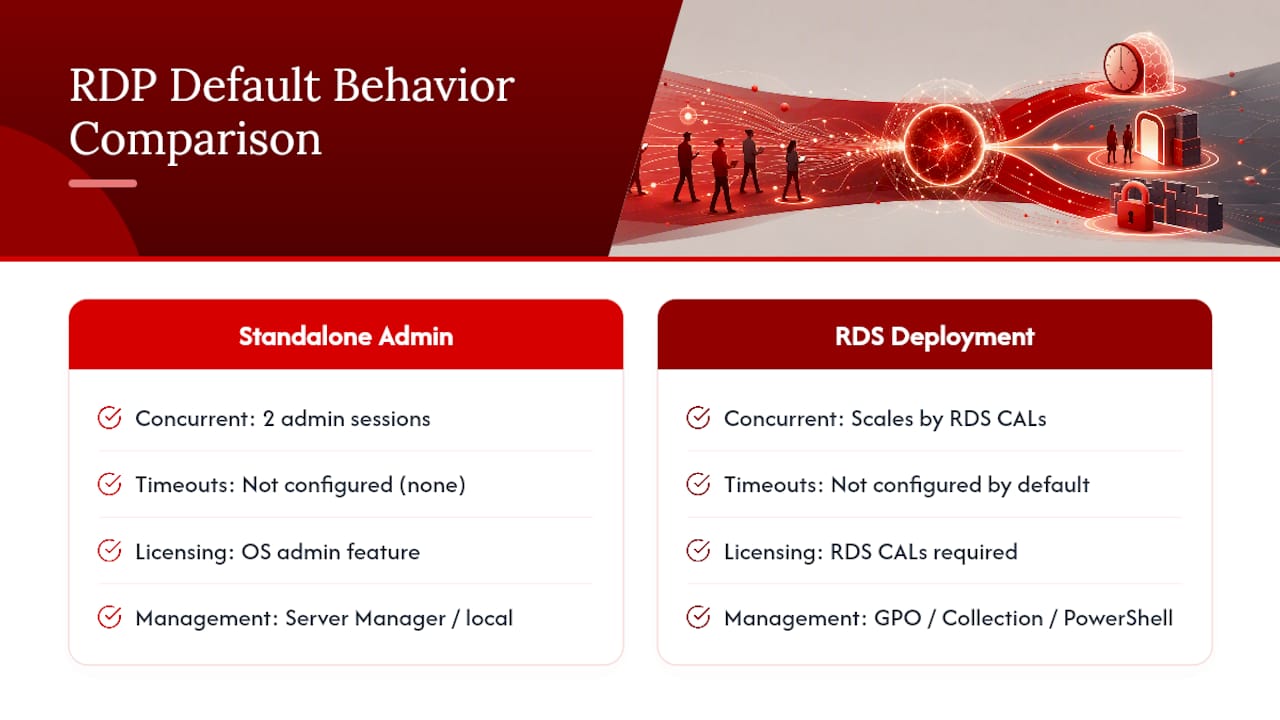
The moment you add the Remote Desktop Session Host role and turn a box into part of an RDS deployment, the ceiling changes. Concurrent session limits scale with licensing (RDS CALs) rather than a hardcoded OS number, but the timeout policies themselves, disconnected, idle, and active, still default to “not configured” until an administrator sets them through GPO or collection properties. Nothing times out automatically just because RDS is installed.
What has shifted slightly across versions is where you manage collection settings. Server 2025 continues to favor PowerShell parity with Server Manager, and Microsoft has kept extending Set-RDSessionCollectionConfiguration parameters with each release rather than introducing a new GUI. If you’re running a mixed environment with some 2019 hosts and some 2022 or 2025 hosts in the same collection, verify your PowerShell module version matches the newest host, since older cmdlet builds sometimes lack parameters the newer OS supports.
The practical takeaway: don’t assume a fresh Windows Server install has any timeout protection. It doesn’t, until you configure one.
Disconnected Sessions Still Cost You Resources
An active session and a disconnected session look identical to a session limit policy, but they behave very differently on hardware. A disconnected session still holds its full memory footprint, open file handles, and any running applications, it’s just not rendering a screen to anyone. Ten users who disconnect without logging off can quietly consume as much RAM as ten users actively working.

This is why the disconnected session timeout deserves separate attention from the idle or active timeout. Setting an aggressive idle timeout does nothing to reclaim resources from someone who disconnected cleanly five hours ago; that session isn’t idle, it’s gone, but Windows still treats it as live until the disconnected-session policy kicks in or someone forces a logoff.
Active sessions draw CPU cycles in addition to memory, so a host under active session pressure shows symptoms fast: sluggish input response, application timeouts, spiking CPU queues. Disconnected session pressure is quieter. RAM climbs, available capacity shrinks, and nobody notices until a new login fails or an existing session starts behaving erratically.
The fix isn’t a single universal number. It’s treating disconnected-session cleanup as routine maintenance, the same way you’d schedule disk cleanup or log rotation, rather than something to configure once and forget. A host that’s healthy on Monday can be memory-starved by Friday if forty people disconnected over the week without ever formally logging off, and no policy caught it.
Session Limits Without the RDS Role
Not every server running Remote Desktop is part of a full RDS deployment. Plenty of standalone boxes just have Remote Desktop enabled for administrative access, two concurrent sessions, no Session Host role, no Connection Broker, no licensing server. Those machines still need session limits, and you configure them almost identically to an RDS host, just through Local Group Policy instead of a domain-linked collection.
Open gpedit.msc on the host and navigate to the same path: Computer Configuration → Administrative Templates → Windows Components → Remote Desktop Services → Remote Desktop Session Host → Session Time Limits. All four timeout policies exist here too, even without the RDS role installed, because they’re part of the base Terminal Services component, not an RDS-exclusive feature.
If the box is domain-joined, a domain GPO targeting that OU will still apply and take precedence over the local policy, following the same Computer-over-User rule as a full RDS farm. If it’s a workgroup machine with no domain, Local Group Policy is your only lever, and the registry keys, MaxDisconnectionTime, MaxIdleTime, MaxConnectionTime, live in the exact same location under HKLM\SOFTWARE\Policies\Microsoft\Windows NT\Terminal Services.
The one thing you lose without the RDS role is centralized management. There’s no Set-RDSessionCollectionConfiguration to push a setting across ten standalone jump boxes at once. You’re either scripting the registry change remotely with PowerShell remoting or configuring each one by hand, which is a good argument for keeping a small standalone RDP host inventory rather than letting it sprawl.
Session Timeouts Are a Security Control, Not Just a Cleanup Tool
An RDP session left open indefinitely is an open door. If a user walks away from a workstation without locking it, and the RDP session on the far end has no idle timeout, that session stays live and authenticated for as long as the network connection holds, giving anyone with physical access to that endpoint a live path into whatever the session was doing.
Idle and active timeouts cut that exposure window down to something bounded and known. A 15-minute idle timeout on an administrative jump box means a walked-away session self-terminates well before it becomes a real risk, rather than sitting open for hours.
There’s a second angle that gets less attention: disconnected sessions holding stale authentication tokens. If credentials rotate, or an account gets disabled mid-incident, a disconnected RDP session can sometimes retain access longer than expected until it’s forcibly closed, depending on how authentication was cached. Aggressive disconnected-session cleanup, paired with a scripted Invoke-RDUserLogoff sweep, closes that gap faster than waiting for a long default timeout to expire on its own.
Session limits also blunt a specific kind of resource exhaustion attack, where an attacker with valid but limited credentials opens session after session to a host, disconnecting without logging off, until the server runs out of memory or session slots for legitimate users. A sane disconnected-session and active-session ceiling caps how much damage that pattern can do before it gets noticed. None of this replaces multifactor authentication, network segmentation, or endpoint monitoring, but it’s a layer that costs nothing beyond a GPO edit and pays for itself the first time it stops a stale session from becoming an incident.
AceRDP’s Take: When Self-Managing RDS Stops Making Sense
Running your own RDS farm gives you full control over every policy, GPO, and collection setting discussed here, and for teams with the staffing to maintain it, that control is worth keeping. But the moment session timeout troubleshooting, patch cycles, and capacity monitoring start eating a meaningful chunk of an admin’s week, the math shifts. If you’re spending more time chasing 480-minute mystery disconnects than doing actual infrastructure work, that’s the signal to weigh hosted Windows RDP hosting against continuing to self-manage. Factor in your compliance requirements and existing monitoring capacity before deciding either way.
— AceRDP
A Hosted Alternative Worth Evaluating
If everything above sounds like a second job you didn’t sign up for, AceRDP offers a way to skip the GPO archaeology entirely. Some hosted providers run Windows RDP and KVM VPS hosting on AMD Ryzen hardware with NVMe storage and low latency connections, and instances may be provisioned instantly through automated portals rather than manual server builds.
That matters here specifically because session timeout headaches usually come from managing shared infrastructure across dozens of users and a Connection Broker you have to babysit. A dedicated AceRDP instance sidesteps most of that: you’re not fighting collection-level policy precedence or chasing down why a network appliance is cutting sessions at the 480-minute mark because you control one server, not a farm. Plans range from entry-level tiers starting around a dozen euros per month up through higher tiers for teams that need more CPU or RAM headroom. Support is often offered around the clock, and DDoS protection can be included in some plans. If troubleshooting session policies has been eating more hours than the infrastructure is worth, check current AceRDP plans and see whether a dedicated instance fits your workload better than the farm you’re maintaining now.
FAQ
How Many RDP Sessions Can You Have at Once?
A standalone Windows Server allows two concurrent administrative RDP sessions by default with no extra role installed. Beyond that, you need the Remote Desktop Session Host role and appropriate RDS CALs, and real capacity depends on workload and available RAM and CPU, not a fixed number.
How Long Does an RDP Session Last?
By default, an RDP session has no timeout at all and stays open indefinitely until someone logs off or the server restarts. Administrators set session duration limits through Session Time Limits policies in Group Policy or RDS collection properties.
How Do I Allow Multiple RDP Sessions in Windows 10 and 11?
Standard Windows desktop editions only support a single interactive session at a time by design; simultaneous multi-user RDP requires Windows Server with the RDS role and licensing. Modifying consumer editions to bypass this through unofficial tools like RDP Wrapper isn’t a supported or licensed path for production use.
How Do I Increase the Session Timeout in Remote Desktop?
Increase the value in the relevant Session Time Limits GPO policy, the RD Session Collection properties, or via Set-RDSessionCollectionConfiguration -ActiveSessionLimitMin for a farm-wide change. Remember the new value only applies to sessions established after the change, so existing connections need a reconnect or a forced logoff to pick it up.
Why Does My RDP Session Still Time Out at 480 Minutes After Changing the Policy?
This almost always means either an existing session predates your policy change or a different setting, like a VPN, firewall, or network appliance idle timeout, is enforcing the cutoff independently of Windows. Check policy precedence and confirm the session is new, then rule out network-level timeouts before assuming the GPO itself is broken.