IIS on a Windows VPS: PowerShell Setup and 2 vCPU Baseline
IIS on a Windows VPS: PowerShell Setup and 2 vCPU Baseline
Yes, you can run IIS on a Windows VPS, and the path is shorter than most guides make it sound. Install the Web Server (IIS) role, create a site and application pool pointing at your files, add an HTTPS binding with a real certificate, and open ports 80 and 443 on both Windows Firewall and your provider’s network layer. Once Invoke-WebRequest against your domain returns a 200, you’re live.
TL;DR:
- Most small to medium IIS deployments on a Windows VPS require at least 2 vCPUs and 2 GB of RAM, with larger apps needing more resources.
- Ensuring ports 80 and 443 are open in both Windows Firewall and the provider’s security rules is essential for site accessibility.
- Automating certificate renewal with tools like win-acme prevents SSL expiry outages, as manual renewal often leads to missed updates.
- Disabling directory browsing and hiding server headers enhance security, reducing information leaks that could expose vulnerabilities.
- Vertical scaling with added CPU and memory should be prioritized before considering load balancing or multi-server setups.
Table of Contents
- Prerequisites Before You Install IIS on a VPS
- Installing IIS: Server Manager, PowerShell, and DISM
- Creating a Site, an App Pool, and Deploying Your Files
- Setting Up HTTPS With win-acme or a Manual Certificate
- Firewall Ports and DNS: Making the Server Reachable
- Sizing Your VPS for IIS Performance
- Fixing Common IIS Errors on a VPS
- AceRDP and Production-Grade IIS Hosting
- Hardening IIS: Directory Browsing, Headers, and Beyond
- Backing Up and Restoring Your IIS Configuration
- Watching IIS Performance and Logs on a VPS
- Scaling IIS on a VPS: Vertical First, Then Horizontal
- Keeping SSL Certificates Valid Without the Fire Drills
- VPS Networking Quirks That Trip Up IIS
- Quick Post-Deploy Checklist
- Get an IIS-Ready Windows VPS From AceRDP
- Where to Go Deeper on Specific IIS Steps
- Sources
- FAQ
Prerequisites Before You Install IIS on a VPS
Skip the checks and you’ll be debugging phantom errors an hour into setup. Confirm these first:
- You’re running Windows Server 2019, 2022, or 2026, and you can RDP in with a local administrator account.
- Your VPS has enough CPU and RAM for the workload. A static brochure site survives on 2 vCPUs and 2 GB RAM; a .NET app with a database connection pool wants more.
- Your storage is NVMe or at least SSD. Spinning disk under IIS logging is a slow death for response times.
- You’ve decided whether to test by raw IP first or point a DNS A record at the server now, since TLS issuance later needs that DNS record resolved.
- You’ve scheduled a maintenance window and taken a snapshot or backup, in case a role installation needs a reboot.
Installing IIS: Server Manager, PowerShell, and DISM
All three methods land in the same place. Pick based on whether you’re doing this once or scripting it across a fleet.
- Server Manager (GUI): Open Server Manager, click Manage → Add Roles and Features, choose Role-based or feature-based installation, select Web Server (IIS), and accept the default role services unless you know you need extras like CGI or FTP.
- PowerShell (scripted, repeatable): Run
Install-WindowsFeature -Name Web-Server,Web-Common-Http,Web-Static-Content,Web-Asp-Net45,Web-Net-Ext45,Web-ISAPI-Ext,Web-Mgmt-Console -IncludeManagementTools. This single line, drawn from common PowerShell setup patterns, gets you the web server plus ASP.NET 4.5 support and the management console in one shot. - DISM (image-based or offline installs):
dism /online /enable-feature /featurename:IIS-WebServerRole /allworks well in automation pipelines or when building a golden image before deployment.
If you’re hosting an older classic ASP.NET application, install .NET Framework 3.5 separately, since it’s not bundled with the modern roles above. Microsoft’s own installation walkthrough covers both the Server Manager and command-line paths in detail, and it’s worth bookmarking. Once installed, IIS starts automatically. Visit http://localhost from the server itself. The default “IIS Windows Server” welcome page confirms the role is live before you touch a single configuration file.
Creating a Site, an App Pool, and Deploying Your Files
The default site works for testing, but production sites get their own binding, their own physical path, and their own application pool, so one crashing app doesn’t take down everything else on the box.
In IIS Manager, right click Sites and choose Add Website. Give it a name, point the physical path at your deployment folder (something like C:\inetpub\wwwroot\yourapp), and set the binding to port 80 with your hostname if you’re using one. Application pools matter more than most people realize: a pool set to No Managed Code is faster for static content, while a .NET app needs the appropriate CLR version selected.
- Deploy files by copying them directly into the physical path, or via
appcmd add sitefor scripted deployments. - Automate the whole thing with PowerShell:
New-WebAppPool -Name "MyAppPool"followed byNew-Website -Name "MySite" -PhysicalPath "C:\inetpub\wwwroot\myapp" -ApplicationPool "MyAppPool" -Port 80, a pattern echoed in Vultr’s IIS setup documentation. - Verify locally with a browser hit to
http://localhost, then confirm from outside withInvoke-WebRequest -Uri "http://your-server-ip" -UseBasicParsingand check thatStatusCodereads200.
Setting Up HTTPS With win-acme or a Manual Certificate
Browsers flag plain HTTP sites as “not secure,” and search engines rank them lower, so TLS isn’t optional for anything public-facing. You have two realistic paths on a VPS.
- Automated with win-acme (recommended): Point your domain’s DNS A record at the VPS IP first, since Let’s Encrypt validates ownership over HTTP. Download win-acme, run it as administrator, select your IIS site from the interactive menu, and let it request the certificate, bind it to port 443, and register a scheduled renewal task automatically. This flow is well documented in Airnode’s VPS IIS setup guide.
- Manual PFX import: If you already hold a certificate from another CA, open
certlm.msc, import the.pfxfile into Local Machine → Personal, then return to IIS Manager, select your site’s bindings, add a new https binding on port 443, and choose the imported certificate from the dropdown. - Force the redirect: Add this to your site’s
web.configso HTTP traffic always upgrades to HTTPS:
<system.webServer>
  <rewrite>
    <rules>
      <rule name="HTTP to HTTPS" stopProcessing="true">
        <match url="(.*)" />
        <conditions>
          <add input="{HTTPS}" pattern="off" ignoreCase="true" />
        </conditions>
        <action type="Redirect" url="https://{http_host}/{R:1}" redirectType="Permanent" />
      </rule>
    </rules>
  </rewrite>
</system.webServer>
| Method | Best for | Renewal |
|---|---|---|
| win-acme | Public sites with a real domain | Automatic, scheduled task |
| Manual PFX import | Wildcard certs or internal CAs | Manual, tracked by expiry date |
Firewall Ports and DNS: Making the Server Reachable
A site can be perfectly configured and still be invisible if the network layer blocks it. Two firewalls guard most VPS setups: Windows Firewall on the box itself, and your provider’s external or virtual firewall in front of it. Both need ports 80 and 443 open, or visitors get a timeout instead of a webpage.
- Run
Enable-NetFirewallRule -DisplayGroup "World Wide Web Services (HTTP)"and the equivalent HTTPS rule group to open the Windows side. - Check your VPS provider’s control panel or security group settings for a matching inbound rule on TCP 80/443.
- Point your domain’s A record at the server’s public IP, and if DNS hasn’t propagated yet, edit your local
hostsfile to test the domain immediately. - Confirm reachability externally with an online port checker, then run
Invoke-WebRequest -Uri "https://yourdomain.com"to validate the full chain end to end.
Sizing Your VPS for IIS Performance
IIS is not a lightweight process, especially under dynamic .NET workloads. It tends to consume more memory and CPU than a bare Nginx or Apache instance handling the same traffic, which means the VPS underneath it needs headroom rather than the bare minimum. Budget RAM generously for the worker process pool, and lean toward modern multi-core CPUs when the app does real computation per request rather than just serving static files.
NVMe storage matters more than people expect, particularly for logging. IIS writes a log line per request by default, and on spinning disk that I/O queue becomes a bottleneck under real traffic. Rotate logs on a schedule and set retention limits so disk space doesn’t quietly disappear over months.
Pro Tip: Set your IIS log rotation to daily and cap retention at 30 days unless you have a compliance reason to keep more. A forgotten log folder is one of the most common causes of a VPS silently running out of disk space six months after launch.
When one worker process starts maxing out CPU under load, scale vertically first by adding cores. Only move to horizontal scaling with a load balancer once a single well-sized instance genuinely can’t keep up.
Fixing Common IIS Errors on a VPS
Most IIS problems on a fresh VPS trace back to one of four causes. Work through them in order.
- Service not running: Run
Get-Service W3SVC, WASto confirm both are started. If not,Start-Service W3SVCand check Event Viewer’s IIS logs for the reason it stopped. - Port conflicts: Run
netstat -ano | findstr :80to find what’s holding the port, thentasklist /PID <id>to identify the process. Skype, older web servers, and some VPN clients love squatting on port 80. - Permission errors (403/500): Grant the app pool identity access with
icacls "C:\inetpub\wwwroot\myapp" /grant "IIS_IUSRS:(OI)(CI)RX". A 500.19 error almost always means the app pool identity can’t read the folder. - Certificate binding failures: Reopen
certlm.mscand confirm the certificate is actually in the Personal store, and double check the hostname on the binding matches the certificate’s subject name exactly.
AceRDP and Production-Grade IIS Hosting
Sustained concurrency, background jobs, and heavy logging push IIS past what a budget VPS can comfortably handle. AceRDP runs Windows RDP and KVM VPS hosting on modern AMD Ryzen infrastructure, which matters directly for the CPU and RAM headroom IIS workloads need. The platform adds automated deployment, multiple locations, DDoS protection, and instant provisioning, useful when a production site needs to go live without waiting on manual server builds.
Hardening IIS: Directory Browsing, Headers, and Beyond
A default IIS install leaks more information than it should. Two fixes take under five minutes and close real attack surface.
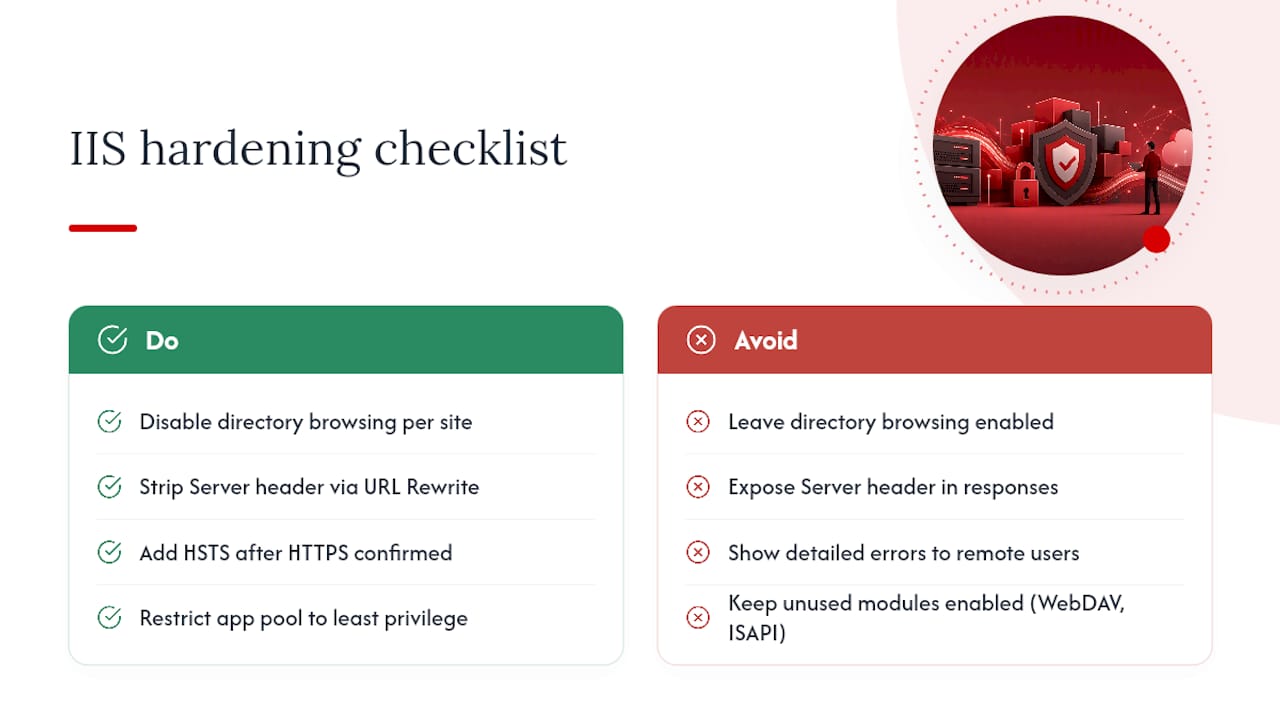
Directory browsing lets visitors see a raw file listing if no default document exists in a folder. Disable it per site with Set-WebConfigurationProperty -Filter /system.webServer/directoryBrowse -Name enabled -Value False -PSPath "IIS:\Sites\YourSite". There’s rarely a legitimate reason to leave this on for a production site.
The Server header broadcasts your web server software and version in every HTTP response, which is a gift to anyone scanning for known vulnerabilities. Strip it with the URL Rewrite module by adding an outbound rule, or remove it via Remove-WebConfigurationProperty targeting the httpProtocol customHeaders section, a pattern detailed in SKYLINE’s IIS hardening notes.
Beyond those two, a few more habits pay off fast. Add an HSTS header once HTTPS is confirmed working, so browsers refuse to downgrade the connection even if a link somewhere points to plain HTTP. Turn off detailed error messages for remote requests in web.config so stack traces don’t leak file paths to the public internet. Lock down the app pool identity to the minimum permissions it needs, rather than running it as a local administrator out of convenience. Review installed modules periodically and remove anything you’re not actively using, since WebDAV and older ISAPI extensions have a long history of vulnerabilities when left enabled by default.
None of this replaces a real security review for anything handling sensitive data, but it closes the gaps that automated scanners find within minutes of a site going live.
Backing Up and Restoring Your IIS Configuration
IIS configuration lives mostly in one place: %windir%\system32\inetsrv\config\applicationHost.config. Back that file up alongside your site content and you’ve captured almost everything, including bindings, application pools, and site definitions.
The built in tool for this is appcmd. Run %windir%\system32\inetsrv\appcmd add backup "PreUpdate" before any major change, and IIS stores a timestamped snapshot you can restore with appcmd restore backup "PreUpdate" if something breaks. This takes seconds and has saved more than a few admins from a bad afternoon.
For a full disaster recovery plan, back up three things separately: the applicationHost.config file (or use appcmd backups), the actual site content in your physical paths, and any SSL certificates in the Windows certificate store, since a restored config referencing a missing certificate will fail to bind. Export certificates as .pfx files with their private keys included, and store them somewhere other than the server itself.
Snapshot-level backups at the VPS layer are worth pairing with application-level backups, not replacing them. A VPS provider’s disk snapshot captures everything at once, which is faster to restore from after a catastrophic failure, but it’s a blunt instrument if you just need to roll back one bad configuration change. Keep both: scheduled VPS snapshots for the worst case, and appcmd config backups plus version-controlled site content for day-to-day changes.
Watching IIS Performance and Logs on a VPS
IIS writes detailed logs by default to %SystemDrive%\inetpub\logs\LogFiles, and those logs are your first stop when something feels slow rather than broken outright. Each entry includes response time, status code, and the requesting IP, enough to spot a slow endpoint or a bot hammering your server before it becomes an outage.
For live metrics, Performance Monitor (perfmon) exposes counters specific to IIS: requests per second, current connections, and worker process memory use under the Web Service and ASP.NET counter groups. Watch worker process memory in particular. A steadily climbing number across days without a corresponding traffic increase usually points to a memory leak in the application code, not IIS itself.
On a VPS, resource contention is the variable that catches people off guard. Your neighbors on a shared host, or simply an undersized plan for your own workload, can starve IIS of CPU cycles even when your application code is fine. Task Manager’s Performance tab gives a quick gut check, but for anything running unattended, schedule a lightweight PowerShell script to log CPU, memory, and disk queue length at intervals and flag anomalies before a customer notices a slow page load.
Failed request tracing, enabled through IIS Manager under Failed Request Tracing Rules, digs deeper when a specific request type keeps failing or running slowly. It’s more overhead than the standard logs, so turn it on temporarily to diagnose an issue, then switch it back off.
Scaling IIS on a VPS: Vertical First, Then Horizontal
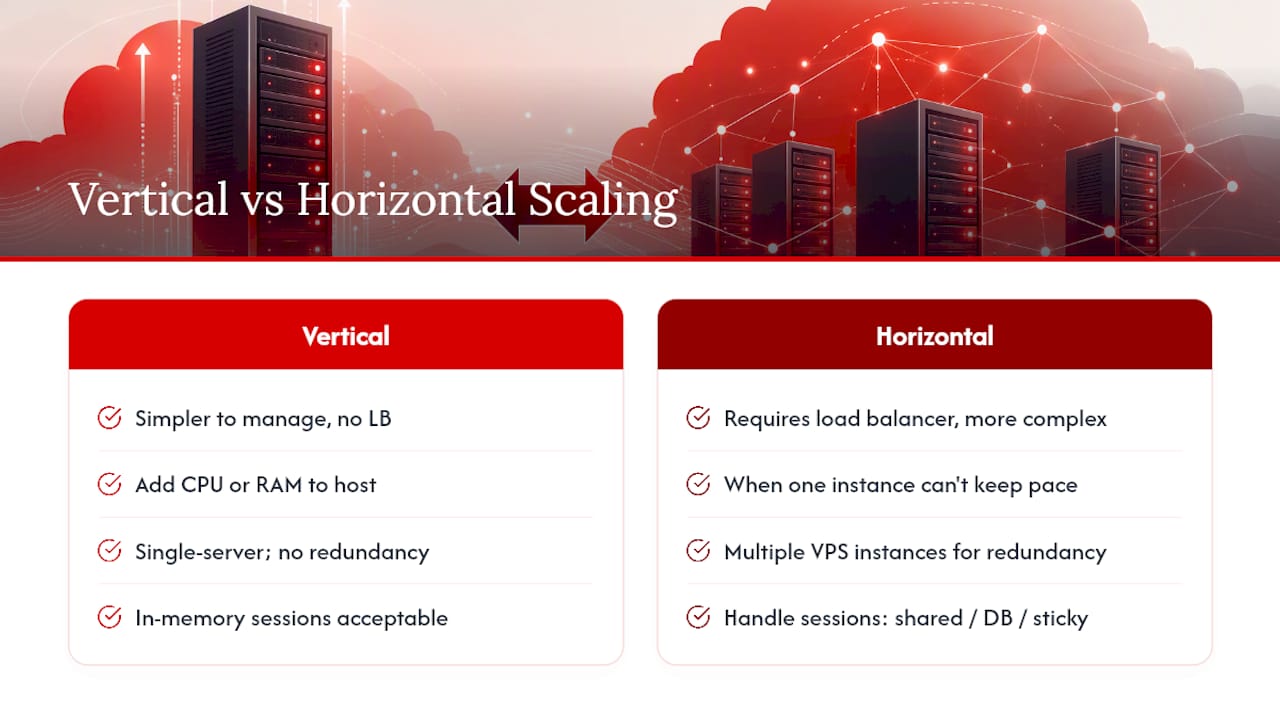
Most IIS sites never need more than a well sized single VPS. Vertical scaling, adding CPU cores or RAM to the same server, is simpler to manage and avoids the complexity of session state and load balancing entirely. It’s the right first move whenever a site’s worker process is maxing out one resource but the overall architecture is still simple.
Horizontal scaling becomes worth the complexity once a single instance genuinely can’t keep pace with traffic, or when you need redundancy so one server going down doesn’t take the whole site offline. That means running IIS on two or more VPS instances behind a load balancer, whether that’s a hardware appliance, a cloud load balancer service, or Windows Network Load Balancing for a simpler setup.
The catch with horizontal scaling on IIS specifically is session state. If your application stores session data in memory by default, a user’s session breaks the moment the load balancer routes their next request to a different server. Fix this before scaling out, not after, using either a shared session state server, a database backed session provider, or sticky sessions on the load balancer that pin each user to the same backend for the duration of their visit.
Application pool recycling settings also deserve a look once multiple servers are in play. A pool that recycles on a schedule works fine solo, but staggering recycle times across servers avoids all of them restarting simultaneously and briefly dropping capacity at the same moment.
Keeping SSL Certificates Valid Without the Fire Drills
Certificate expiry is one of the most preventable outages in web hosting, and it happens constantly anyway because manual renewal is easy to forget. The fix is automation, not vigilance.
Win-acme handles this well for IIS. Once it issues an initial certificate, it registers a Windows scheduled task that checks for and renews certificates automatically before they expire, adding the new binding without manual intervention. Set it up once during initial HTTPS configuration and the renewal problem is solved for the life of the server.
If you’re using a manually imported certificate instead, mark the expiry date somewhere you’ll actually see it, a shared calendar, a monitoring alert, anything outside your own memory. Certificates typically run 90 days (Let’s Encrypt) to a year or more (commercial CAs), and the failure mode when one lapses is ugly: browsers show a hard security warning that turns most visitors away instantly.
Whichever renewal method you use, verify the fix actually worked. Check the certificate’s expiry date in certlm.msc after a renewal cycle runs, and confirm the IIS binding is pointing at the renewed certificate rather than a stale one still sitting in the store from before.
VPS Networking Quirks That Trip Up IIS
VPS environments introduce a few networking wrinkles that don’t show up on physical hardware, and they cause confusing failures if you don’t know to look for them.
NAT and private IPs are the most common culprit. Many VPS providers assign the server a private internal IP alongside a separate public IP, with NAT translating between them. If IIS bindings are set to listen on a specific internal IP instead of “All Unassigned,” external traffic arriving via the public IP never reaches the site. Setting bindings to listen on all IPs sidesteps this entirely.
IPv6 mismatches cause a similar issue in reverse: a DNS record with an AAAA entry pointing at an IPv6 address the VPS doesn’t actually have configured leads to intermittent connection failures for visitors on IPv6 first networks, while IPv4 users see the site fine.
Provider level firewalls, separate from Windows Firewall, are the other frequent trap. A security group or cloud firewall blocking port 443 externally produces symptoms that look identical to a broken IIS binding, wasting time on the wrong fix. Always test from outside the server, not just with localhost, to rule this layer out early.
Quick Post-Deploy Checklist
The sequence that matters is install, site, TLS, firewall, then monitoring, in that order. Once live, keep an eye on CPU, memory, response time, and SSL expiry as your four vital signs.
— AceRDP
Get an IIS-Ready Windows VPS From AceRDP
Building your own IIS box works fine for testing, but production traffic exposes every shortcut in your VPS specs within the first busy afternoon. Windows RDP and KVM VPS hosting on modern AMD Ryzen hardware with NVMe storage is beneficial for IIS’s CPU and I/O appetite.
Plans range from entry-level to high-performance tiers, so a small internal tool and a high-traffic .NET application don’t have to run on the same tier of hardware. Plans deploy through an automated platform with instant provisioning, so Windows Server can be ready for the IIS install steps in minutes rather than waiting on a manual build. DDoS protection and responsive support cover the operational side while you focus on your site. Compare the full plan lineup and spin up a Windows VPS sized for your actual workload.
Where to Go Deeper on Specific IIS Steps
For the install itself, Microsoft’s official IIS and ASP.NET walkthrough is the most reliable reference. For PowerShell automation and site management, Vultr’s setup guide covers the scripted path well.
Sources
- Configuring step 1: Install IIS and ASP.NET modules - Microsoft Learn
- How to Set Up IIS on Windows Server: Complete Guide | Vultr Docs
FAQ
Does anyone still use IIS?
Yes. IIS remains a standard choice for hosting .NET and ASP.NET applications on Windows Server, and it ships built into every modern Windows Server release as an optional role rather than a separate download. It’s especially common in enterprise environments already running Windows infrastructure and Active Directory.
What is IIS and what is its purpose?
IIS, or Internet Information Services, is Microsoft’s web server software built into Windows Server. Its purpose is serving websites and web applications, most naturally ASP.NET and other .NET based apps, and it’s installed by enabling the Web Server (IIS) role through Server Manager or PowerShell.
Is IIS better than Apache?
Neither is universally better; the right choice depends on your stack. IIS integrates tightly with .NET and Windows authentication, while Apache tends to run leaner on resources for general purpose PHP or static hosting. If your application is built on ASP.NET, IIS on a properly sized Windows VPS is the more natural fit.
What is replacing IIS?
Nothing is replacing IIS for Windows based .NET hosting specifically, though many teams running cross platform .NET Core or .NET applications now pair IIS as a reverse proxy in front of Kestrel, the lightweight server built into .NET itself. On Linux, Nginx or Apache typically take that same role instead of IIS.
How do I open ports 80 and 443 for IIS on a VPS?
Run Enable-NetFirewallRule -DisplayGroup "World Wide Web Services (HTTP)" and the matching HTTPS rule group inside Windows Firewall, then confirm your VPS provider’s external or virtual firewall allows inbound TCP 80 and 443 as well. Both layers need to agree, or traffic gets blocked at whichever one is stricter.
How much VPS resource does IIS need?
A static or low-traffic site runs comfortably on 2 vCPUs and 2 to 4 GB of RAM, while dynamic .NET applications under real concurrent load want more cores and RAM headroom since IIS worker processes are resource-heavier than lighter servers like Nginx. AceRDP’s plan lineup starts at 15 EUR per month for Bronze and scales up through AMD Ryzen powered tiers for heavier production workloads.